
How to Fix iPhone Charging Slowly: Troubleshooting Guide
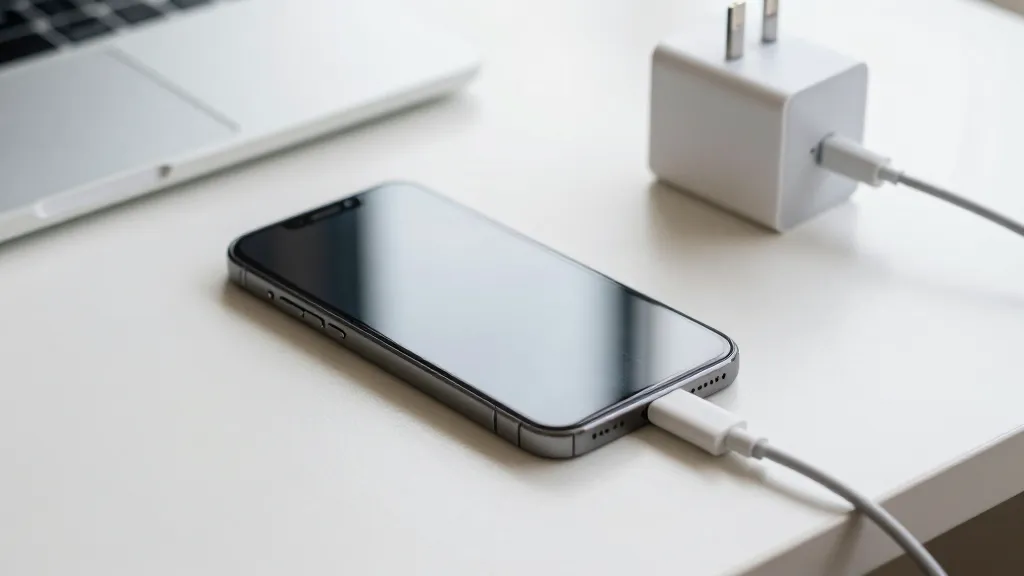
If your iPhone is charging slowly, it can be frustrating, especially when you're in a hurry. This guide will walk you through practical steps to diagnose and fix the issue without needing to visit a repair shop. Whether you're a home user or a busy professional, these solutions are designed to help you resolve the problem quickly and efficiently. The main keyword, How to Fix iPhone Charging Slowly, is at the heart of this troubleshooting guide, which covers everything from checking physical connections to updating your software and managing battery settings.
Check Physical Connections and Accessories
If your iPhone is charging slowly, the issue may stem from physical connections or the accessories you're using. Ensuring a secure and reliable connection between your device and the power source is the first step in diagnosing the problem. A damaged cable, an improperly connected port, or an unstable power source can all contribute to slow charging, so it's essential to check these elements thoroughly.
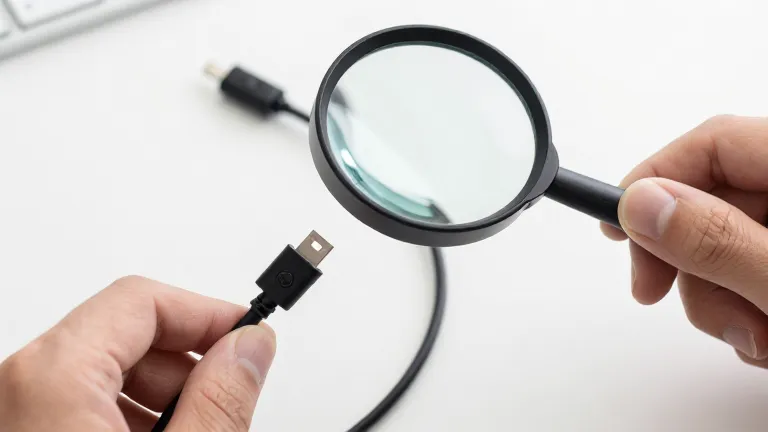
Inspect the Charging Cable for Damage
Start by inspecting the charging cable for any visible signs of wear or damage. Look for frayed wires, exposed copper, or broken connectors, as these can impede the flow of electricity. Even a minor crack or kink in the cable can significantly reduce its effectiveness. If you notice any damage, replace the cable with a high-quality, certified USB cable designed for iPhone charging. Using a non-certified cable may not only slow down the charging process but also pose a risk to your device's battery and overall performance.
Verify the USB Port and Power Source
Next, verify that your iPhone is properly connected to the USB port and that the power source is functioning correctly. Ensure the cable is fully inserted into both the iPhone's charging port and the USB port of the power adapter or computer. A loose connection can lead to inconsistent power delivery, causing slow or interrupted charging. If possible, try plugging the cable into a different USB port or power outlet to rule out external factors. Some USB ports or outlets may not provide enough power to charge your iPhone efficiently, especially if they're shared with other devices.
Update Your iPhone Software
Outdated iOS versions can contribute to slow iPhone charging due to bugs or performance issues. Keeping your device updated ensures it runs efficiently and benefits from the latest optimizations. Regularly checking for software updates is a simple yet effective way to resolve charging problems without requiring professional assistance.
How to Check for iOS Updates
To check for iOS updates, open the Settings app on your iPhone and navigate to General > Software Update. If an update is available, you'll see a prompt to download and install it. Make sure your iPhone is connected to a stable Wi-Fi network and has sufficient battery power before starting the update process. Installing updates promptly helps maintain device performance and security.
Why Software Updates Improve Charging Speed
Software updates often include improvements that enhance charging speed and overall device efficiency. Developers frequently release patches to address bugs that may cause charging delays or inefficiencies. By installing the latest iOS version, you ensure your iPhone is running with the most optimized settings for power management. This proactive approach can significantly reduce or eliminate slow charging issues.
Monitor Battery Health and Settings
Monitoring your iPhone's battery health and settings is crucial for maintaining optimal charging performance. By understanding how your battery is performing and adjusting your charging habits, you can extend its lifespan and improve overall efficiency.
Understanding Battery Health on Your iPhone
To check your iPhone's battery health, navigate to Settings > Battery > Battery Health. This section provides a detailed overview of your battery's condition, including its maximum capacity and any signs of degradation. If your battery has dropped below 80%, it may be time to consider a replacement, as this can significantly impact charging speed and device performance.
How to Enable Optimized Battery Charging
To protect your battery from overcharging and excessive discharge, enable Optimized Battery Charging. This feature learns your daily charging routine and slows down the charging process to 80% once it reaches that threshold, preventing unnecessary stress on the battery. To activate this, go to Settings > Battery > Optimized Battery Charging, and toggle the switch on. This setting is especially beneficial for older devices with degraded batteries.
Reset Network and Settings
Resetting network settings on your iPhone can help resolve issues that may indirectly impact charging performance. While network problems typically don’t directly affect charging, corrupted settings or connectivity issues can sometimes interfere with how your device manages power and resources. If you’ve tried other troubleshooting steps without success, resetting network settings can be a useful next step.
When to Reset Network Settings
Resetting network settings is recommended if you suspect that network-related issues might be affecting your iPhone’s overall performance, including charging behavior. This action clears corrupted data and reconfigures settings related to Wi-Fi, Bluetooth, and cellular connections. While it doesn’t directly impact the charging process, it can help eliminate background processes that may slow down or interfere with charging efficiency.
Steps to Reset Network Settings on iPhone
To reset network settings, open the Settings app and navigate to General > Reset > Reset Network Settings. This will erase saved Wi-Fi passwords, Bluetooth pairings, and other network-related data. After confirming the reset, your iPhone will restart automatically, applying the changes. If you need to re-enter network credentials or reconnect devices, you’ll have to do so after the restart.
Troubleshoot with Diagnostic Tools
If your iPhone continues to charge slowly despite trying the previous troubleshooting steps, it's time to use built-in diagnostic tools to identify potential hardware or software issues. These tools can help pinpoint problems that may not be immediately obvious and provide insights into whether the issue lies with the charging system or other internal components.
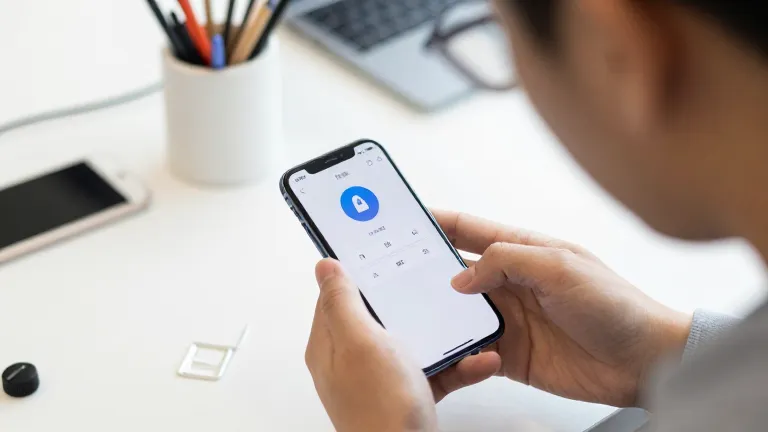
Using Built-In Diagnostics
iPhone includes several built-in diagnostic tools that can help assess the charging system and overall device health. To access these tools, go to Settings > General > About. Tap on the 'Diagnosis' option, which will provide an overview of any issues detected by the system. This section may highlight problems related to the charging port, battery, or other internal hardware components.
When to Seek Professional Help
If the built-in diagnostics do not reveal any specific issues, or if the problem persists, it may be necessary to seek professional help. Apple Support and Apple Stores have access to advanced diagnostic tools and trained technicians who can perform in-depth checks. Contacting Apple Support through the official website or visiting an Apple Store is the best option if your iPhone is still charging slowly after all troubleshooting steps have been completed.
Frequently Asked Questions
Why is my iPhone charging slowly even when connected to a power source?
Slow charging can occur due to a faulty power adapter, USB port, or incompatible charger. Ensure you're using an original Apple charger and cable. Also, check if the port is clean and free of debris.
Can a damaged USB cable cause slow charging on my iPhone?
Yes, a damaged cable can significantly reduce charging speed or prevent charging altogether. Replace the cable with a genuine Apple-certified one to ensure optimal performance.
How do I check if my iPhone's battery is healthy?
Go to Settings > Battery > Battery Health. Here, you can view your battery's maximum capacity. A capacity below 80% may indicate the need for a replacement battery.
What should I do if my iPhone is charging slowly after a software update?
After an iOS update, charging issues may arise due to bugs or compatibility problems. Restart your iPhone and ensure it's connected to a reliable power source. If the issue persists, consider restoring from a backup.
Final Thoughts
Slow iPhone charging can often be resolved by checking physical connections, updating software, and monitoring battery health. If these steps don't resolve the issue, consider resetting settings or seeking professional help.
To ensure your iPhone charges efficiently, always use genuine accessories and keep your device updated. If problems persist, consult Apple support for further assistance.





