How to Fix Wireless Mouse Lagging, Stuttering, or Double Clicking

If your wireless mouse is lagging, stuttering, or double-clicking, it can seriously disrupt your workflow, whether you're working from home or in an office. These issues can be frustrating and difficult to pinpoint, but with the right steps, you can often resolve them without needing professional help. This article covers how to fix wireless mouse lagging, stuttering, or double clicking by exploring common causes, basic troubleshooting methods, and advanced fixes. You'll also learn how to optimize your setup and when it might be time to upgrade your mouse. By following these practical tips, you can restore smooth and responsive mouse performance for better productivity.
Understanding the Causes of Wireless Mouse Issues
Wireless mouse lag, stuttering, or double clicking can significantly impact productivity. Understanding the root causes is essential to resolving these issues effectively. From environmental factors to software misconfigurations, several elements can contribute to poor performance. Identifying the specific cause allows for targeted troubleshooting and long-term solutions.
Common Causes of Wireless Mouse Lag
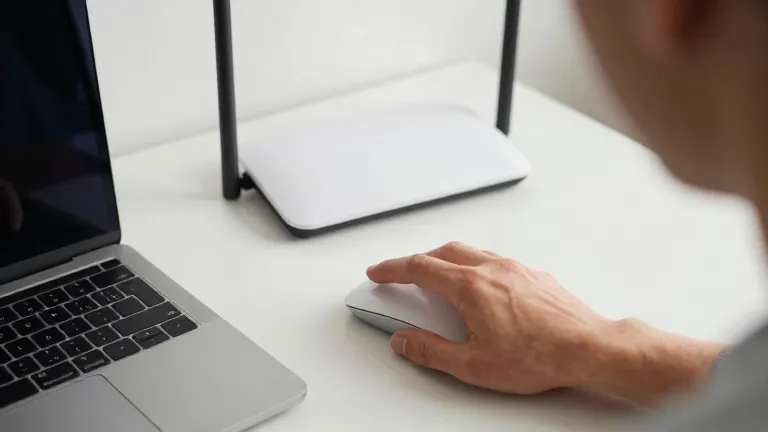
Wireless mouse lag and stuttering are often caused by interference from other electronic devices. Bluetooth or 2.4 GHz wireless signals can be disrupted by routers, microwaves, or even other wireless peripherals. Additionally, outdated or incompatible drivers can lead to inconsistent communication between the mouse and the computer. Physical obstructions or low battery levels in the mouse can also degrade signal strength and result in delayed responses.
Why Your Mouse Might Be Double Clicking
Double clicking issues are typically linked to faulty hardware or incorrect software settings. A worn-out or damaged mouse button can register multiple clicks unintentionally. Some mice have an 'acceleration' setting that might cause the cursor to move too quickly, making it difficult to press the button correctly. Interference from nearby devices can also affect the mouse's ability to register clicks accurately. Checking the mouse's settings and inspecting the physical condition of the buttons can help pinpoint the cause.
Basic Troubleshooting Steps for Wireless Mouse Problems
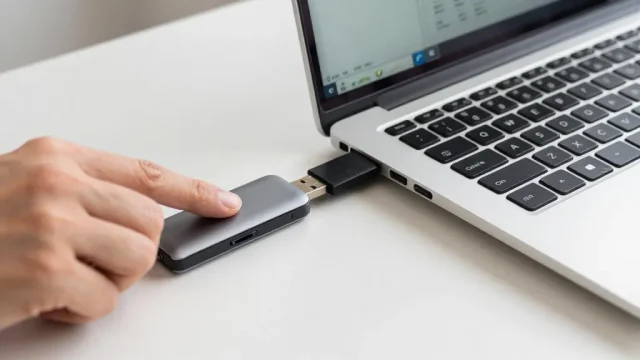
Before diving into more complex solutions, start with the basics. The first step is to check the USB receiver for your wireless mouse. Ensure it is securely plugged into a working USB port on your computer. A loose connection or a faulty port can lead to intermittent connectivity and performance issues. If the receiver is already connected, try moving it to a different USB port, especially one that is closer to the mouse. This can help reduce signal interference and improve communication between the mouse and the computer.
- Check the USB receiver and ensure it is properly connected to the computer.
- Move the receiver to a different USB port, especially one near the mouse.
- Replace or recharge the mouse battery if it is low.
- Close any unnecessary background applications that may be using system resources.
Another common cause of wireless mouse issues is low battery power. Make sure your mouse has a full charge or replace the battery if it is weak. A dying battery can cause the mouse to lag, stutter, or even stop working altogether. Most wireless mice have an indicator light that shows the battery level, so check for any signs of low power. If the battery is low, replace it with a new one or use a high-quality rechargeable battery for better performance.
Background applications can also impact your mouse's performance. Some programs, especially those that use a lot of system resources or bandwidth, can interfere with the mouse's ability to communicate smoothly with the computer. Close any unnecessary programs, such as video streaming services, large file downloads, or background sync tools. This can free up system resources and improve the overall responsiveness of your mouse.
If the problem persists after these steps, consider restarting your computer. A reboot can clear temporary glitches and refresh the system's connection to the mouse. It is a simple but effective way to resolve minor software conflicts that may be affecting your mouse's performance.
Advanced Fixes for Wireless Mouse Lag and Stuttering
Advanced fixes for wireless mouse lag and stuttering often require addressing software and system-level issues. Updating drivers, reinstalling software, and checking for malware can resolve many performance problems. These steps are effective for users who have already tried basic troubleshooting and are experiencing persistent issues.
How to Update Your Mouse Driver
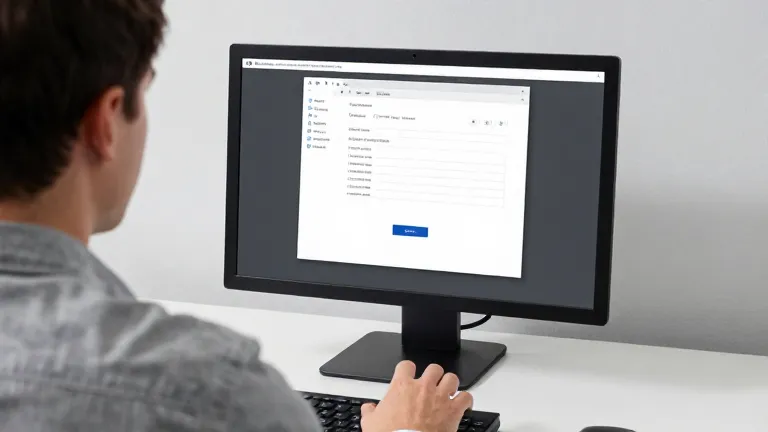
To update your mouse driver, open the Device Manager on Windows and locate your mouse under the 'Mice and other pointing devices' category. Right-click on the device and select 'Update driver.' Choose the option to search automatically for updated driver software. If no updates are found, visit the manufacturer's website and download the latest driver compatible with your operating system. Installing the latest driver can improve compatibility and performance, reducing lag and stuttering.
Reinstalling Mouse Software and Drivers
Reinstalling mouse software and drivers can resolve issues caused by outdated or corrupted files. Uninstall the existing software through the Control Panel or Settings app, then restart your computer. After the restart, download the latest version of the software from the manufacturer's official website. Install the software and ensure it is properly configured. This process can eliminate conflicts and restore optimal mouse performance.
Optimizing Your Wireless Mouse Setup
Optimizing your wireless mouse setup can significantly improve performance and reduce issues like lagging or double-clicking. Start by ensuring your USB receiver is placed as close as possible to your mouse. A shorter distance between the mouse and receiver helps maintain a strong and stable signal, which is crucial for smooth operation. Avoid positioning the receiver behind obstacles or in areas with heavy interference, as this can degrade the connection quality.
- Place the USB receiver close to the mouse to reduce signal interference.
- Avoid positioning the mouse near routers, Bluetooth speakers, or other wireless devices.
- Use a high-quality USB cable and check for any damage to the receiver or cable.
- Consider switching to a wired mouse temporarily if wireless issues persist.
Another key factor is minimizing interference from other wireless devices. Keep your mouse away from routers, Bluetooth speakers, and other Wi-Fi devices that operate on similar frequencies. These devices can cause signal overlap and lead to intermittent connectivity problems. If possible, use a dedicated USB port for the receiver and avoid sharing it with other high-bandwidth peripherals to prevent resource contention.
When to Replace or Upgrade Your Wireless Mouse
If your wireless mouse continues to lag, stutter, or double click despite following all troubleshooting steps, it may be a sign that the device is reaching the end of its lifespan. Over time, internal components such as the sensor or receiver can degrade, leading to inconsistent performance. In such cases, replacing the mouse with a newer model is often the most effective solution. Modern wireless mice are designed with improved signal range, lower latency, and better compatibility with current operating systems, making them a worthwhile investment for reliable performance.
When considering an upgrade, prioritize models that offer advanced features like high polling rates, durable build quality, and support for the latest software updates. These factors contribute to smoother cursor movement and fewer input errors. Ensure the new mouse is compatible with your operating system, as some older models may not function optimally with newer versions of Windows, macOS, or Linux. Checking the manufacturer’s website for compatibility details can help avoid potential issues during setup.
Frequent double clicking can also indicate a faulty internal component, such as a damaged optical sensor or a malfunctioning internal circuit. If this issue persists even after replacing the mouse, it may be necessary to explore alternative input devices, such as a wired mouse or a trackpad. However, if you prefer a wireless setup, look for a mouse with enhanced sensor technology and a reliable receiver to minimize such problems. Ultimately, investing in a high-quality, well-supported wireless mouse can significantly improve your overall computing experience.
Frequently Asked Questions
Why is my wireless mouse lagging even when the battery is full?
Even with a full battery, wireless mouse lag can occur due to interference, outdated drivers, or a faulty USB receiver. Check for nearby devices causing signal interference and ensure your mouse's firmware is up to date.
Can a USB hub cause wireless mouse issues?
Yes, a USB hub can cause wireless mouse issues if it's low-quality or not powered. Using a powered USB hub or connecting the mouse directly to the computer can help resolve connectivity problems.
How do I know if my mouse is double clicking due to a software issue or hardware problem?
Double-clicking can be due to software settings or hardware issues. Check your mouse settings for double-click speed and try using the mouse on another computer. If the issue persists, it may indicate a hardware fault.
Is it worth replacing a wireless mouse that just keeps having connectivity issues?
If your wireless mouse consistently experiences connectivity issues despite troubleshooting, it may be worth replacing it. Persistent problems often indicate a faulty device rather than an easily fixable issue.
Final Thoughts
Wireless mouse issues like lagging, stuttering, or double-clicking often stem from interference, outdated drivers, or hardware faults. A systematic approach, starting with basic troubleshooting and moving to advanced fixes, can often resolve these problems.
If your mouse continues to have issues after trying the recommended steps, consider replacing it. A reliable wireless mouse with good connectivity is essential for smooth performance.