
Fix iPhone Stuck on Black Screen After Software Update
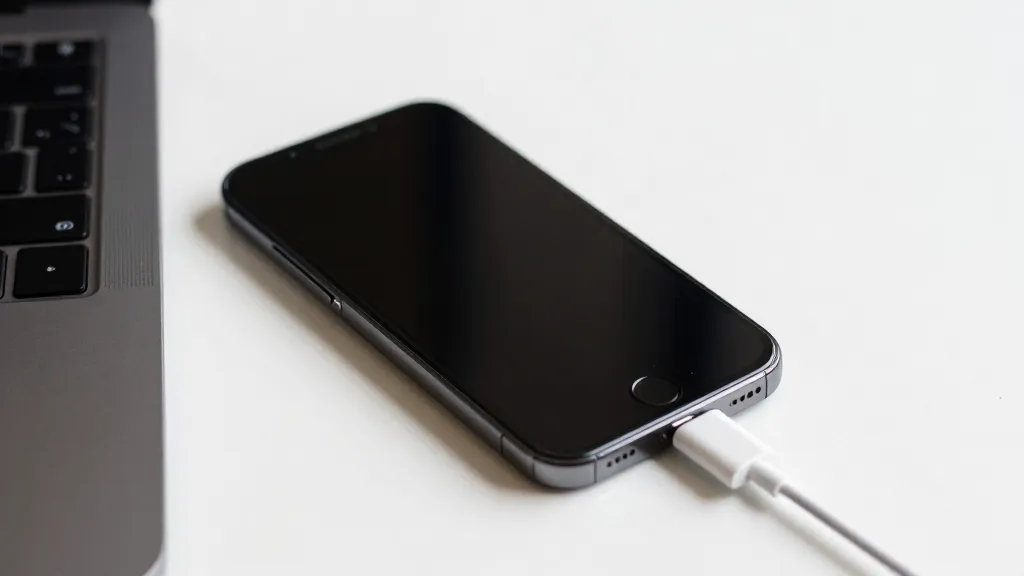
If your iPhone is stuck on a black screen after a software update, it can be frustrating and concerning. This issue often occurs when the update process is interrupted or when there's a compatibility problem with the new software. The main keyword here is how to fix iPhone stuck on black screen after software update. This article will guide you through practical steps to recover your device without losing your data. Whether you're dealing with a software glitch or a more serious hardware issue, we'll help you troubleshoot and resolve the problem effectively.
The first step is to understand what might be causing the black screen. Common issues include a failed update, software conflicts, or even a temporary system crash. Identifying whether the problem is software-related or hardware-related is key to determining the best course of action. We'll walk you through simple checks and recovery methods that most users can perform at home.
As we progress, we'll cover step-by-step solutions, including force restarts, restoring via Finder, and using recovery mode. We'll also discuss how to back up your data and restore it safely. If all else fails, we'll guide you on when to consider more advanced methods like DFU mode or professional assistance. Let's get your iPhone back to normal.
What Causes an iPhone to Get Stuck on a Black Screen After an Update
An iPhone stuck on a black screen after a software update can be caused by a range of issues, from incomplete updates to hardware malfunctions. Understanding the root cause is essential to determining the best course of action. This section explores the most common reasons for this problem and how to distinguish between software and hardware-related issues.

Common Causes of a Black Screen After an Update
One of the most common reasons for an iPhone to get stuck on a black screen after an update is an interrupted or failed update process. If the update was not completed properly, the system files may become corrupted, preventing the device from booting correctly. This can happen if the iPhone loses power during the update or if the update file is incomplete or damaged. In such cases, the device may not display any screen at all, or it may show a black screen with no response.
How to Identify If It's a Software or Hardware Problem
Another possible cause is a software bug or compatibility issue introduced in the latest update. While updates are generally designed to improve performance and security, they can occasionally introduce glitches that affect the device's functionality. These issues may be specific to certain models or configurations, leading to a black screen during startup. In some cases, the problem may be resolved by restarting the device or restoring it through iTunes or Finder. If the issue persists, it may indicate a deeper software conflict that requires more advanced troubleshooting.
Step-by-Step Guide to Fix an iPhone Stuck on Black Screen
If your iPhone is stuck on a black screen after a software update, start with the simplest solutions before moving to more advanced recovery methods. A forced restart, restoring via Finder, or entering recovery mode can resolve the issue without data loss, provided you follow the correct steps.

- Force restart your iPhone by pressing and holding the power button until the power-off slider appears, then slide to power off. Wait 30 seconds, then press and hold the power button again to turn it back on.
- Connect your iPhone to a computer and use Finder to restore it. Ensure your computer meets the system requirements and has the latest version of iTunes installed. Follow the on-screen instructions to restore your device, which will erase all data and settings.
- Enter recovery mode by connecting your iPhone to a computer and pressing and holding the power button until the recovery mode screen appears. Use Finder to select 'Restore' and follow the prompts to reinstall the operating system.
How to Force Restart Your iPhone
A forced restart is the first step to address minor software glitches that may cause the black screen. This process can clear temporary errors and reset the device’s state, allowing it to boot properly. If the issue persists, proceed to more advanced recovery steps.
Restoring Your iPhone via Finder
Restoring your iPhone via Finder is an effective way to resolve software issues that prevent the device from functioning normally. This process will erase all data and settings, so ensure you have a recent backup before proceeding. Follow the on-screen instructions carefully to avoid further complications.
Using Recovery Mode to Fix the Issue
Using recovery mode allows you to fix software issues without losing data, provided you have a backup. This method reinstalls the operating system and can resolve deeper system errors. It is recommended for users who are comfortable with technical processes and have access to a compatible computer.
Avoiding Data Loss During the Fix
Before attempting any recovery steps, it’s crucial to protect your data by creating a backup. This ensures that even if something goes wrong during the fix, your important information remains safe. You can use either iCloud or iTunes to back up your iPhone, both of which are reliable and straightforward methods.
Backing Up Your iPhone Before Recovery
Backing up your iPhone before recovery is a simple yet vital step. If your device is unresponsive, you can connect it to a computer and use iTunes to create a backup. This process copies all your data, including photos, messages, and app information, to your computer. Alternatively, if your iPhone is still functional enough to connect to Wi-Fi, you can use iCloud to back up your device. Ensure that your iCloud storage is sufficient to accommodate your data, and remember to keep your Apple ID credentials handy for access.
Restoring Data From iCloud or iTunes
Once your iPhone is working again, restoring your data from a backup is the next step. If you used iTunes, connect your device to the same computer and open iTunes. Select your iPhone and click 'Restore Backup' to retrieve your data. For iCloud backups, sign in with your Apple ID and follow the on-screen instructions to restore your device. Both methods are secure and do not require third-party tools. Avoid using any untrusted software for data recovery, as they may pose risks to your privacy and data integrity.
What to Do If the iPhone Still Won’t Turn On
If your iPhone remains unresponsive after attempting all basic troubleshooting steps, it's time to explore more advanced recovery options. DFU mode is a powerful tool for resolving deep software issues, but it requires careful execution. If physical damage is suspected, inspecting the device for signs of damage can help determine whether the problem lies with the hardware or software.

Using DFU Mode for Advanced Recovery
DFU mode allows you to restore your iPhone without the device displaying any screen, making it ideal for unresponsive devices. To enter DFU mode, connect your iPhone to a computer and use iTunes (or Finder on macOS Catalina and later) to initiate the process. Hold the Side button until the screen goes black, then press and hold the Volume Down button for 10 seconds. Release the Side button but keep the Volume Down button pressed until iTunes detects the device in DFU mode. Follow the on-screen instructions carefully to complete the restoration process.
When to Seek Professional Help
If your iPhone still won't power on after attempting DFU mode, it may indicate a hardware issue. Physical damage such as a cracked screen, water exposure, or internal component failure can prevent the device from functioning correctly. Inspect the iPhone for visible signs of damage, such as cracks, water stains, or swollen battery. If you notice any of these, it's best to consult a professional repair service. Attempting to repair the device yourself could worsen the problem, leading to further damage or data loss. In such cases, seeking assistance from an Apple-authorized service provider ensures a safe and effective resolution.
Preventing Future Issues with iPhone Updates
Preventing future issues with iPhone updates involves proactive steps to ensure a smooth and successful process. By following best practices and staying informed, users can reduce the risk of encountering problems during or after an update.
Best Practices for a Successful Update
Before initiating an iPhone update, it is essential to ensure the device has sufficient battery. A minimum charge of 50% is recommended to avoid unexpected shutdowns during the update process. Additionally, connect your iPhone to a stable Wi-Fi network to prevent interruptions that could lead to a corrupted update. Keeping the device connected to a power source during the update further minimizes the risk of issues arising from incomplete installation.
How to Stay Informed About Software Issues
Staying informed about potential issues with the latest iOS version is equally important. Check official Apple support pages, forums, and user reviews to identify any known bugs or compatibility problems. Subscribing to Apple’s software update notes and following trusted tech blogs can provide early warnings about potential issues. By being aware of common problems, users can make informed decisions about whether to proceed with an update or wait for a patch, reducing the likelihood of encountering a black screen or other complications.
Frequently Asked Questions
What should I do if my iPhone is stuck on a black screen after an update?
If your iPhone is stuck on a black screen after an update, start by force restarting it. If that doesn't work, try restoring via Finder or using Recovery Mode. Always back up your data before attempting recovery.
Can I recover data from an iPhone that is stuck on a black screen?
Yes, you can recover data from an iPhone stuck on a black screen, but it depends on the situation. Use iCloud or iTunes backups if available. In some cases, professional data recovery tools may be necessary.
Will using recovery mode erase my data?
Using Recovery Mode can erase your data if you restore from scratch. Always back up your iPhone before attempting a recovery. If you restore from a backup, your data should be preserved.
How can I prevent my iPhone from getting stuck on a black screen during an update?
To prevent an iPhone from getting stuck on a black screen during an update, ensure your device has sufficient battery, use a stable Wi-Fi connection, and avoid interrupting the update process. Regular backups are also essential.
Final Steps and Recommendations
Fixing an iPhone stuck on a black screen after an update involves understanding the cause, trying recovery methods, and preventing future issues. Always back up your data before attempting any recovery steps.
If your iPhone remains unresponsive, consider using DFU Mode or seeking professional help. Stay informed about software updates and follow best practices to ensure a smooth update process.





