
How to Connect Smart Home Devices to Google Home
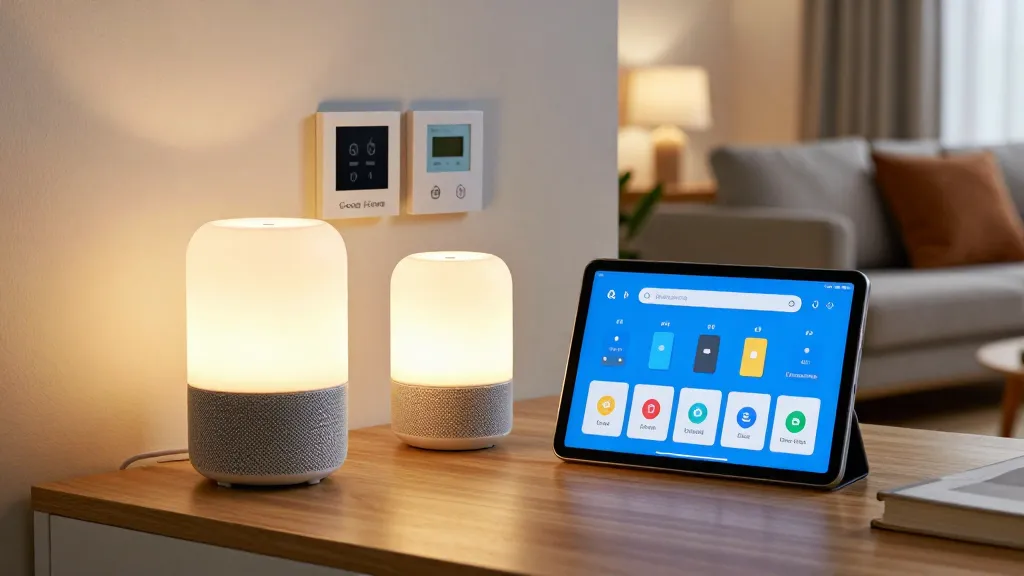
Connecting your smart home devices to Google Home can transform your home into a more convenient and efficient space. Whether you're looking to control lights, thermostats, or security systems with simple voice commands, the process of how to connect smart home devices to Google Home is essential for unlocking these benefits. This article guides you through the steps to seamlessly integrate your devices, ensuring they work together as intended.
Before you start, it's important to verify that your devices are compatible with Google Home. Most modern smart devices are designed to work with Google Assistant, but a quick check will save you time and frustration. Once you confirm compatibility, the next step is to prepare your Google Home app and account for a smooth setup.
This guide covers everything from setting up your Google Home account to troubleshooting common issues that may arise during the process. Whether you're a homeowner or a tech-savvy user, these steps will help you integrate your smart home ecosystem effectively and enjoy the convenience of voice-controlled automation.
Preparation Before Connecting Smart Home Devices
Before connecting your smart home devices to Google Home, it's essential to prepare properly to ensure a smooth setup process. This includes verifying compatibility, updating your apps, and checking your network conditions. These steps help avoid common issues and ensure your devices work seamlessly with Google Home.
Check Compatibility with Google Home
Ensure all your smart devices are compatible with Google Home. Most devices are designed to work with Google Assistant, but it's important to confirm compatibility before purchasing or setting up. You can check the manufacturer's website or look for the Google Home logo on the product packaging. Some devices may require specific firmware or app support to function correctly with Google Home.
Update Your Google Home App
Verify that you have the latest version of the Google Home app installed on your smartphone or tablet. The app receives regular updates that improve functionality, security, and compatibility with new devices. To update, open the Google Play Store or App Store and check for available updates. If you're using an older version, it may not support certain features or devices, leading to connection issues.
Setting Up Your Google Home Account
Setting up your Google Home account is a crucial step in ensuring seamless integration of your smart home devices. By properly configuring your account, you lay the foundation for reliable communication between your devices and Google Assistant.
Link Your Google Account to the App
To begin, open the Google Home app on your smartphone or tablet and log in with your Google account. This account must be the same one associated with your Google Assistant, as it ensures consistent voice command recognition and device control. If you're using a new device, make sure it's already linked to your Google account before proceeding. Once logged in, the app will automatically detect any previously registered devices, allowing you to manage them from a single interface.
Enable Location Services for Better Accuracy
Enabling location services on your Google account enhances the accuracy of device pairing and improves the overall performance of your smart home setup. To activate this, go to your Google account settings and ensure location services are turned on. This allows Google Home to determine your location, which is essential for features like geofencing and personalized automation. Keeping location services enabled also helps in resolving pairing issues by providing real-time data about your environment. Make sure your device's location permissions are set to 'Allow' to ensure optimal functionality.
Adding Smart Home Devices Through the Google Home App
Adding smart home devices to Google Home is a straightforward process that can be completed through the Google Home app. Once you’ve prepared your devices and set up your account, the app guides you through connecting new gadgets to your smart home ecosystem.
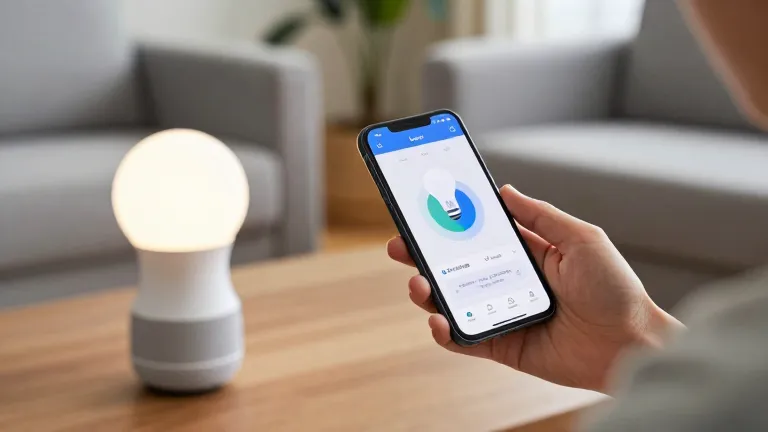
- Open the Google Home app and select 'Add' to start the setup process.
- Choose the type of device you want to connect and follow the on-screen instructions.
- Enter the device code if required, or scan the QR code.
- Wait for the device to connect and confirm it is recognized by Google Home.
Selecting the Correct Device Type
Selecting the correct device type is crucial for a successful setup. The Google Home app categorizes devices into types such as lights, thermostats, and smart speakers. Choose the category that matches your device to ensure compatibility and proper functionality.
Using QR Codes or Device Codes for Setup
Using QR codes or device codes simplifies the setup process. If your device has a QR code, scan it through the app to automatically input the necessary information. For devices without a QR code, enter the unique code provided in the device’s manual or packaging. This method ensures accurate pairing and reduces the chance of errors.
Troubleshooting Common Connection Issues
Troubleshooting common connection issues is essential to ensure your smart home devices work seamlessly with Google Home. If your device fails to connect, it may be due to incorrect setup, network problems, or device-specific settings. Following a few targeted steps can help identify and resolve these issues quickly.
Device Not Connecting? Check Pairing Mode
If your device is not connecting to Google Home, the first step is to ensure it is in pairing mode. Most smart devices have a specific process to enter pairing mode, which usually involves pressing a button on the device or using a mobile app. Check the device's manual for instructions on how to activate pairing mode. If the device is not in pairing mode, it will not be recognized by the Google Home app.
Wi-Fi and App Restart Tips
Restarting your Wi-Fi router and the Google Home app can resolve many connectivity problems. A simple restart can refresh your network connection and clear temporary glitches. To do this, unplug your router for about 30 seconds and then reconnect it. After restarting your router, open the Google Home app and check if the device appears in the list. If it does not, try restarting the app and your phone as well. If the issue persists, check for any error messages in the app and follow the on-screen instructions to resolve them.
Using Your Smart Home Devices with Google Home
Once your smart home devices are successfully connected to Google Home, you can take full advantage of voice control and automation to simplify daily tasks. Google Home allows you to manage your devices effortlessly through voice commands, and you can also set up custom routines to automate multiple actions at once.
Voice Commands for Smart Device Control
Voice commands are a convenient way to control your smart home devices without needing to use your phone or a physical remote. Simply say, 'Hey Google, turn on the living room lights,' or 'Hey Google, set the thermostat to 72 degrees.' Google Home will execute these commands if the devices are properly set up and recognized in your account. For more complex interactions, you can also use specific device names or phrases like 'Hey Google, stop the music' to control a smart speaker.
Creating Automation Routines with Google Home
Creating automation routines allows you to streamline multiple actions with a single command. For example, you can create a 'Goodnight' routine that turns off the lights, locks the doors, and adjusts the thermostat to a sleep-friendly temperature. To set up these routines, open the Google Home app, go to the 'Routines' section, and follow the on-screen instructions to select the devices and actions you want to include. These routines can be triggered by voice commands, time-based schedules, or other smart home events, making your home more efficient and responsive.
Frequently Asked Questions
What should I do if my smart device won't connect to Google Home?
Ensure your device is compatible and in pairing mode. Check your Wi-Fi connection and restart the Google Home app. If issues persist, try resetting the device or contacting the manufacturer.
Can I connect multiple smart devices to one Google Home?
Yes, you can connect multiple smart devices to a single Google Home device. Ensure each device is compatible and properly set up through the Google Home app.
How do I update my Google Home app to the latest version?
Open the Google Home app, go to the menu, and select 'Settings'. From there, check for updates or download the latest version from the app store.
What if my smart device is not compatible with Google Home?
Check the Google Home compatibility list for your device. If it's not supported, consider using a smart hub or a different voice assistant that supports your device.
Final Thoughts
Connecting smart devices to Google Home is a straightforward process that enhances convenience and control. By following the steps outlined, you can ensure a smooth setup and enjoy the benefits of smart home automation.
To begin, verify compatibility, update your app, and follow the setup guide. Once connected, use voice commands and automation routines to streamline your daily tasks.





