
How to Fix Smart Plug Offline and Won’t Reconnect to App
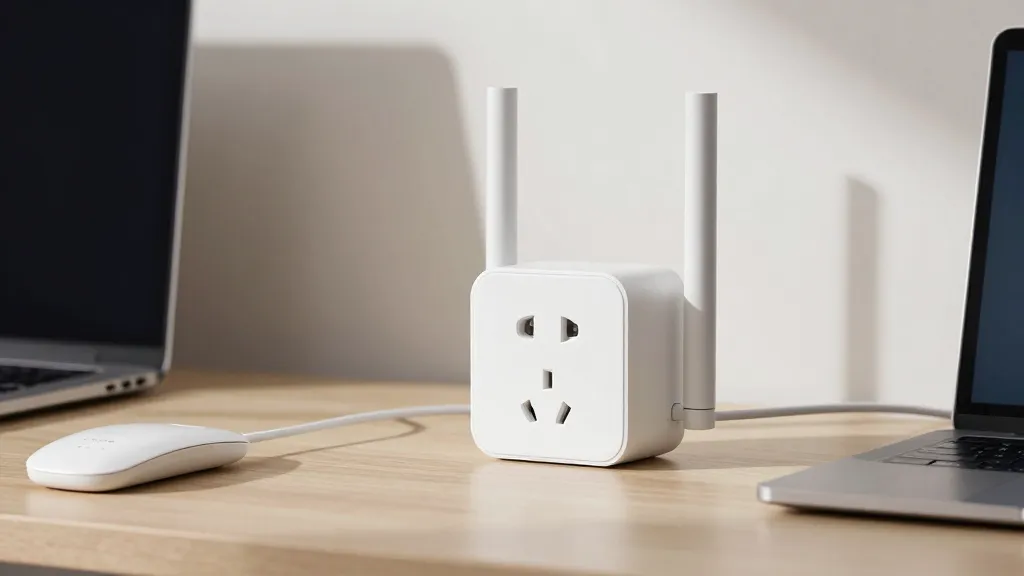
If your smart plug has gone offline and won't reconnect to your app, it can disrupt your smart home routine. Whether you're trying to control a device remotely or automate tasks, a disconnected smart plug can be frustrating. This article provides a clear guide on How to Fix Smart Plug Offline and Won't Reconnect to App, helping you restore connectivity with practical steps. We'll walk you through identifying the root cause, reinitializing the device, and ensuring your network is optimized for reliable performance. By following these steps, you can troubleshoot and resolve the issue efficiently, without needing to replace your smart plug or seek professional help.
Understanding Why Your Smart Plug Is Offline
A smart plug going offline can be frustrating, especially when it disrupts your smart home setup. Understanding the underlying reasons for this issue is the first step toward resolving it. Whether it’s a network problem, a firmware glitch, or a hardware malfunction, identifying the root cause can save time and prevent unnecessary troubleshooting.
Common Causes of Smart Plug Offline Issues
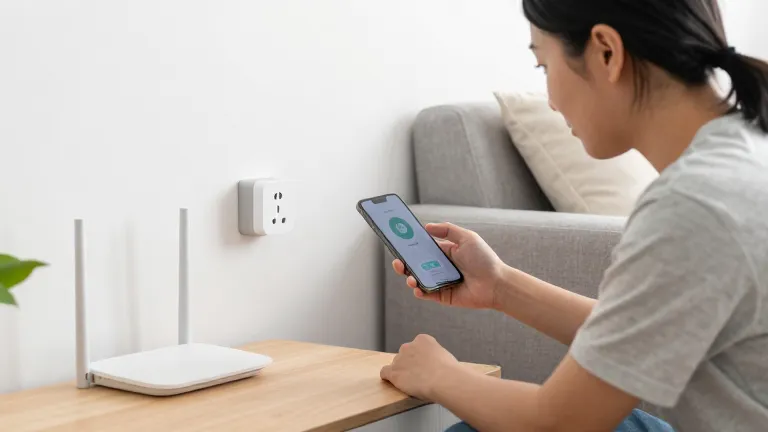
Smart plugs can go offline due to a range of issues, from unstable Wi-Fi connections to outdated firmware. A weak or inconsistent Wi-Fi signal is one of the most common culprits, especially if your router is far from the plug or if there are physical obstructions blocking the signal. Incorrect router settings, such as a misconfigured Wi-Fi password or an incompatible frequency band, can also lead to connectivity problems. Additionally, firmware errors or bugs in the smart plug’s software might cause it to disconnect unexpectedly. In some cases, a hardware malfunction, such as a faulty power supply or internal circuitry, could be the source of the issue.
How to Determine If the Problem Is Local or Network-Wide
To determine if the problem is isolated to your smart plug or affects your entire network, check other devices connected to the same Wi-Fi network. If other smart devices are also offline or experiencing connectivity issues, the problem is likely network-wide. This could indicate a router malfunction, a power outage, or a broader issue with your internet service provider. However, if only your smart plug is offline, the issue is likely specific to the device itself. In such cases, restarting the plug, checking its firmware, or resetting it might resolve the problem. Identifying whether the issue is local or network-wide helps narrow down potential solutions and avoids unnecessary troubleshooting of unrelated components.
Step-by-Step Guide to Reconnecting Your Smart Plug
Reconnecting your smart plug to the app requires a systematic approach to ensure all components are working correctly. Start with the basics before diving into the app, as many issues can be resolved with simple troubleshooting.
- Verify the smart plug is plugged into a working power outlet and that the Wi-Fi router is powered on.
- Restart both the smart plug and the router to refresh the network connection.
- Open the app and ensure you're logged in with the correct account that owns the device.
- Scan for new devices within the app to detect the smart plug and initiate the pairing process.
Basic Checks Before Reconnecting
Before attempting to reconnect the smart plug, check that it is properly plugged into a working power outlet. If the plug is not receiving power, it won't be able to connect to the Wi-Fi network. Also, confirm that your router is active and functioning. A router that is off or malfunctioning can prevent the smart plug from establishing a connection.
Reconnecting the Smart Plug Using the App
Once the basic checks are complete, open the app and log in to your account. Ensure that the account is the one linked to the smart plug. If you're not logged in, the app won't recognize the device. Tap the 'Add Device' or 'Scan for New Devices' option within the app. The app should detect the smart plug if it's within range and connected to the same Wi-Fi network. Follow the on-screen instructions to complete the reconnection process.
Troubleshooting Network and Router Issues
Smart plug connectivity issues often stem from router settings or environmental interference. Ensuring your router is configured correctly and minimizing disruptions in your home's Wi-Fi environment can significantly improve the device's ability to reconnect. Addressing these factors can help resolve offline issues and restore stable communication between your smart plug and the app.
How to Check Your Router's 2.4GHz Settings
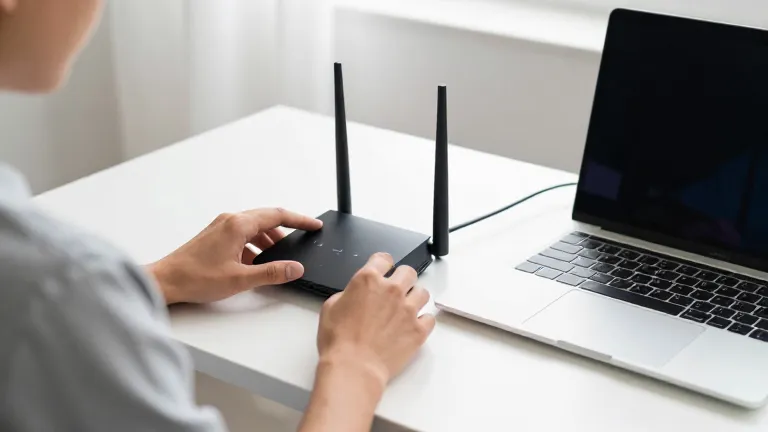
Most smart plugs operate on the 2.4GHz frequency band due to its wider range and compatibility with older devices. Verify your router is broadcasting on this band by checking the wireless settings in your router's admin panel. Some routers offer dual-band functionality, allowing both 2.4GHz and 5GHz networks. Ensure your smart plug is connected to the 2.4GHz network, as it may not support the 5GHz frequency. If your router is set to prioritize 5GHz, switch the network to 2.4GHz and restart your smart plug to re-establish the connection.
Reducing Wi-Fi Interference in Your Home
Other household devices, such as microwaves, cordless phones, and Bluetooth gadgets, can interfere with Wi-Fi signals. These devices often operate on the same 2.4GHz frequency, creating signal congestion and reducing the smart plug's ability to connect. To mitigate this, position your router away from such devices and use a Wi-Fi analyzer app to identify the least congested channel. Adjusting your router's channel settings to a less crowded one can improve signal strength and reduce interference. Additionally, keeping your router's firmware updated can enhance performance and reduce susceptibility to external disruptions.
Resetting Your Smart Plug and Reinitializing the Connection
Resetting your smart plug can resolve persistent connectivity issues and allow it to reconnect to your network. This process typically clears temporary errors and resets the device's internal settings, which may help it reestablish a stable connection. However, it is important to follow the correct reset procedure for your specific model to avoid damaging the device.
- Locate the reset button on your smart plug, which is often a small pinhole or recessed button near the power port.
- Use a paperclip or similar tool to press and hold the reset button for 10 to 30 seconds, depending on your model's instructions.
- Release the button and wait for the plug to power off and then power back on, which usually takes a few seconds.
- Once the plug has restarted, open your smart plug app and follow the setup instructions to re-pair the device.
How to Reset Your Smart Plug
Resetting your smart plug is a straightforward process that can resolve many connectivity issues. Different models may have slightly different reset procedures, so it is crucial to consult the user manual or manufacturer guidelines. If you are unsure about the exact location of the reset button, check the device's packaging or the app's support documentation.
Reinitializing the Smart Plug After a Reset
After resetting your smart plug, you must reinitialize the connection through the app to ensure it is properly paired with your account. During the setup process, the app will guide you through steps like selecting your Wi-Fi network and entering the password. It is important to ensure that your smartphone or tablet is connected to the same Wi-Fi network as the smart plug during this process. If the plug still fails to connect, try restarting your router or checking for any network interference.
Advanced Tips for Maintaining Smart Plug Connectivity
Maintaining consistent connectivity with your smart plug requires proactive management of both your device and your home network. Regular maintenance and optimization can prevent future issues and ensure smooth operation of your smart home ecosystem.
Keeping Your Smart Plug and Router Updated
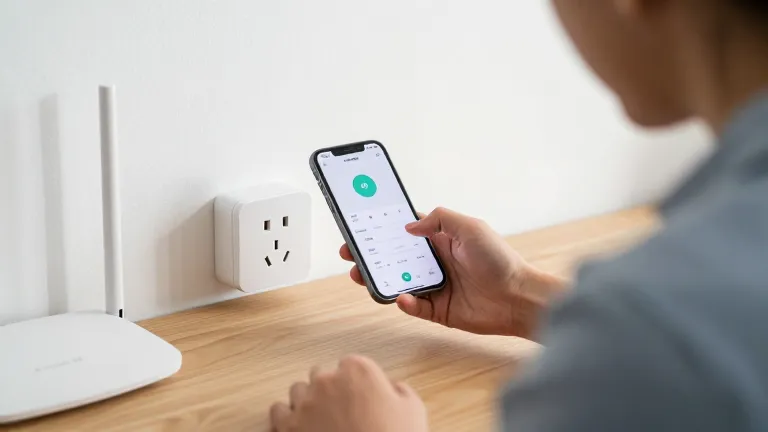
Firmware updates for your smart plug and router are essential for maintaining security, stability, and compatibility. Manufacturers often release updates to fix bugs, improve performance, and address potential vulnerabilities. Check for updates through the smart plug's app or your router's admin panel periodically. Ensure both devices are running the latest versions to avoid compatibility issues and enhance overall system reliability.
Improving Your Home's Wi-Fi Coverage
A mesh Wi-Fi system can significantly improve your home's network coverage, especially in larger spaces or areas with signal dead zones. These systems use multiple nodes to distribute the Wi-Fi signal evenly, reducing interference and ensuring your smart plug remains connected. If you experience intermittent connectivity, consider investing in a mesh network to create a more robust and reliable environment for your smart devices.
Frequently Asked Questions
What should I do if my smart plug is offline and won't reconnect to the app?
Start by checking the basics: ensure the plug is powered, the Wi-Fi is working, and the app is updated. If it's still offline, try a factory reset and re-pair the plug through the app.
How can I tell if my smart plug is using the 2.4GHz Wi-Fi band?
Most smart plugs connect to the 2.4GHz band automatically. Check your router's settings to confirm the band your plug is connected to, or look for a 2.4GHz-specific network in your app.
Can a weak Wi-Fi signal cause my smart plug to go offline?
Yes, a weak signal can lead to intermittent connectivity. Ensure the plug is within range of your router and consider using a Wi-Fi extender if needed.
What happens if I reset my smart plug and it still doesn't reconnect?
Resetting the plug clears its previous network settings. If it still doesn't reconnect, check your router's settings, ensure your Wi-Fi is stable, and try re-pairing the plug again.
Final Thoughts
Maintaining a stable connection for your smart plug requires regular checks on your Wi-Fi, router settings, and app updates. If issues persist, consider resetting the plug and re-pairing it carefully.
By following these steps, you can ensure your smart plug remains connected and functional. If you're still facing issues, consult the manufacturer's support for further assistance.





