
How to Fix Ring Doorbell Not Ringing Inside House Mechanical Chime
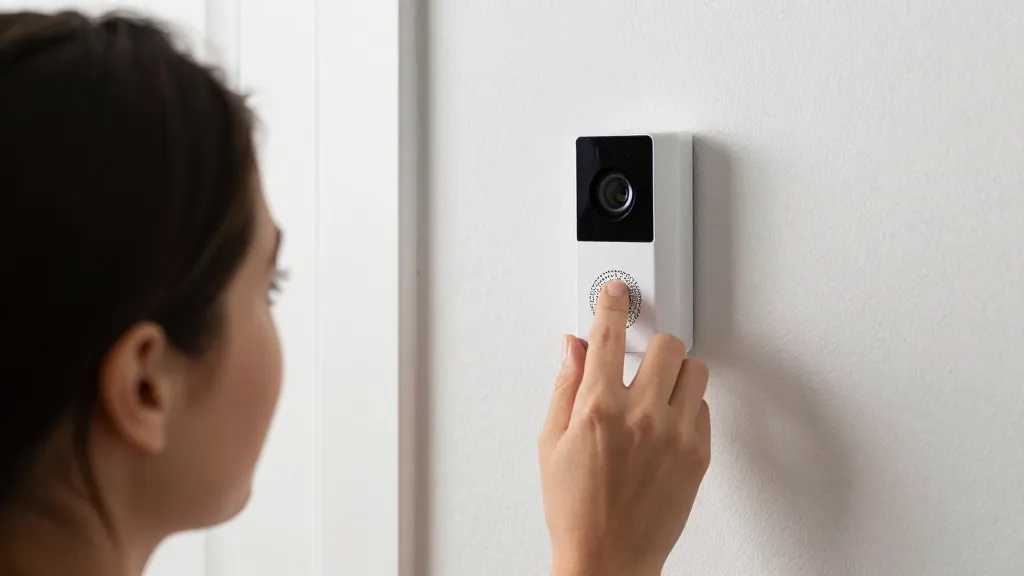
If your Ring doorbell isn't ringing the mechanical chime inside your house, it can be frustrating, especially when you're expecting a visitor. This issue may stem from a variety of factors, including app settings, electrical problems, or a faulty chime. The main keyword here is How to Fix Ring Doorbell Not Ringing Inside House Mechanical Chime, which is a common concern for homeowners using Ring devices. This article provides a clear, step-by-step guide to help you identify and resolve the problem effectively.
We'll start by checking the Ring app settings to ensure that the chime is properly configured and the device is online. Next, we'll explore the transformer voltage, which is essential for the chime to function correctly. If the electrical supply is weak or unstable, the chime may not activate at all.
After verifying the power source, we'll move on to inspecting the mechanical chime itself—checking its physical connections and testing its functionality. If the chime is damaged or not working, we'll guide you through replacing it with a compatible model. For persistent issues, we'll cover advanced troubleshooting steps like resetting the device and reinstalling the app. This comprehensive approach ensures you can restore your Ring doorbell's chime without professional help.
Check the Ring App Settings
Before addressing hardware or wiring issues, it's essential to verify that the Ring app is correctly configured to trigger the mechanical chime. Misconfigurations in the app can prevent the chime from activating even if the physical components are functional.
Confirm Ring App Chime Settings
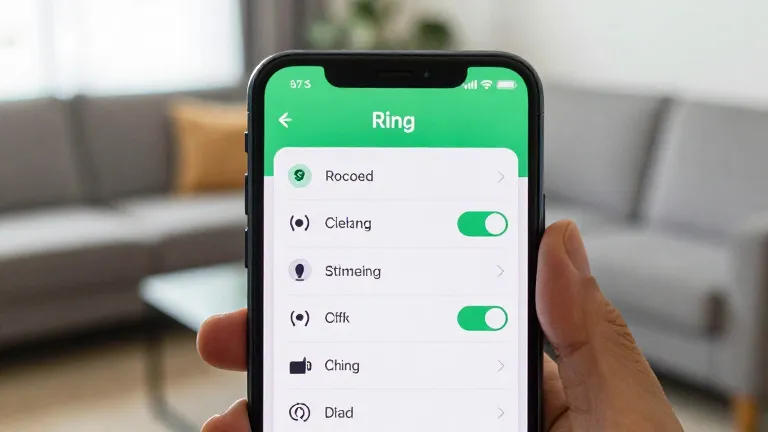
Open the Ring app and navigate to the 'Devices' section. Select your Ring Doorbell and check the settings to ensure the chime is enabled. Look for options related to 'Chime' or 'Notification Settings' and confirm that the chime is selected as the default method for alerts. If multiple chimes are installed, ensure the correct one is designated as the primary chime for doorbell notifications.
Verify Ring Doorbell Device Status
Ensure the Ring Doorbell device is connected and functioning correctly. Tap on the device to view its status; it should show as 'Online' and with a green indicator. If the device is offline or shows a warning, check your Wi-Fi connection and restart the app. A stable internet connection is crucial for the app to communicate with the doorbell and trigger the chime properly.
Inspect the Transformer Voltage
The transformer is a crucial component in powering your Ring doorbell and its internal mechanical chime. If the chime isn't ringing, it may be due to insufficient voltage from the transformer. Understanding the power requirements and testing the voltage can help identify and resolve this issue.
Understanding Ring Doorbell Power Requirements
The Ring doorbell system typically requires a transformer that provides 16 to 24 volts AC. This voltage ensures the chime and other components receive enough power to function properly. If the transformer is not delivering this range, the chime may not activate. It's important to check the transformer's specifications to confirm it matches the Ring system's requirements.
How to Test Transformer Voltage
To test the transformer voltage, use a multimeter set to the AC voltage setting. Locate the transformer, usually near the electrical panel or outside the home, and identify the two wires connected to it. Touch the multimeter probes to the terminals of the transformer to measure the output voltage. A reading between 16 and 23 volts indicates the transformer is functioning correctly. If the voltage is too low or inconsistent, the transformer may need replacement.
Troubleshoot the Mechanical Chime
Troubleshooting the mechanical chime involves verifying its physical connection and ensuring it functions correctly. A properly connected chime is essential for the doorbell to trigger the internal sound. If the chime is not working, start by checking its physical connection and then test its functionality to identify any issues.
Check Physical Connection of the Chime
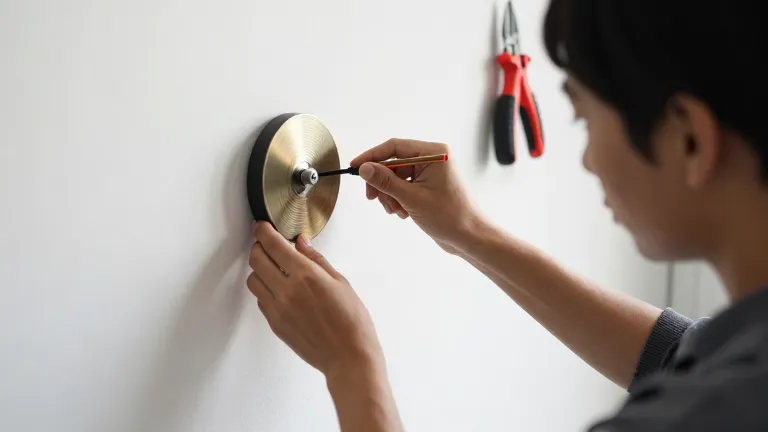
Begin by locating the mechanical chime, typically mounted near the door or in a nearby wall. Ensure the chime is securely attached to the doorbell mechanism. If the chime is loose or disconnected, reattach it firmly and check for any signs of wear or damage. A loose or broken connection can prevent the chime from activating when the doorbell is pressed.
Test Mechanical Chime Functionality
To test the mechanical chime's functionality, use a multimeter to check if it is receiving power. Set the multimeter to the voltage setting and touch the probes to the chime’s terminals. A reading of approximately 12 to 24 volts indicates the chime is receiving power. If no voltage is detected, the issue may lie with the wiring or the power supply. If the chime is receiving power but still not functioning, inspect the internal mechanism for obstructions or damage that may be preventing it from ringing.
Replace the Ring Doorbell Chime
Replacing the Ring Doorbell Chime is a straightforward process that can restore the internal chime functionality. Before proceeding, ensure you have the correct replacement chime and follow the manufacturer's guidelines to avoid damage to your system.
- Locate the chime unit, usually mounted near the front door or in the hallway.
- Turn off the power to the chime at the circuit breaker to ensure safety during installation.
- Remove the old chime by unscrewing the mounting plate and disconnecting the wires.
- Install the new chime by connecting the wires in the same configuration and securing it to the wall.
- Restore power to the chime and test it using the Ring app or by triggering the doorbell.
How to Replace a Ring Doorbell Chime
To replace the Ring Doorbell Chime, start by identifying the location of the existing chime. It is typically installed near the front door or in a central hallway area. Ensure the power is disconnected to the chime at the circuit breaker to prevent electrical hazards. Once the power is off, carefully remove the old chime by unscrewing the mounting plate and disconnecting the wires. Take note of the wire connections to ensure the new chime is installed correctly.
Verify Compatibility of Replacement Chime
Before purchasing a replacement chime, verify compatibility with your Ring doorbell model. Check the product specifications or consult the Ring website to ensure the chime is designed for your specific device. Some models may require a specific type of chime or additional wiring. Using an incompatible chime can lead to malfunction or damage to the system. Always refer to the manufacturer's instructions for proper installation and to avoid voiding any warranty.
Advanced Troubleshooting for Persistent Issues
If your Ring doorbell and mechanical chime still fail to ring after basic troubleshooting, consider advanced steps to resolve the issue. These methods focus on resetting the system and re-establishing the connection between the device and the app, which can often resolve persistent problems.
Resetting the Ring Doorbell and Chime
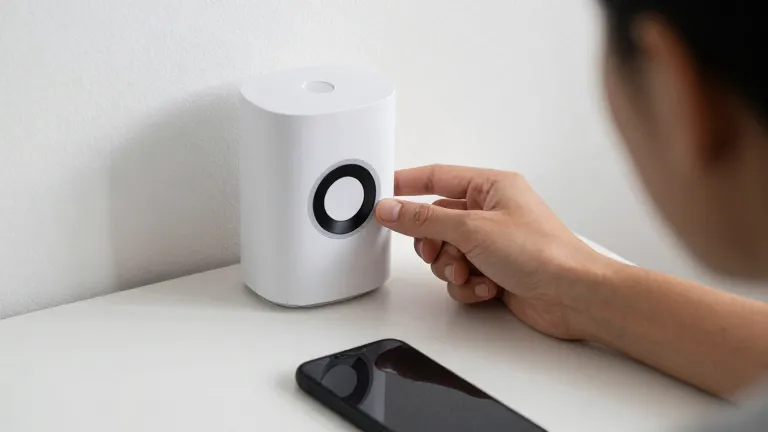
To reset your Ring doorbell and chime, start by removing the device from the Ring app. Hold the doorbell button for 15 seconds until the light turns off, then reinsert the battery or reconnect to power. Next, remove the chime from the app and press the chime button for 15 seconds until it turns off. Reinstall both components in the app and follow the setup process again. This clears any temporary glitches and ensures the devices are recognized correctly.
Reinstalling the Ring App and Device
Reinstalling the Ring app can help fix connectivity issues or software conflicts. Uninstall the app from your device, then download the latest version from the official app store. Launch the app and sign in to your account. Follow the on-screen instructions to reconnect your doorbell and chime. Ensure your device is updated to the latest operating system version to avoid compatibility issues. If the problem persists, proceed to contact Ring support for further assistance.
Frequently Asked Questions
Why is my Ring doorbell not ringing the chime inside the house?
Your Ring doorbell may not be ringing the chime inside due to incorrect app settings, low transformer voltage, or a faulty mechanical chime. Check the Ring app for chime settings, verify the device status, and inspect the transformer voltage for proper power supply.
How do I check if the transformer is providing enough voltage?
Use a multimeter to test the transformer voltage. A Ring doorbell typically requires around 16V to 24V AC. If the voltage is below this range, the chime may not activate, and you may need to replace or adjust the transformer.
What should I do if the mechanical chime is not working?
Inspect the physical connection of the chime and ensure it is securely attached to the doorbell. Test the chime's functionality by pressing the test button on the Ring app. If it still does not work, consider replacing the chime with a compatible model.
Can I replace the chime myself, and what do I need?
Yes, you can replace the chime yourself. You will need a compatible Ring doorbell chime, a screwdriver, and possibly a multimeter to check voltage. Ensure the new chime is compatible with your Ring system and follow the installation steps provided by Ring.
Next Steps and Final Tips
Fixing a Ring doorbell that isn't ringing the chime inside the house involves checking app settings, transformer voltage, and mechanical chime functionality. A systematic approach, starting with the Ring app and moving to hardware checks, can resolve most issues. If the problem persists, advanced troubleshooting steps like resetting the device or reinstalling the app may be necessary.
Ensure you have the correct tools and a compatible replacement chime if needed. If you're unsure about any step, consult Ring's support resources or a professional technician for further assistance.





