
How to Fix iPhone Microphone Not Working During Phone Calls
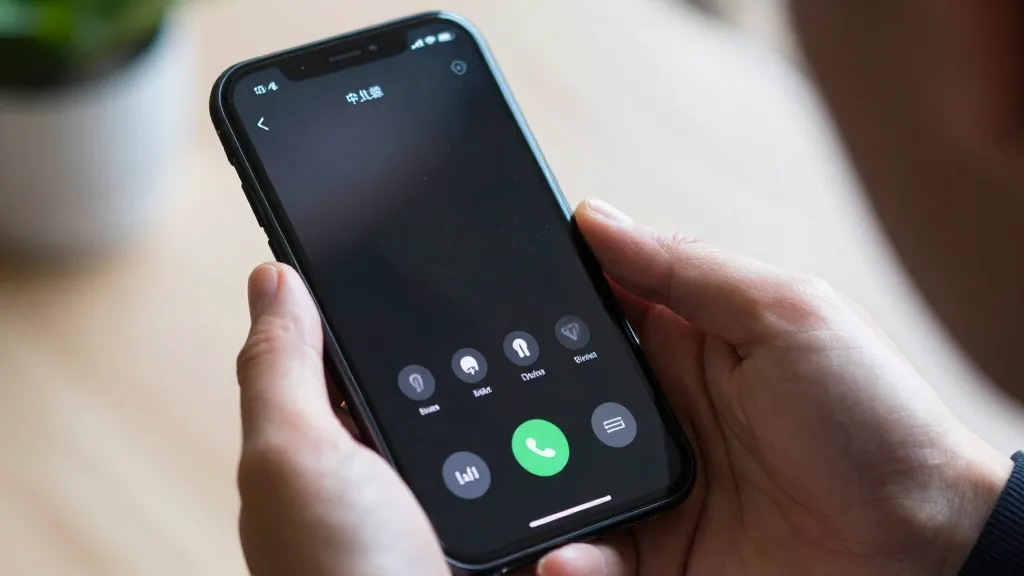
If your iPhone microphone isn't working during phone calls, it can be frustrating and disruptive. Whether you're trying to stay in touch with loved ones or conduct important business calls, a non-functional microphone can hinder your communication. This article provides a clear, step-by-step guide to help you fix the issue, focusing on practical solutions that don't require advanced technical knowledge. We'll cover common causes, simple fixes, and when to seek professional help. By following these steps, you can restore your iPhone's microphone functionality and ensure clear communication during calls.
Troubleshoot Common Causes of iPhone Microphone Issues
Before diving into complex solutions, it's essential to identify the most likely cause of your iPhone microphone issue. Whether it's a software glitch, a hardware problem, or an app-specific conflict, understanding the root cause can help you resolve the issue more efficiently. Start by determining if the problem is isolated to phone calls or if it affects other audio functions like voice memos, FaceTime, or Siri.
Check for Software Glitches and Updates
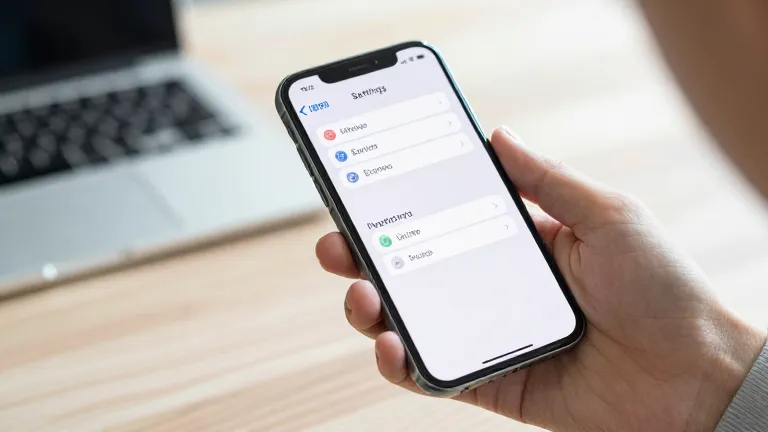
Software glitches are a common culprit behind microphone issues. Begin by checking if your iPhone is running the latest version of iOS. Go to Settings > General > Software Update to ensure you have the most recent updates. Sometimes, a simple restart can resolve temporary software errors. If the problem persists after an update, it may indicate a deeper system glitch that requires further troubleshooting.
Verify Audio Settings and Permissions
Verify that your iPhone's audio settings are correctly configured. Go to Settings > Privacy > Microphone to ensure the microphone is enabled for all necessary apps. If the microphone is disabled for specific apps, they won't function properly during calls. Additionally, check if the microphone is active during calls by using the green indicator in the call screen. If the microphone is not working across all audio functions, it could point to a system-wide issue rather than an app-specific problem.
Basic Fixes to Reset Your iPhone Microphone
Basic fixes can often resolve temporary issues with your iPhone's microphone during calls. Simple actions like restarting your device or resetting network settings can clear software conflicts and refresh call-related configurations.
- Restart Your iPhone
- Reboot the Cellular Network
- Reset All Settings
- Try a Soft Reset
Restart Your iPhone
Restarting your iPhone is a straightforward way to clear temporary software glitches that may interfere with the microphone. Hold the Side button until the power off slider appears, then slide to power off. Wait a few seconds, then press the Side button again to turn it back on. This process can resolve minor conflicts and refresh system resources.
Reset Network Settings
Resetting network settings can help refresh call-related configurations that may be causing microphone issues. Go to Settings > General > Reset > Reset Network Settings. This action will erase saved Wi-Fi passwords and cellular settings but will not delete personal data. After resetting, reconnect to your network and check if the microphone works properly during calls.
Advanced Settings and Privacy Permissions for Microphone Access
Ensuring your iPhone's microphone functions correctly during calls requires checking its privacy settings and managing app permissions. The operating system includes built-in controls that allow you to disable or restrict access to the microphone, which can sometimes cause unintended audio issues. By reviewing these settings, you can prevent apps from interfering with your call quality and ensure your microphone is enabled when needed.
Verify Microphone Permissions in Settings
To verify microphone permissions, open the Settings app and scroll down to 'Privacy' to locate the 'Microphone' section. Tap on 'Microphone' to see a list of apps that have requested access to your microphone. If the microphone is disabled, you'll see a toggle switch set to Off. Ensure the switch is On to allow the microphone to function during calls. If the microphone is disabled for any reason, such as during a call or due to a privacy setting, it can prevent your voice from being captured properly.
Disable Unnecessary App Access
Disabling unnecessary app access to the microphone can help reduce interference and improve call quality. Review the list of apps with microphone access and disable those that don't require it, such as social media or messaging apps. To do this, tap on each app in the 'Microphone' settings and toggle the switch to Off. This action prevents those apps from using your microphone without permission, which can help avoid conflicts with the phone's call functions. If you're unsure whether an app needs microphone access, it's safer to disable it until you confirm its necessity.
Physical Inspections and Cleaning for Hardware Issues
Physical inspections and cleaning are crucial steps in addressing microphone issues on your iPhone. Dust, debris, and physical damage can all interfere with the microphone's ability to capture sound during calls. Carefully examining the device and its ports can help identify and resolve these problems without requiring advanced technical skills.
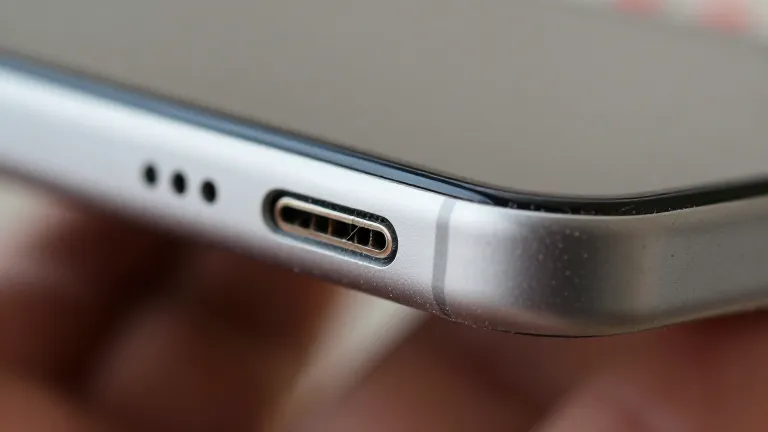
- Use a soft brush or compressed air to gently clean the microphone port.
- Avoid using sharp objects that could damage the internal components.
- Inspect the device for signs of physical damage such as cracks or water exposure.
- Check if the microphone port is blocked by foreign objects or dirt.
Inspect the Microphone Port for Blockages
Inspecting the microphone port is a simple yet effective way to identify blockages. Over time, dust, lint, or small particles can accumulate in the port, preventing the microphone from functioning correctly. To clean it, use a soft brush, such as a paintbrush or a toothpick, to gently remove any debris. Alternatively, compressed air can be used to blow away stubborn particles. Ensure that you do not press too hard or insert anything too deep into the port, as this could damage the internal sensors.
Check for Physical Damage
Physical damage, such as cracks or water exposure, can also affect the microphone's performance. Inspect the iPhone's frame and screen for any visible cracks or dents, especially near the microphone area. Water damage is another common issue that may impair the microphone, so check for signs of liquid exposure, such as discoloration or corrosion around the ports. If you suspect water damage, avoid using the device until it has been professionally assessed, as moisture can cause long-term internal issues.
When to Seek Professional Help or Consider Replacement
If your iPhone microphone still isn't working after trying all the basic and advanced fixes, it's time to consider whether the issue is a hardware problem or if it's something else. Some microphone issues are caused by internal damage, which can't be fixed through software adjustments. In such cases, professional help is necessary to diagnose and repair the problem.
Recognize Signs of Permanent Hardware Damage
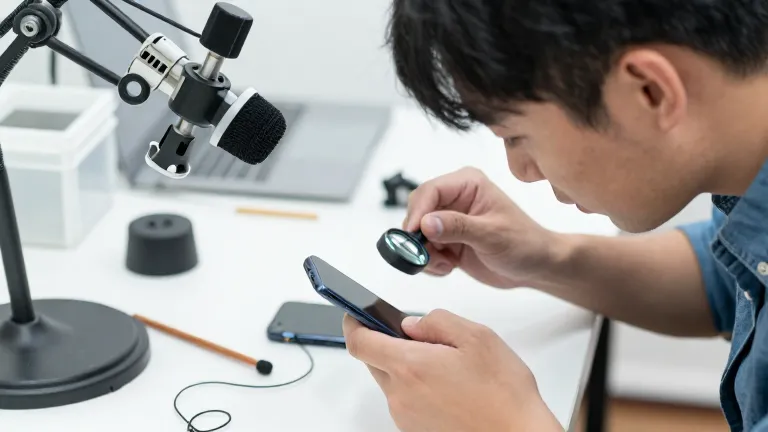
Permanent hardware damage can be difficult to identify without professional tools. Signs include the microphone being completely unresponsive during calls, or the microphone not working in any app or setting. If you've tried all the software-based solutions and the microphone still doesn't work, it's likely a hardware issue. In this case, you should take your iPhone to an Apple Authorized Service Provider or a trusted repair shop for a thorough inspection.
Decide Between Repair and Replacement
Deciding whether to repair or replace your iPhone depends on the cost of repairs versus the value of the device. If your iPhone is still under warranty or covered by AppleCare+, repairs are usually free or at a reduced cost. However, if your device is out of warranty and the repair cost is high, it might be more cost-effective to replace the phone. Consider the age of your iPhone and whether it's worth investing in repairs, especially if the device is no longer supported by Apple.
Frequently Asked Questions
What should I do if my iPhone microphone isn't working during calls but works for other audio functions?
Try restarting your iPhone or resetting network settings. If the issue persists, inspect the microphone port for blockages or physical damage. If these steps don't resolve the issue, consider professional repair.
Can I fix the microphone issue without taking my iPhone to a repair center?
Yes, you can try basic troubleshooting steps like restarting your iPhone, resetting network settings, and checking microphone permissions. If these don't work, you may need professional assistance.
How do I know if the microphone problem is software-related or hardware-related?
If the issue occurs across all apps and functions, it's likely software-related. If only specific functions are affected or the microphone is physically damaged, it's likely hardware-related.
Will resetting my iPhone damage any data or settings?
Resetting your iPhone will erase all data and settings. Make sure to back up your device before performing a reset. It's a last-resort step for resolving persistent issues.
Final Steps and Next Actions
Addressing microphone issues on your iPhone requires a systematic approach, starting with software troubleshooting and progressing to hardware checks. Basic steps like restarting, checking permissions, and resetting settings often resolve minor glitches. If these fail, professional inspection may be necessary.
If your iPhone microphone is not working during calls, follow the outlined steps to identify and resolve the issue. If the problem persists, consider seeking professional help to avoid further complications.





