
How to Fix Android Phone Not Responding to Touch
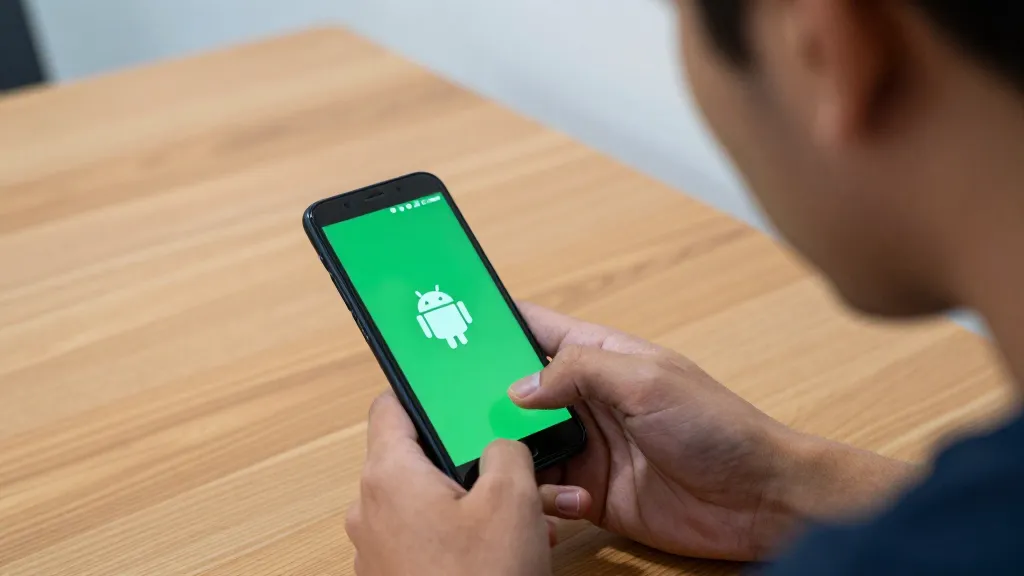
Your Android phone's touch screen is essential for daily use, but it can suddenly stop responding to your touches, causing frustration. Whether it's a simple software glitch or a more serious hardware issue, the problem can disrupt your workflow. If your phone isn't responding to touch, the first step is to identify the root cause and apply practical solutions. This article provides a clear guide on how to fix Android phone not responding to touch, covering everything from basic troubleshooting to advanced fixes.
Understanding the underlying reason for your touch screen issues is the first step toward resolving them. Physical damage, such as cracks or water exposure, can interfere with touch input, while software problems like app conflicts or system errors can also cause the screen to become unresponsive. By following a structured approach, you can determine whether the issue lies in the hardware or software and take the appropriate action.
This article walks you through a series of actionable steps to fix Android phone not responding to touch, without requiring professional help. From restarting your device to performing a factory reset, each solution is explained clearly to help you troubleshoot effectively. Whether you're a tech-savvy user or someone looking for simple fixes, these methods can help restore your phone's touch functionality and prevent future issues.
Identify the Root Cause of the Touch Screen Problem
Before attempting fixes, it's crucial to determine whether your Android phone's unresponsive touch screen is due to a software issue or hardware damage. This distinction will guide you toward the most effective solution, whether it's a simple restart or a professional repair.
Check for Physical Damage or Obstructions
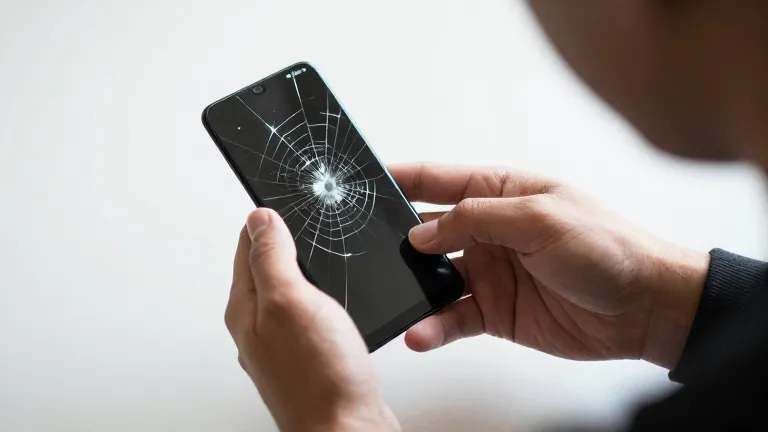
Begin by inspecting your phone for any visible signs of physical damage, such as cracks, liquid spills, or debris on the screen. A cracked or wet screen can prevent touch input, even if the internal components are functioning correctly. If the phone has recently fallen or been dropped, the issue might be related to internal hardware, such as a damaged digitizer or touchscreen panel. Additionally, check for any obstructions like dust, fingerprints, or stickers that might interfere with the touch sensitivity.
Look for Signs of Software Glitches
If there's no visible damage, consider software-related causes, such as app conflicts, system glitches, or corrupted files. A low battery level can also cause the screen to become unresponsive, so ensure your phone is adequately charged. If the issue occurs after installing a new app or updating the operating system, it might be a temporary software glitch. However, if the problem persists across multiple apps or after a restart, it could indicate a deeper system error or hardware failure that requires further investigation.
Try Basic Troubleshooting Steps
Basic troubleshooting steps can often resolve unresponsive touch issues without requiring advanced technical knowledge. These methods are designed to address temporary software glitches, power-related problems, and potential conflicts with installed apps.
- Restart Your Android Phone
- Charge the Phone Fully
- Use Safe Mode to Diagnose the Issue
- Check for System Updates or Errors
Restart Your Android Phone
Restarting your Android phone is one of the simplest and most effective ways to resolve minor software glitches that might be causing the touch screen to become unresponsive. A restart can clear temporary memory, stop malfunctioning background processes, and refresh the system’s connection to the touch input hardware. If your phone is frozen or unresponsive, holding the power button until the restart option appears can help restore normal functionality.
Use Safe Mode to Diagnose the Issue
Switching your Android phone to Safe Mode allows you to identify if third-party apps are interfering with touch input. In Safe Mode, only essential system apps are active, which helps isolate the issue. To enter Safe Mode, press and hold the power button, then tap and hold the 'Power off' option until the 'Safe Mode' prompt appears. If the touch screen works in Safe Mode, the problem likely stems from a recently installed app or a conflicting system update.
Perform System Reset and Factory Reset
System resets and factory resets are powerful tools for resolving touch screen issues caused by software conflicts. Understanding the difference between these two options helps you choose the best solution for your situation.
What Is a System Reset and How to Do It
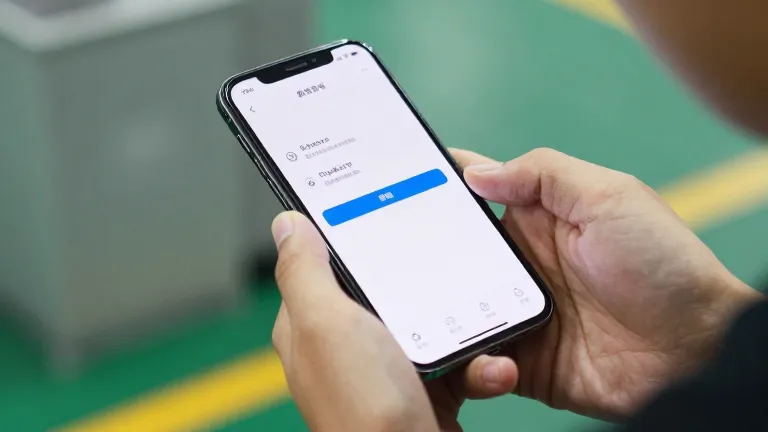
A system reset, also known as a soft reset, restarts your Android phone and clears temporary software glitches. This process does not delete personal data or app settings and is ideal for addressing minor issues like unresponsive touch. To perform a system reset, press and hold the power button, then select 'Restart' from the menu. This simple action can often resolve touch problems without the need for more drastic measures.
Factory Reset: When to Use It and How
A factory reset restores your phone to its original state, removing all user data, apps, and settings. This option is recommended if the touch screen issue persists after a system reset or if you suspect deeper software corruption. Before proceeding, ensure you back up important data to a cloud service or external storage. To perform a factory reset, go to Settings > System > Reset > Erase All Data. Be aware that this process will delete everything on your device, so it should be used as a last resort.
Check for Hardware Issues and Professional Repair
If your Android phone is unresponsive to touch and basic troubleshooting doesn’t resolve the issue, it may be a hardware problem. Physical damage, internal component failure, or water exposure can all affect touch input. Assessing these factors and knowing when to call a professional can help you determine the best course of action.
Signs of Hardware Damage That Affect Touch
Inspect the screen for visible cracks, scratches, or any physical damage that could interfere with touch sensitivity. A cracked or broken screen often leads to erratic touch responses. Additionally, check for water damage indicators, such as a discolored battery or a swollen charging port, which can compromise the internal circuitry. If the phone has been dropped or exposed to moisture, it might have caused internal wiring issues that affect the digitizer.
When to Seek Professional Repair Services
DIY repairs for hardware issues are generally not recommended, as they can void warranties or cause further damage. If you're unsure about the cause, it's better to consult a professional repair service. Technicians can diagnose and fix problems like faulty digitizers, damaged internal wiring, or water-damaged components. They also have the tools and expertise to ensure the repair is done safely and effectively, reducing the risk of additional complications.
Prevent Future Touch Screen Issues
Preventing future touch screen issues involves a combination of proactive measures and good habits. By protecting your phone from physical damage and maintaining its software and hardware health, you can significantly reduce the chances of encountering unresponsive touch problems. Regular updates, proper handling, and using accessories like cases and screen protectors are key to ensuring your phone remains responsive and reliable over time.
- Regularly update your phone's software to avoid bugs and security issues.
- Avoid dropping your phone or exposing it to water.
- Use a protective case and screen protector to reduce physical damage.
- Keep your phone charged to prevent unexpected shutdowns.
How to Prevent Touch Screen Damage
How to Prevent Touch Screen Damage involves taking simple yet effective steps to shield your phone from common threats. Using a durable case and a tempered glass screen protector can absorb shocks and prevent scratches, which are often the culprits behind touch screen malfunctions. Additionally, avoiding extreme temperatures and keeping your phone away from moisture can prevent internal damage that might affect touch sensitivity.
Maintain Your Android Phone for Smooth Touch Input
Maintain Your Android Phone for Smooth Touch Input requires consistent care and attention. Ensure your phone's battery stays within a healthy range to avoid unexpected shutdowns that could disrupt touch functionality. Also, avoid using your phone while it's charging or in environments with high humidity, as these conditions can lead to performance issues. Keeping your device clean and free from dust and debris helps maintain optimal touch response and overall performance.
Frequently Asked Questions
What should I do if my Android phone isn't responding to touch after a software update?
If your Android phone isn't responding to touch after a software update, start by restarting your device. If the issue persists, try booting into Safe Mode to check if a third-party app is causing the problem. If Safe Mode works, identify and uninstall the problematic app. If not, consider performing a factory reset as a last resort.
Can a low battery cause my Android phone's touch screen to stop working?
A low battery is unlikely to directly cause touch screen issues, but severe battery drain or sudden shutdowns can lead to software glitches. If your phone is unresponsive, charge it fully and attempt a restart. If the problem continues, it may be a hardware or software issue that requires further troubleshooting.
Is it possible to fix a cracked screen without replacing it?
Minor cracks or scratches on a screen can sometimes be repaired with screen repair kits, but severe damage is unlikely to be fixed without replacement. If the screen is cracked, it's best to replace it to prevent further damage and ensure safe touch input.
How can I tell if my Android phone's touch screen issue is software or hardware-related?
To determine if your touch screen issue is software or hardware-related, try restarting your phone and booting into Safe Mode. If the problem goes away in Safe Mode, it's likely a software issue. If it remains, the problem may be hardware-related, and you should consider professional repair.
Take Action to Restore Your Touch Screen
To resolve unresponsive touch issues on your Android phone, start by identifying the root cause—whether it's physical damage, software glitches, or hardware failure. Follow basic troubleshooting steps like restarting your device or booting into Safe Mode before moving to more advanced solutions such as system resets or professional repairs. Prevention is key, so take steps to protect your phone and maintain its performance for smooth touch input.
If you're experiencing touch screen problems, take action now to restore functionality. Begin with simple fixes like restarting your phone, and if those don't work, consider more comprehensive solutions like a factory reset or professional repair. Always prioritize protecting your device to avoid future issues.





