
How to Fix Smart Home Device Rebooting Repeatedly
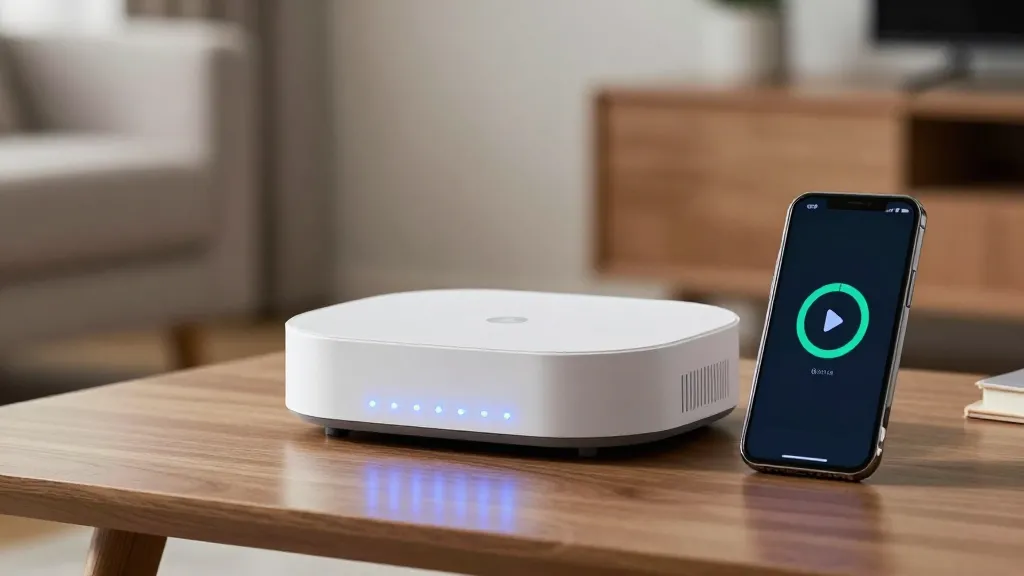
Smart home devices are meant to simplify your life, but when they start rebooting repeatedly, it can be frustrating and disruptive. If you're experiencing this issue, you're not alone—many users face similar problems with their smart home devices. The main keyword here is how to fix smart home device rebooting repeatedly, and this article will guide you through practical solutions to resolve the issue. Whether you're a homeowner or a tech-savvy user, these steps can help you address the problem without needing professional assistance. We'll start by checking for power supply issues, which are often the root cause of unexpected reboots.
The first step in troubleshooting is to ensure that your smart home device is receiving a stable power supply. Loose connections or damaged power outlets can cause the device to reboot unexpectedly. By verifying the power cable connections and inspecting the outlet, you can eliminate a common source of the problem. If the issue persists, moving on to firmware and software updates may provide a more permanent fix.
Smart home devices rely on up-to-date firmware and software to function properly. Outdated systems can lead to instability and frequent reboots. We'll walk you through how to find and install firmware updates, as well as check for app updates on your smartphone. If these steps don't resolve the issue, resetting the device to factory settings may be necessary. Finally, if all else fails, reaching out to the manufacturer's support team can offer additional guidance and solutions.
Check for Power Supply Issues
A stable power supply is essential for the reliable operation of smart home devices. Repeated rebooting can often be traced back to issues with the power source, such as unstable connections, damaged cables, or electrical interference. Ensuring that your device is receiving consistent and sufficient power is the first step in troubleshooting rebooting problems.
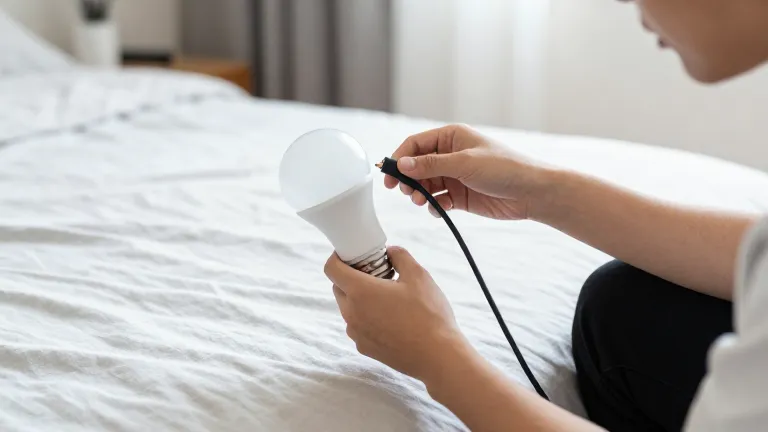
Verify Power Cable Connections
Start by checking the physical connection between your smart home device and the power source. Ensure the power cable is securely plugged into both the device and the outlet. Loose connections can cause intermittent power delivery, leading to unexpected reboots. If the cable appears frayed or damaged, replace it immediately to prevent further issues.
Inspect Power Outlets for Damage
Inspect the power outlet for any signs of damage, such as burn marks, discoloration, or physical cracks. A faulty outlet can disrupt the flow of electricity and cause your device to shut down or reboot. If you suspect the outlet is damaged, avoid using it for other devices and consider replacing it or using a different outlet. Electrical interference from nearby appliances or wiring can also affect your device's performance, so try to minimize such disturbances.
Update Firmware and Software
Updating firmware and software is a critical step in resolving smart home device rebooting issues. Manufacturers often release updates to fix bugs, improve performance, and address compatibility problems that can cause unexpected reboots. Keeping your device and its associated app up to date ensures that you benefit from the latest improvements and security patches.
How to Find and Install Firmware Updates
To find firmware updates, visit the manufacturer’s official website and locate the support or downloads section for your specific device model. Look for firmware updates or system files that are compatible with your device’s current version. Download the update file and follow the installation instructions provided, which may involve connecting the device to a computer or using a dedicated update tool.
Some devices allow firmware updates through their companion app, where you can check for updates directly on your smartphone. If your device supports over-the-air (OTA) updates, ensure it is connected to a stable Wi-Fi network and follow the on-screen prompts to install the update. After the firmware update completes, reboot the device to apply the changes and verify if the rebooting issue has been resolved.
Check for App Updates on Your Smartphone
Ensure that the app associated with your smart home device is updated to the latest version. Open your device’s app store and search for the companion app name. If an update is available, install it immediately to ensure compatibility with the latest firmware and features. Some apps may require a restart or re-pairing with the device after an update.
After updating the app, check the device settings within the app for any new features or troubleshooting options related to stability and performance. If the rebooting issue persists, consider restarting the app or the device to ensure that all updates have been applied correctly.
Reset the Device to Factory Settings
Resetting your smart home device to factory settings can resolve persistent rebooting issues caused by software conflicts or corrupted data. This process erases all personal settings and data, so it’s important to understand the implications before proceeding.
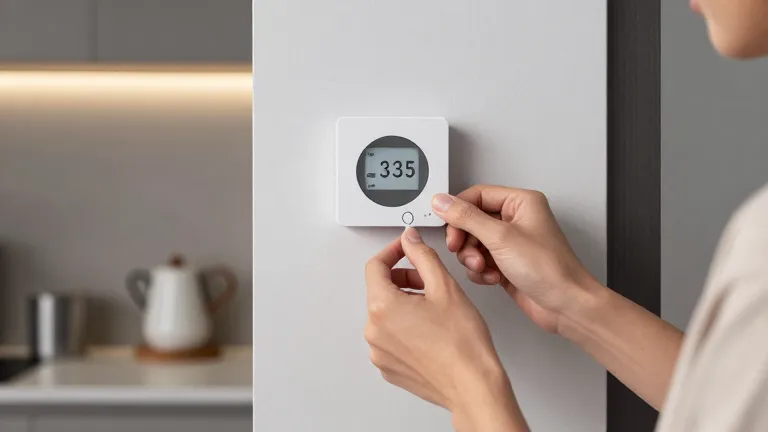
Steps to Reset a Smart Home Device
To reset your device, locate the reset button, usually found on the back or bottom of the unit. Press and hold it for 10–30 seconds until the device restarts or the LED indicator changes. If your device has a mobile app, check the settings for a 'Factory Reset' option. Always refer to the manufacturer’s manual for specific instructions, as the process can vary between devices.
What to Do After a Factory Reset
After resetting, you’ll need to reconfigure the device, including reconnecting it to your Wi-Fi network and re-pairing it with your smart home ecosystem. If you had previously set up automation rules or added the device to a group, you’ll need to recreate these. Make sure to re-download any custom settings or configurations from a backup if available. If the rebooting issue persists after a reset, consider reaching out to the manufacturer for further assistance.
Investigate Network Connectivity
Network connectivity issues are a common cause of smart home device rebooting. A weak or unstable WiFi signal can lead to intermittent disconnections, prompting devices to restart. Ensuring a strong and stable connection is essential to prevent such disruptions.
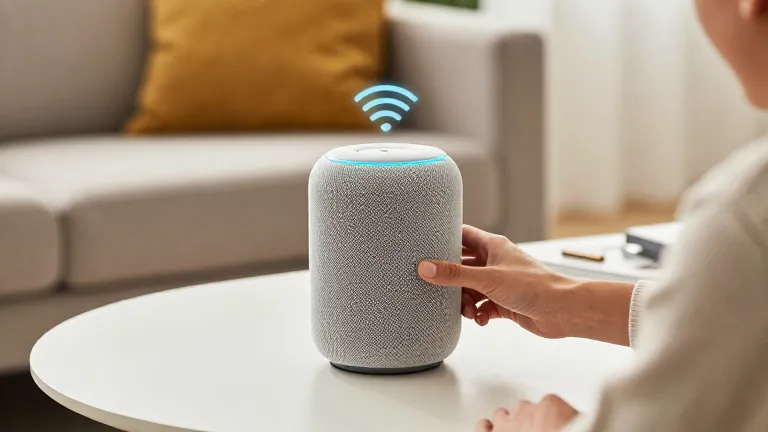
How to Test Your WiFi Connection
To test your WiFi connection, start by checking the signal strength on your smart home device. Most devices display a signal bar or percentage, indicating the quality of the connection. If the signal is weak, move the device closer to the router or use a WiFi range extender to boost coverage. You can also use a WiFi analyzer app to identify interference or dead zones in your home.
Troubleshoot Router Issues
If your router is overloaded, it may struggle to maintain stable connections with all devices. Check the number of devices connected to your network and consider disconnecting unused devices to free up bandwidth. Restarting the router can also resolve temporary glitches. If the problem persists, upgrading to a dual-band router may help by providing a dedicated channel for your smart home devices, reducing congestion and improving reliability.
Contact Manufacturer Support
If the smart home device continues to reboot despite your efforts to resolve the issue, it is advisable to contact the manufacturer's support team. They are equipped to provide targeted assistance and may have insights into known issues or updates that can resolve the problem. When reaching out, ensure you have the device model number and a detailed description of the issue, including how often the reboot occurs and any error messages you have encountered. This information will help the support team to diagnose the issue more effectively and guide you through the appropriate steps.
Before contacting support, check the manufacturer's website or customer portal for any available troubleshooting guides or FAQs that may address your specific issue. Many companies provide extensive resources that can resolve common problems without the need for direct support. If you do need to reach out, be prepared to provide your contact details and a clear summary of the issue so that the support team can respond promptly and accurately.
During the conversation with the support team, follow their instructions carefully, whether it involves further troubleshooting steps, firmware updates, or replacement of the device. They may also ask for additional details or request that you perform specific actions to help identify the root cause. If the problem persists after following their guidance, they may escalate the issue or suggest further actions, such as returning the device for repair or replacement. Always keep a record of any communication or steps taken, as this can be useful for future reference or if further assistance is needed.
Frequently Asked Questions
What should I do if my smart home device keeps rebooting?
Start by checking power connections and ensuring the device is properly plugged in. If the issue continues, update the firmware and check for app updates. If these steps don’t resolve the problem, consider resetting the device or contacting the manufacturer.
Can a poor WiFi connection cause my smart home device to reboot?
Yes, a weak or unstable WiFi connection can lead to rebooting. Ensure your router is functioning correctly and that the device is connected to a strong signal. If the problem persists, try connecting to a different network.
How do I check for firmware updates for my smart home device?
Check the manufacturer’s website or app for firmware updates. Some devices automatically update, while others require manual installation. Always follow the specific instructions provided by the manufacturer.
What should I do if resetting my smart home device doesn’t work?
After resetting, ensure the device is properly set up and connected to the network. If the issue continues, contact the manufacturer’s support team for further assistance. They may need to diagnose the issue or provide a replacement.
Next Steps for Device Stability
Regularly updating firmware and checking for software updates can help prevent rebooting issues. If the problem persists, resetting the device or reaching out to the manufacturer may be necessary. Ensuring a stable power supply and strong WiFi connection is also crucial for device stability.
To resolve smart home device rebooting, start with power and connectivity checks, then move to firmware updates and resets. If these steps don’t work, contacting the manufacturer is the best course of action.





