
How to Fix Android Phone Stuck on Boot Screen
Your Android phone is stuck on the boot screen, and you're desperate for a solution. This common issue can leave your device unresponsive, preventing you from accessing your data or using your phone. If you're trying to figure out how to fix Android phone stuck on boot screen, you're not alone. This guide is designed to help non-technical users resolve the problem step by step, without requiring advanced knowledge. Whether it's a software glitch or a more serious issue, we'll walk you through practical solutions to get your phone working again.
The boot screen is the first thing your phone displays when it turns on. If it's stuck there, it means your device is having trouble loading the operating system. This can be caused by a variety of factors, including corrupted system files, software updates that failed, or hardware issues. Understanding what's happening can help you decide which troubleshooting steps to take next.
In this article, we'll cover the basics of the Android boot screen, common causes of the issue, and actionable steps to fix it. We'll start with simple solutions like a hard reset and move on to more advanced options, such as recovery mode and ADB commands. We'll also discuss when it's best to seek professional help and how to prevent future boot problems. Let's get your phone back to normal.
Understanding the Android Boot Screen
The Android boot screen is the first interface users see when turning on their phone. It serves as a visual indicator that the device is initializing and loading the operating system. If the screen remains unchanged for an extended period, it signals a potential issue that requires attention.
What Is the Android Boot Screen?
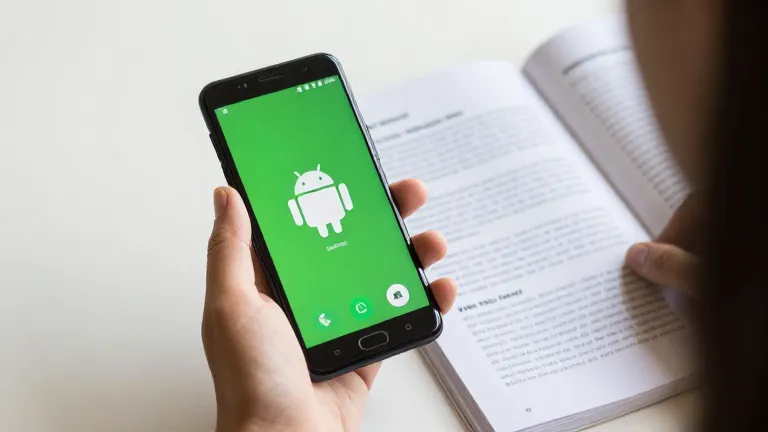
The Android boot screen displays the device logo and a loading progress bar as the phone starts up. This screen is part of the system's startup process, during which the operating system and essential software components are loaded into memory. The duration of this screen can vary depending on the device and its current state.
Why Is the Phone Stuck on the Boot Screen?
A phone can become stuck on the boot screen due to various reasons, including software corruption, failed system updates, or hardware malfunctions. Corrupted system files or incomplete updates can prevent the operating system from loading properly, resulting in a loop on the boot screen. Hardware issues such as a faulty battery or damaged internal components can also interfere with the boot process, causing the device to remain in a non-responsive state.
Troubleshooting Steps for a Stuck Boot Screen
If your Android phone is stuck on the boot screen, the first step is to try a hard reset or enter recovery mode to resolve the issue. These methods can help restart the system or access advanced repair tools, but it's important to follow them carefully to avoid further problems.
- Try a hard reset by removing the battery (if removable) or pressing and holding the power button.
- Use the Android recovery mode to attempt a system repair or factory reset.
- Check if the phone is overheating or has a damaged battery, which can cause boot issues.
- Ensure the phone is connected to a charger during the process to avoid power loss.
How to Perform a Hard Reset
To perform a hard reset, start by removing the battery if your device is an older model with a removable battery. If your phone has a non-removable battery, press and hold the power button for about 30 seconds to force a restart. This can sometimes clear temporary software glitches that prevent the phone from booting properly.
Using Android Recovery Mode to Fix the Issue
To access Android recovery mode, turn off your phone and then press and hold the power button and volume up (or volume down, depending on the device) simultaneously. This should bring up the recovery menu, where you can choose options like 'Wipe Cache Partition' or 'Factory Reset' to repair or reset the system. Always ensure your phone is connected to a charger to prevent unexpected shutdowns during the process.
Advanced Recovery Options
Advanced recovery options can help resolve persistent boot issues when basic troubleshooting fails. These methods require some technical knowledge but are still accessible to non-technical users with guidance. Proceed carefully to avoid data loss or further complications.
- Attempt a factory reset through recovery mode if the phone is still responsive.
- Use ADB (Android Debug Bridge) to force a system reboot or clear the cache partition.
- Reinstall the operating system using a custom recovery like TWRP if the phone is rooted.
- Ensure the phone has sufficient storage space and memory to complete the process.
Performing a Factory Reset via Recovery Mode
Performing a factory reset via recovery mode can resolve software conflicts that cause boot loops. To do this, boot into recovery mode by holding the power and volume down buttons until the recovery menu appears. Navigate to 'Wipe data/factory reset' and confirm the action. This will erase all personal data and settings, so make sure to back up important files first.
Before initiating the reset, ensure the phone has enough battery power to avoid interruptions. A low battery can lead to further issues, including a bricked device. Once the reset is complete, the phone should reboot and start fresh, potentially resolving the boot screen problem.
Using ADB to Fix Boot Issues
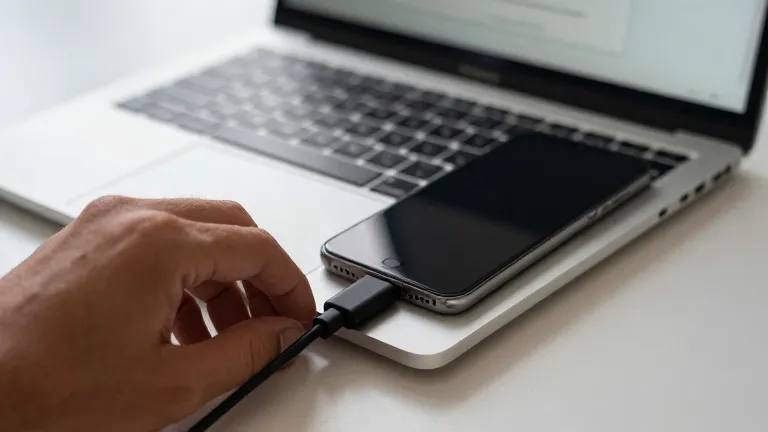
ADB can be used to force a system reboot or clear the cache partition, which may resolve minor boot issues. To use ADB, you'll need to connect your phone to a computer and install the ADB drivers. Open a command prompt or terminal and type 'adb reboot' to restart the device. Alternatively, use 'adb shell pm clear' to clear specific apps or 'adb reboot recovery' to boot into recovery mode.
ADB is particularly useful for advanced users who need more control over their device. However, it requires some setup and understanding. If the phone is unresponsive, ADB may not be an option. Always ensure the phone has enough storage space and memory to complete the process, as insufficient resources can lead to errors or incomplete operations.
When to Seek Professional Help
If your Android phone is stuck on the boot screen and shows signs of hardware failure, it's important to recognize when professional help is necessary. While many boot issues can be resolved with basic troubleshooting, some problems require expert intervention to avoid further damage.
Signs of a Hardware Problem
A phone that is completely unresponsive and won't charge may indicate a hardware issue. This could be due to a damaged motherboard, faulty power supply, or internal component failure. If your device doesn't react to charging or physical interactions, it's likely beyond software fixes and requires professional diagnosis.
When to Contact a Repair Service
Avoid attempting DIY repairs if you're not experienced, as this can worsen the problem. Complex hardware issues, such as a failing battery or damaged internal wiring, should be handled by qualified technicians. Professional repair services have the tools and expertise to identify and fix these problems safely, ensuring your phone is restored to working condition without additional damage.
Prevention and Maintenance Tips
Preventing future boot issues and maintaining your Android phone can save you from frustrating problems down the line. By following simple maintenance practices, you can extend your device's lifespan and avoid unexpected malfunctions. Here are key strategies to keep your phone running smoothly and reliably.
- Keep the phone updated with the latest system updates to avoid software issues.
- Avoid installing untrusted apps that can cause system instability.
- Use a reputable charger and power source to prevent power-related problems.
- Regularly back up important data to an external storage device or cloud service.
How to Prevent Future Boot Issues
Keeping your Android phone updated is one of the simplest ways to prevent boot issues. Manufacturers regularly release system updates that fix bugs, improve performance, and enhance security. Enabling automatic updates or manually checking for updates in the Settings app ensures your device remains stable and compatible with new features.
Maintaining Your Android Phone for Longevity
Maintaining your Android phone involves more than just updates. Regularly cleaning the device, avoiding extreme temperatures, and using official accessories can help prevent hardware wear and tear. Additionally, managing storage by deleting unnecessary files and apps frees up space and reduces the risk of system crashes. These small habits contribute to a more reliable and longer-lasting device.
Frequently Asked Questions
What should I do if my Android phone is stuck on the boot screen and won't charge?
If your phone is stuck on the boot screen and won't charge, try charging it using a different cable and power source. If it still doesn't respond, consider performing a hard reset or using recovery mode to troubleshoot further.
Can I recover my data if my phone is stuck on the boot screen?
Recovering data from a phone stuck on the boot screen can be challenging, but some data may be retrieved using a backup or specialized recovery tools. If no backup exists, professional data recovery services might be required.
Is it possible to fix a boot loop without losing all my data?
Fixing a boot loop without losing data is possible with methods like recovery mode or ADB commands, but data loss is a risk. Always back up your data before attempting any recovery steps.
What are the signs that my phone has a hardware issue and not a software problem?
Signs of a hardware issue include physical damage, overheating, or failure to charge. If software fixes don't resolve the problem, it may indicate a hardware malfunction requiring professional repair.
Final Thoughts
Fixing an Android phone stuck on the boot screen requires a systematic approach, starting with basic troubleshooting and progressing to advanced recovery methods. Always prioritize data backups to minimize loss.
If software solutions fail, consider professional help for hardware-related issues. Regular maintenance and careful usage can prevent future boot problems and extend your device's lifespan.





