
How to Fix Smart Home Device Blinking Red
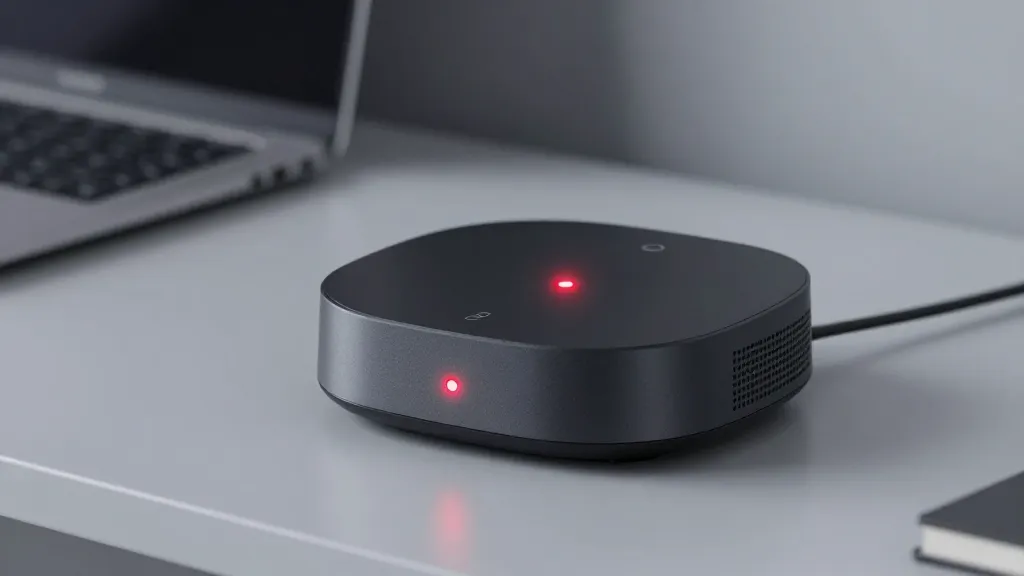
If your smart home device is blinking red, it can be confusing and frustrating, especially if you're trying to automate your home or manage your devices remotely. The blinking red light is often a signal that something is wrong, whether it's a connectivity issue, a configuration error, or a hardware malfunction. Understanding what the red light means and how to fix it is essential for keeping your smart home running smoothly. This article will guide you through the steps to diagnose and resolve the issue, helping you regain control of your smart home without needing professional assistance. We’ll cover everything from checking basic connections to resetting your device and contacting support if needed.
The first step in troubleshooting a blinking red light is to understand what it signifies. Different smart home devices use red lights to indicate various issues, such as low battery, network disconnection, or a need for firmware updates. Some manufacturers may also use red lights to signal a specific error related to their device's functionality. Knowing these indicators can help you pinpoint the problem more quickly and take the right steps to fix it.
By following a structured approach, you can often resolve a blinking red light issue on your smart home device. This article provides a clear, step-by-step guide to help you identify and fix the problem. Whether you're dealing with a smart bulb, thermostat, or security camera, the troubleshooting methods outlined here are designed to be practical and easy to follow. With the right knowledge and tools, you can restore your device's functionality and continue enjoying the benefits of a smart home setup.
Understanding the Blinking Red Light
A blinking red light on a smart home device is often a signal that something is wrong with its operation. This indicator can point to a range of issues, from connectivity problems to configuration errors. Understanding what the red light means for your specific device is crucial for effective troubleshooting. While many devices use similar light patterns, the exact meaning can vary significantly between brands.

Common Red Light Indicators
The blinking red light typically indicates a connectivity or configuration issue. It may suggest that the device is not properly connected to your home network or that it is experiencing a communication error with the smart home hub. In some cases, the light may also signal that the device is in a setup mode or waiting for a command. If the light is blinking steadily, it might mean the device is in an active state, but if it is pulsing or flashing rapidly, it could signal a more urgent problem.
Manufacturer-Specific Meanings
Different manufacturers may use the red light to signal different problems. For example, one brand might use a blinking red light to indicate that the device is not connected to the Wi-Fi network, while another might use it to show that the device is in a pairing mode. It is essential to consult the device's manual to understand the specific meaning of the red light for your model. The manual will often provide a detailed explanation of the light patterns and their corresponding issues, helping you identify the exact problem and take the appropriate steps to resolve it.
Check for Basic Connectivity Issues
Before diving into complex troubleshooting, start by checking the basics. A blinking red light can often be resolved by ensuring the device is correctly connected to power and the network. Simple issues like loose cables or weak signals can cause the light to flicker, so addressing these first can save time and effort.
- Ensure the device is properly connected to power and the network.
- Verify that the Wi-Fi or Bluetooth connection is stable.
- Check for any physical damage to the device or its ports.
Verify Power and Network Connections
Start by confirming that the device is securely connected to a power source. If it's plugged into a wall outlet, check for any loose connections or damaged cords. For battery-powered devices, ensure the batteries are fully charged or replace them if necessary. Also, verify that the device is connected to the correct Wi-Fi network. A weak or unstable connection can cause the red light to blink, so consider moving closer to the router or using a stronger signal source.
Physical Inspection of the Device
Inspect the device for any visible signs of physical damage, such as cracks, water exposure, or loose components. Pay close attention to the ports where cables or antennas are connected, as these can become damaged or dirty over time. Use a soft, dry cloth to clean the ports and remove any debris that might be interfering with the connection. If the device has a removable cover, check that it's properly secured and not obstructing internal components.
Troubleshoot Smart Home Device Settings
Troubleshooting smart home device settings is a critical step in resolving issues related to a blinking red light. Many devices have specific modes or configurations that, if misaligned, can cause malfunctions or unexpected behavior. Reviewing these settings ensures the device is operating as intended and can help identify any misconfigurations or outdated parameters.
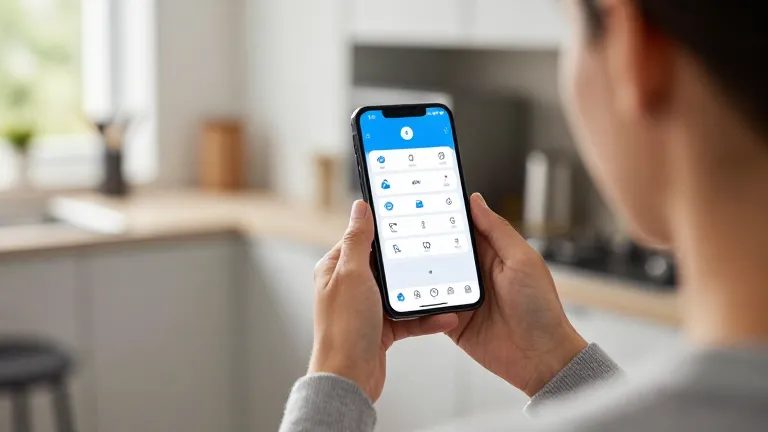
- Verify the device is set to the correct mode (e.g., pairing, operation).
- Check for any pending firmware updates.
- Reconfigure the device through the associated app or settings.
- Ensure the device is properly registered in the app.
Device Mode and Configuration
Ensure the device is set to the correct mode (e.g., pairing, operation). For instance, if the device is in pairing mode, it may not respond to commands or show a blinking red light as a signal. Consult the user manual or manufacturer guidelines to confirm the correct mode for your specific device. If it's in a different mode than intended, switch it to the appropriate setting and observe if the red light stabilizes.
Firmware and App Settings
Check for any pending firmware updates. Manufacturers often release updates to improve performance, fix bugs, or address compatibility issues. A blinking red light might indicate that the device is outdated or has a known issue that can be resolved through a firmware update. Open the associated app, navigate to the device settings, and look for an update option. If available, install the update and restart the device to apply the changes.
Reconfigure the device through the associated app or settings. Sometimes, default settings or incorrect configurations can lead to malfunctions. Access the app, locate the device, and review its settings for any anomalies. Adjust parameters such as location, time zone, or automation rules if necessary. After making changes, test the device to see if the blinking red light issue is resolved.
Reset and Re-Pair the Smart Home Device
Resetting and re-pairing your smart home device can resolve issues caused by incorrect settings or failed connections. This process ensures that the device starts fresh and establishes a stable link with your hub or app.
- Locate the factory reset button on your device, which is typically a small, recessed button.
- Hold the reset button for 10 to 30 seconds until the LED light changes color or the device restarts.
- After resetting, ensure the device is within 10 feet of your smart home hub or router for optimal connectivity.
- Open your smart home app and follow the on-screen instructions to add the device again.
Factory Reset Procedures
Factory resetting a smart home device is a straightforward way to eliminate configuration errors. Most devices have a dedicated reset button that can be found on the back or bottom. Holding this button for 10 to 30 seconds usually initiates a factory reset, returning the device to its original settings. This step is particularly useful if the device has been misconfigured or if previous pairing attempts have failed.
Re-Pairing the Device
Re-pairing the device with your smart home hub or app is essential after a factory reset. Ensure the device is within range of your hub or router, as distance can affect signal strength and connectivity. Follow the app’s instructions carefully, as the pairing process may vary slightly between devices. Once successfully paired, the blinking red light should stop, and the device should function as intended.
Contacting Manufacturer Support
When initial troubleshooting steps fail to resolve the blinking red light issue, contacting the manufacturer's support team is the next logical step. Support teams are trained to handle device-specific problems and can provide tailored guidance based on the model and firmware version. To ensure a productive conversation, be prepared to describe the issue clearly, including the blinking pattern, any recent changes to the device’s environment, and the steps you've already attempted.

Before reaching out, gather relevant details about your device, such as its model number, serial number, and the app version you're using. This information helps support representatives quickly identify potential causes and recommend the most effective solutions. If the device is still under warranty, mention this as it may affect the support options available to you, such as remote diagnostics or repair services.
Support teams may ask you to perform additional troubleshooting steps, such as checking for software updates, verifying network compatibility, or running diagnostic tests. Follow these instructions carefully, as they are often based on the device's specific behavior and known issues. If remote diagnostics are required, ensure your device is connected to a stable internet connection and follow the prompts provided by the support team to complete the process.
In some cases, the support team may escalate the issue to a specialist or arrange for a replacement if the device is faulty. Always keep a record of your interactions, including dates, support representative details, and any action items agreed upon. This documentation can be useful for future reference or if further assistance is needed.
Frequently Asked Questions
What does a blinking red light on my smart home device mean?
A blinking red light typically indicates a connectivity issue, firmware problem, or device malfunction. It may also signal a low battery or an error in the device's configuration.
How can I tell if the blinking red light is due to a connectivity issue?
Check if the device is properly connected to power and your Wi-Fi network. If the light persists, it may be a connectivity problem or a deeper system error.
Can a blinking red light be fixed without contacting support?
Many blinking red light issues can be resolved by checking connections, resetting the device, or updating firmware. If these steps don’t resolve the problem, contacting support is recommended.
How do I know if my smart home device needs a factory reset?
A blinking red light may indicate a need for a factory reset if basic troubleshooting steps fail. Refer to the device’s manual for specific reset instructions.
Next Steps and Support
Understanding the blinking red light is the first step in resolving smart home device issues. Begin by checking basic connections and settings, then proceed to reset or re-pair the device if needed.
If the problem persists, reaching out to the manufacturer’s support team ensures you get accurate guidance tailored to your device.





