How to Fix Label Printer (Dymo or Rollo) Printing Blank Labels
If your Dymo or Rollo label printer is printing blank labels, it can be frustrating—especially when you need labels for shipping, inventory, or everyday use. This issue might stem from a simple setup error or a deeper hardware or software problem. Whether you're a home user or a small business owner, understanding how to fix label printer issues is essential to keeping your operations running smoothly. This guide walks you through step-by-step solutions to resolve blank label printing, covering everything from basic setup checks to advanced maintenance tips.
We'll start by examining the most common causes of blank labels, such as improper label loading or misaligned settings. Next, we'll explore how to calibrate your printer and test its functionality to ensure it's working as intended. If your labels are upside down or misaligned, we'll show you how to correct that. For more persistent issues, we'll cover advanced troubleshooting methods, including running a self-test and cleaning the print head.
By following this guide, you'll gain the confidence to diagnose and fix label printer problems on your own. Each step is designed to be clear and practical, helping you avoid unnecessary downtime. Whether you're using a Dymo or Rollo printer, these solutions are tailored to help you restore your label printing to full functionality.
Check for Basic Setup Issues
Before diving into more complex fixes, start by checking the basic setup of your Dymo or Rollo label printer. Many issues that cause blank labels stem from simple misconfigurations or physical setup errors. Ensuring that the label is properly loaded, the printer is powered on, and the correct settings are selected can often resolve the problem without needing advanced troubleshooting.
Verify Label Loading and Alignment
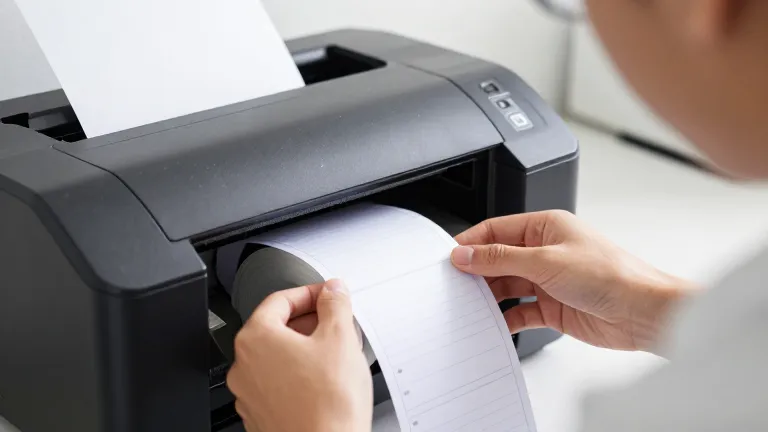
Make sure the label is loaded correctly onto the printer. The label should be fed through the printer’s feed slot without any twists or kinks. If the label is not aligned with the printer’s guide rails, it may not print properly. Check that the label is securely attached to the roll and that the printer’s carriage is positioned correctly to engage the label.
Confirm Printer Connectivity and Power
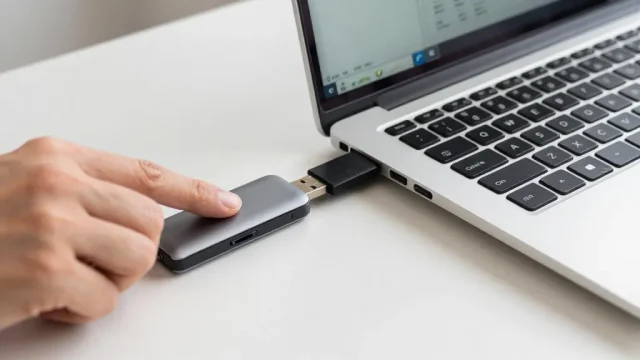
Verify that the printer is connected properly to your computer or network and that it is powered on. If using a USB connection, ensure the cable is firmly plugged in and that the printer is recognized by your operating system. For wireless models, confirm that the printer is connected to the correct Wi-Fi network. If the printer is not responding, try restarting it and re-establishing the connection.
Calibrate Label Size and Settings
Calibrating label size and settings is a crucial step in resolving blank label printing issues. Incorrect label dimensions can cause the printer to misinterpret the label size, leading to improper printing or no print at all. Ensuring that the label size settings match the actual dimensions of the labels you're using is essential for proper functionality. Additionally, resetting the printer settings to factory defaults can eliminate configuration errors that may have accumulated over time.
Adjusting Label Size Settings
To adjust the label size settings, navigate to the printer's settings menu through the control panel or connected software. Locate the label size option and select the correct dimensions that match the label you're using. If you're unsure about the exact measurements, consult the label packaging or manufacturer specifications. Incorrect label size settings can result in the printer failing to print correctly, so it's important to double-check these settings before printing.
Resetting Printer Settings
If adjusting the label size settings doesn't resolve the issue, consider resetting the printer settings to factory defaults. This action can clear any corrupted or misconfigured settings that may be causing the problem. To do this, refer to the printer's user manual for instructions on how to perform a factory reset. After resetting, reconfigure the printer with the correct label size and other settings. This process ensures that the printer starts with a clean configuration, which can help identify if the issue was due to incorrect settings.
Troubleshoot Thermal Printer Blank Labels
If your Dymo or Rollo label printer is printing blank labels, the issue may stem from the thermal printer's functionality. Thermal printers rely on heat to produce images on labels, so a malfunctioning print head or dirty surface can result in incomplete or blank prints. Begin by assessing the printer’s basic operation and ensuring that the label type is compatible with the printer’s thermal printing capabilities.
Checking Thermal Printer Functionality
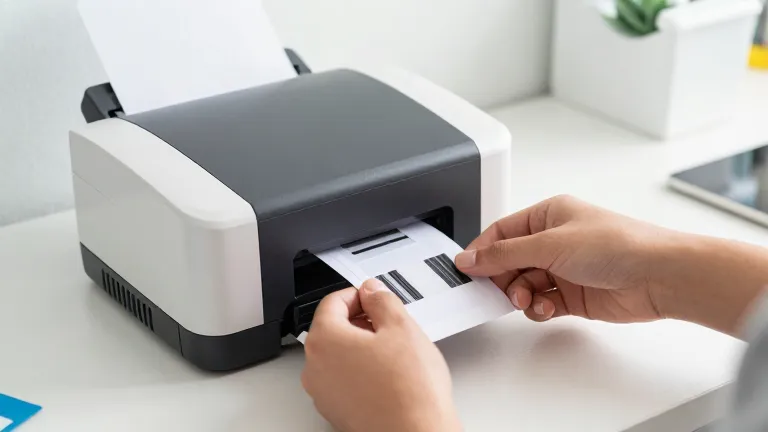
Start by checking if the thermal printer is functioning properly. Ensure the printer is powered on and that the print head is clean. A dirty or obstructed print head may prevent the thermal transfer process from working correctly. If the print head is dirty, use a soft, lint-free cloth to gently wipe it. Avoid using harsh chemicals, as they can damage the sensitive components. If the printer is not responding or the print head is damaged, it may require professional servicing.
Testing with Different Label Types
Next, verify that the label is compatible with your thermal printer. Not all labels are suitable for thermal printing; some require a heat-sensitive material that can only be used with specific printers. If the label is not compatible, it may not absorb the heat properly, resulting in blank or faded prints. To test this, try using a different label type that is designed for thermal printers. If the issue persists with multiple label types, the problem may lie with the printer itself rather than the label.
Fix Upside Down or Misaligned Labels
If your label printer is producing upside down or misaligned labels, the issue might stem from incorrect label orientation. Ensuring the label is correctly inserted and the printer settings match its physical orientation can resolve this problem.
Checking Label Orientation
Start by inspecting how the label is loaded into the printer. Labels should be fed with the adhesive side facing the printer’s rollers. If the label is inserted upside down, it will print incorrectly. Use a magnifying glass or bright light to check the orientation. If the label is reversed, gently remove it and reinsert it in the correct direction.
Adjusting Printer Orientation Settings
Once the label is correctly inserted, adjust the printer’s orientation settings. Access the printer’s menu or settings panel and look for options related to label orientation. Select the correct setting—usually 'Portrait' or 'Landscape'—based on the label’s physical orientation. Some printers have a 'Reverse Image' option that flips the printed content, which can be useful if the label is printed upside down. Ensure the printer is calibrated for the selected orientation to avoid further misalignment.
Advanced Troubleshooting and Maintenance
Advanced troubleshooting and maintenance can resolve persistent issues with your Dymo or Rollo label printer. These steps are designed to identify and fix deeper hardware or software problems that may not be addressed by basic troubleshooting.
Running a Printer Self-Test
Running a printer self-test is an effective way to diagnose hardware issues. Most Dymo and Rollo printers have a built-in self-test function that checks the printer’s internal components, including the print head, rollers, and sensors. To initiate the self-test, refer to your printer’s user manual or look for a dedicated self-test button or option in the printer’s settings menu. The test will print a diagnostic page that highlights any errors or malfunctions, helping you pinpoint the root cause of the problem.
Cleaning Print Head and Rollers
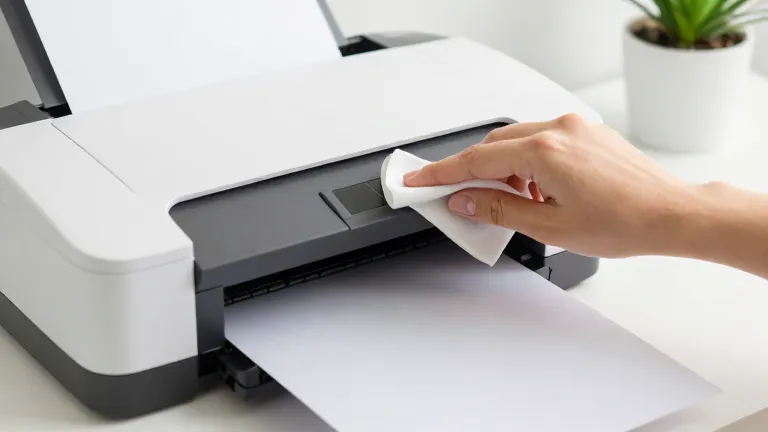
Cleaning the print head and rollers is essential for maintaining print quality. Over time, dust, paper residue, and adhesive buildup can clog the print head and rollers, leading to blank or faded labels. Use a soft, lint-free cloth and isopropyl alcohol to gently wipe the print head and rollers. Avoid using excessive pressure or abrasive materials, as this may damage the components. Regular cleaning can prevent print quality issues and extend the lifespan of your printer.
Frequently Asked Questions
Why is my label printer printing blank labels even though the label is loaded?
Blank labels can result from incorrect label size settings or a misaligned label. Check that the label size matches the actual size and reposition the label correctly in the printer.
How do I fix upside down labels on my Dymo printer?
Upside down labels may be due to incorrect orientation settings. Adjust the orientation in the printer settings to match the label's actual direction.
Can I calibrate the label size on my Rollo label printer?
Yes, you can calibrate the label size on your Rollo label printer by accessing the settings menu and selecting the correct label size option.
What should I do if my label printer is not responding to any commands?
If your label printer is unresponsive, try resetting the printer or checking for firmware updates. If the issue persists, contact the manufacturer for support.
Final Thoughts
Fixing label printer issues often involves checking basic setup, calibrating settings, and ensuring proper label alignment. Regular maintenance and testing with different label types can help prevent future problems.
If your label printer continues to have issues, consider running a self-test or contacting customer support for further assistance.