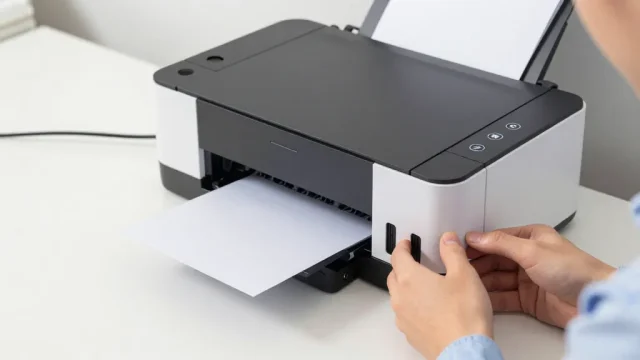
How to Fix Canon Printer Error Code 5100 (Carriage Error)
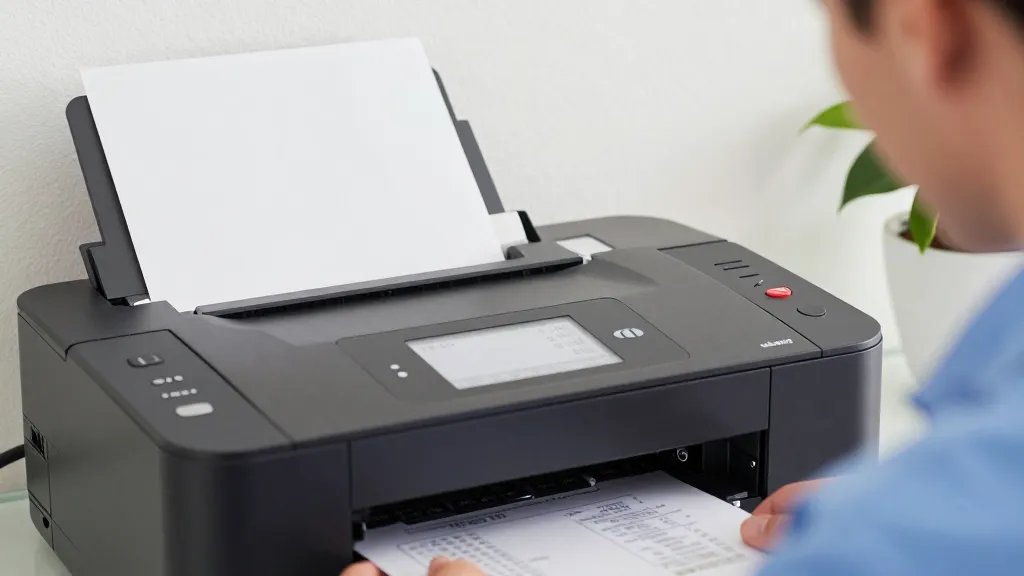
If your Canon printer is displaying error code 5100, it's likely experiencing a carriage error, which can disrupt your printing workflow. This issue often prevents the printer from functioning properly and can be frustrating for home users and office workers who rely on consistent printing. Error code 5100 typically points to a problem with the printer's carriage movement, which may be caused by physical obstructions, dirty components, or mechanical issues. Understanding the root cause is the first step toward resolving the problem. This article provides a clear, step-by-step guide to help you troubleshoot and fix Canon printer error code 5100. Whether you're dealing with a minor issue or a more complex mechanical problem, the solutions outlined here can help you get your printer back in working order. By following these practical steps, you can address the carriage error and restore your printer's functionality efficiently.
Understanding Canon Printer Error Code 5100
Canon Printer Error Code 5100 is a common technical issue that prevents the printer from functioning properly. This error is typically associated with the ink carriage or encoder strip, which are essential components for accurate print output. When this error occurs, the printer may stop working entirely, making it crucial to address the issue promptly.
What Causes Canon Error Code 5100?
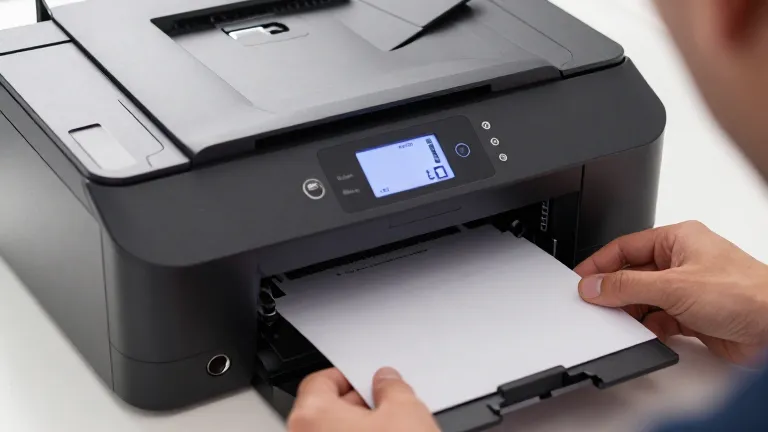
Error Code 5100 is usually triggered by physical obstructions, misalignment, or contamination of the ink carriage or encoder strip. The ink carriage is responsible for moving the print head across the paper, while the encoder strip helps track its position. If either component is blocked, damaged, or dirty, the printer may fail to print correctly. Additionally, a misaligned carriage can cause the printer to detect an error, leading to the display of Code 5100. Environmental factors, such as dust or debris, can also contribute to this problem.
Common Canon Printers Affected by Error Code 5100
Several Canon printer models are susceptible to Error Code 5100, particularly those in the PIXMA series. Models such as the PIXMA MP250, MP490, and MP600 are commonly affected, though other models may also experience this issue. The error is more prevalent in printers that have been in use for an extended period, as wear and tear can lead to component degradation. Users should consult their printer's manual to identify if their specific model is known to encounter this error. Regular maintenance and cleaning can help prevent Code 5100 from occurring in these models.
Step-by-Step Guide to Fix Canon Error Code 5100
The first steps in resolving Canon Printer Error Code 5100 involve verifying the printer’s basic functionality and checking for simple issues that may be causing the error. These initial actions can often resolve the problem without requiring more advanced troubleshooting.
- Turn Off and Reboot the Printer
- Check for Physical Obstructions
Turn Off and Reboot the Printer
Begin by turning off the printer using the power button. Allow it to sit for at least one minute to let any electrical components reset. After the wait, turn the printer back on and check if the error persists. This simple reboot can resolve minor software glitches that may be triggering the error code.
Check for Physical Obstructions
Inspect the printer’s interior for any visible obstructions, such as paper jams, loose cables, or debris blocking the ink carriage movement. Ensure that all components are properly seated and that no foreign objects are interfering with the printer’s mechanisms. Clearing any physical blockages can restore normal operation and prevent further errors.
Cleaning the Encoder Strip and Ink Carriage
Cleaning the encoder strip and ink carriage is a crucial step in resolving Canon Error Code 5100. The encoder strip, a thin strip located near the ink carriage, tracks its movement and ensures proper alignment. If this strip becomes dirty or damaged, it can lead to misalignment and trigger the error. Regular cleaning helps maintain optimal performance and prevents future issues.
How to Locate and Clean the Encoder Strip
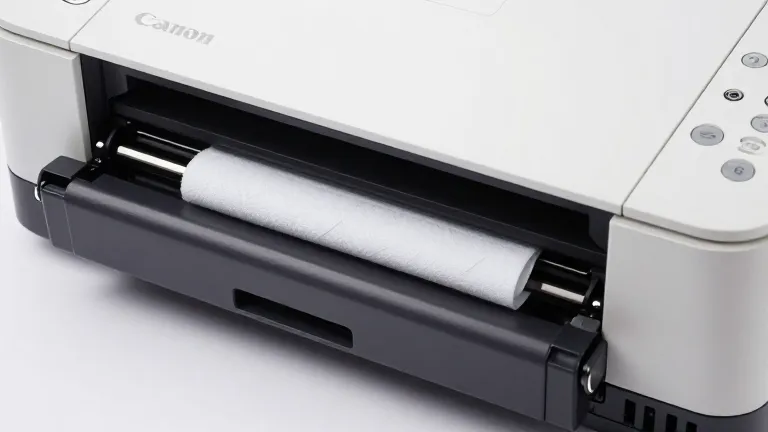
To locate the encoder strip, open the printer’s front cover and look for a thin, black or white strip near the ink carriage assembly. This strip is often positioned along the side of the carriage rail. Use a soft, lint-free cloth to gently wipe the strip, ensuring you remove any dirt, dust, or residue. Avoid pressing too hard to prevent damage to the strip’s surface.
Cleaning the Ink Carriage and Surrounding Area
Once the encoder strip is clean, focus on the ink carriage and surrounding area. Use the same soft cloth to wipe the carriage and any adjacent components, such as the rail or guide rods. Be careful not to touch or press the ink nozzles, as this can cause clogging or misalignment. After cleaning, ensure all parts are dry before closing the printer cover and restarting the device.
Troubleshooting Advanced Causes of Error Code 5100
If basic cleaning and initial troubleshooting steps fail to resolve Canon Printer Error Code 5100, it's time to explore more advanced troubleshooting techniques. These steps are designed for users who are familiar with the printer's internal components and are looking for deeper insights into potential mechanical or software-related issues.
Checking for Mechanical Damage
Inspect the ink carriage and moving parts for signs of mechanical damage, such as broken gears, worn-out belts, or misaligned components. Physical damage can prevent the carriage from moving smoothly, leading to the 5100 error. If you notice any visible damage, it's crucial to stop using the printer immediately to avoid further complications. Mechanical issues often require professional repair, as attempting to fix them without proper tools can worsen the problem.
Updating Firmware and Resetting Printer Settings
Ensure that the printer's firmware and software are up to date. Canon periodically releases firmware updates to address bugs, improve performance, and fix compatibility issues. Visit the official Canon website to download the latest firmware for your specific printer model. After updating, restart the printer to apply the changes. In some cases, resetting the printer settings to their default configuration can resolve lingering software conflicts. This can be done through the printer's control panel or using the Canon PRINT software on your computer.
When to Seek Professional Help for Error Code 5100
If all troubleshooting steps fail, the issue may require professional repair. Persistent error code 5100 can indicate internal hardware failure, such as a damaged motor or faulty wiring. In such cases, attempting further DIY fixes may not resolve the problem and could even worsen the situation.
Signs That the Printer Needs Professional Repair
Signs that the printer needs professional repair include continuous error code 5100 after multiple troubleshooting attempts, unusual noises from the carriage, or visible physical damage to the printer’s internal components. If the printer fails to respond to basic commands or if the carriage moves erratically, these are clear indicators that the issue lies beyond the user’s ability to resolve.
How to Contact Canon Support or a Technician
To contact Canon support or a technician, visit the official Canon website and locate the support section for your specific printer model. You can also call Canon’s customer service line for guidance. When reaching out, be prepared to describe the error code, the steps you’ve already taken, and any symptoms you’ve observed. This information will help the technician diagnose the problem more efficiently. If your printer is under warranty, professional repair may be covered, so it’s worth checking your service plan before proceeding.
Frequently Asked Questions
What should I do if my Canon printer keeps showing error code 5100 after cleaning?
If the error persists after cleaning, check for mechanical damage or misalignment. If issues remain, consider professional repair to avoid further complications.
Can I fix Canon error code 5100 without taking the printer apart?
Yes, you can resolve many cases by cleaning the encoder strip and ink carriage. However, severe mechanical issues may require opening the printer for inspection.
What tools do I need to clean the encoder strip on my Canon printer?
You'll need a soft, lint-free cloth, isopropyl alcohol, and a small brush. Avoid using harsh chemicals to prevent damage to the strip.
How often should I clean the ink carriage and encoder strip to prevent error code 5100?
Clean the ink carriage and encoder strip every few months or when you notice print quality issues. Regular maintenance helps prevent errors like 5100.
Final Steps for Resolution
Regular maintenance and cleaning of the ink carriage and encoder strip can prevent error code 5100. If problems persist, professional assistance may be necessary.
Follow the outlined steps to troubleshoot and resolve Canon error code 5100. If unsure, contact Canon support for further guidance.