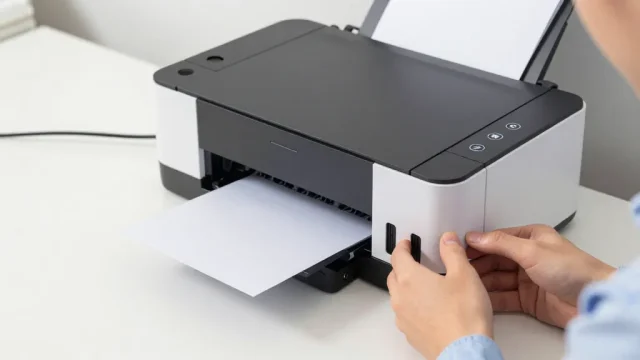
How to Fix Brother Printer Paper Jam Error With No Paper Inside
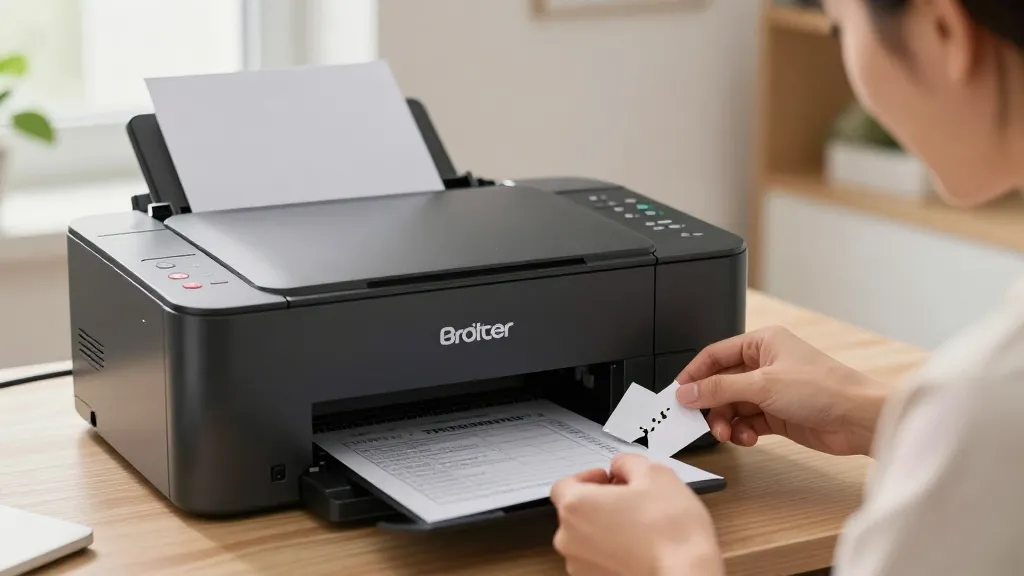
Encountering a Brother printer paper jam error with no paper inside can be frustrating, especially when you're in a hurry to print. This false error often disrupts workflow and can leave you wondering how to resolve it without professional help. The key to fixing this issue lies in understanding the common causes and following a clear, step-by-step approach. This article provides a practical guide on how to fix Brother printer paper jam error with no paper inside, helping you troubleshoot and resolve the problem efficiently.
Paper jam errors can occur due to residual paper fragments, dust buildup, or misalignment in the printer’s internal components. Even when no paper is visible, these hidden issues can trigger the error message. By carefully inspecting the paper path and cleaning critical areas, you can often eliminate the problem without needing to replace parts. This guide walks you through each step to ensure a thorough and effective solution.
Prevention is just as important as troubleshooting. Regular maintenance, such as cleaning rollers and using the right paper type, can significantly reduce the likelihood of future paper jams. If the error persists despite your efforts, knowing when to seek professional help ensures you don’t damage your printer further. With the right knowledge and tools, you can confidently handle paper jam errors on your Brother printer and keep your printing tasks running smoothly.
Understanding the Brother Paper Jam Error
Brother printers may display a paper jam error even when no paper is present, leading to confusion and frustration. This issue can arise from various factors, including false jams, dirty rollers, or a misaligned rear flap. Understanding the root cause is essential to resolve the error effectively and prevent recurring problems.
What Causes a Paper Jam Error With No Paper Inside?
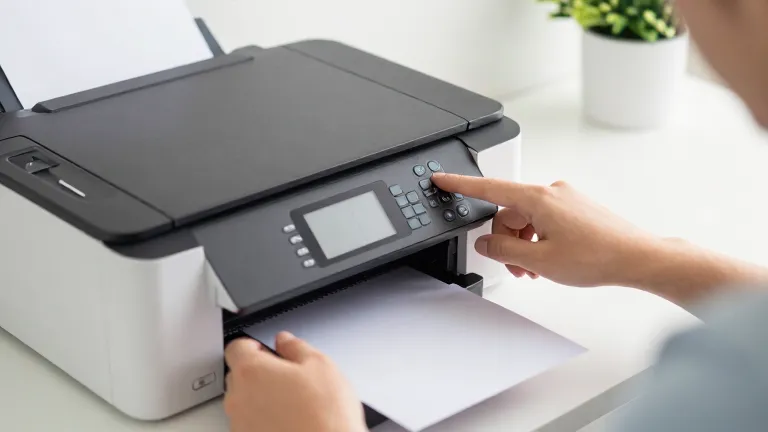
A paper jam error with no paper inside can be caused by several factors. One common reason is a false jam, which occurs when the printer's sensors incorrectly detect paper in the path. Another possibility is dirty rollers, which can create friction and mislead the printer into thinking paper is stuck. Additionally, a misaligned rear flap can interfere with the sensor readings, triggering the jam error even when no paper is present.
How to Recognize a False Paper Jam Error
Recognizing a false paper jam error is crucial to avoid unnecessary troubleshooting. If the printer displays a jam error but no paper is visible, start by checking the paper path for any residual debris or misalignment. If the error persists without any physical obstruction, it is likely a false jam. Other signs include the printer failing to print despite no paper being present or the error appearing randomly without any visible cause.
Step-by-Step Guide to Fix the Paper Jam Error
To resolve a Brother printer paper jam error with no paper inside, start by safely turning off the printer and unplugging the power cord. This ensures your safety while you inspect and clean the internal components. Next, carefully open the printer cover and visually inspect the paper path for any debris, dust, or remnants of paper that might be causing the false jam. A thorough inspection can often reveal the source of the issue and prevent future occurrences.
- Turn off the printer and unplug the power cord for safety.
- Open the printer cover and inspect the paper path for any debris or stuck paper.
- Check the rear flap and ensure it is properly aligned.
- Clean the rollers with a dry cloth or a soft brush to remove dust and residue.
- Restart the printer and attempt to print a test page.
How to Open the Printer Cover and Inspect the Paper Path
Begin by turning off the printer and unplugging the power cord to avoid any electrical hazards. Locate the printer cover, which is usually at the top or front, and gently lift it to open. Once open, use a flashlight to carefully inspect the paper path for any visible debris, dust, or fragments of paper that may have become lodged in the mechanism. Even small pieces can trigger a false paper jam error.
Cleaning the Rollers and Rear Flap
After inspecting the paper path, focus on cleaning the rollers and rear flap. Use a dry cloth or a soft brush to gently wipe the rollers, removing any accumulated dust or residue that could interfere with paper feeding. The rear flap, located at the back of the printer, should also be checked for dirt or misalignment. Ensure it is securely in place and properly aligned to allow smooth paper movement. A clean and well-maintained paper path is essential for preventing false jam errors.
How to Reset the Paper Jam Error on a Brother Printer
Resetting the paper jam error on a Brother printer is essential after resolving a false jam or clearing physical obstructions. This process can be done manually or through a factory reset, depending on the model and severity of the issue. Following these steps ensures the printer recognizes the error has been resolved and functions correctly.
Manual Reset of the Paper Jam Indicator
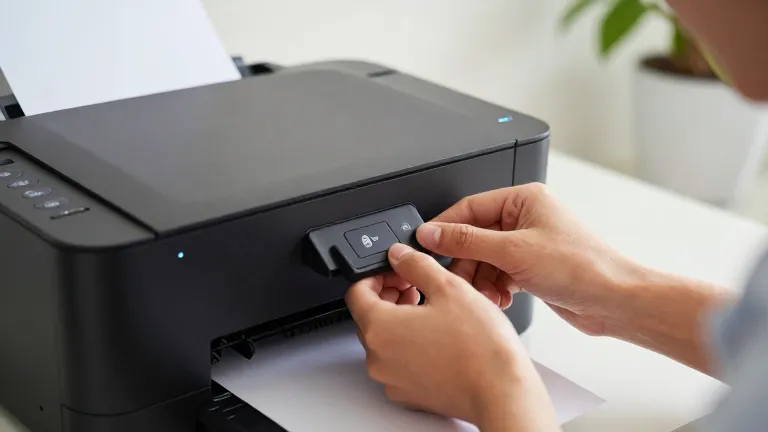
To manually reset the paper jam indicator, locate the error light or display on your Brother printer. Turn off the printer and wait a few seconds before powering it back on. Some models have a dedicated reset button or a specific sequence of button presses to clear the jam error. Consult the printer's manual for exact instructions, as the process may vary by model.
Factory Reset for Persistent Paper Jam Errors
If the paper jam error persists after manual resetting, a factory reset may be necessary. This clears the printer's memory and resets all settings to their original state. To perform a factory reset, refer to the user manual or use the printer's control panel to access the maintenance or setup menu. Select the factory reset option and follow the prompts carefully. After resetting, print a test page to confirm the error has been resolved and the printer is functioning correctly.
Preventing Future Paper Jam Errors on Your Brother Printer
Preventing future paper jam errors on your Brother printer involves consistent maintenance and mindful usage practices. By focusing on key areas like roller cleanliness, rear flap alignment, and paper compatibility, you can significantly reduce the likelihood of encountering false paper jam errors.
- Regularly clean the rollers to prevent buildup of dust and paper residue.
- Ensure the rear flap is always closed and aligned correctly.
- Use high-quality paper that is compatible with your Brother printer model.
- Avoid using incorrect paper sizes or types that may cause jams.
- Perform routine maintenance to keep the printer in good working condition.
Maintaining Clean Rollers and Rear Flap
Maintaining clean rollers is essential for preventing paper jams. Over time, dust and paper residue can accumulate on the rollers, causing them to grip the paper unevenly. Use a soft, lint-free cloth or a rubber eraser to gently clean the rollers. This ensures smooth paper feeding and reduces the risk of unexpected jams.
Choosing the Right Paper for Your Brother Printer
Choosing the right paper for your Brother printer is crucial for avoiding paper jams. Always refer to your printer’s manual to determine the recommended paper size, weight, and type. Using paper that is too thick, too thin, or not properly sized can lead to feeding issues and false jam errors. Opt for high-quality paper from reputable brands to ensure consistent performance.
Troubleshooting Tips for Brother Paper Jam Errors
Once you've resolved the paper jam error, it's important to verify that the printer is functioning correctly. Testing the printer after fixing the jam error ensures that the issue has been fully resolved and that no residual problems remain.
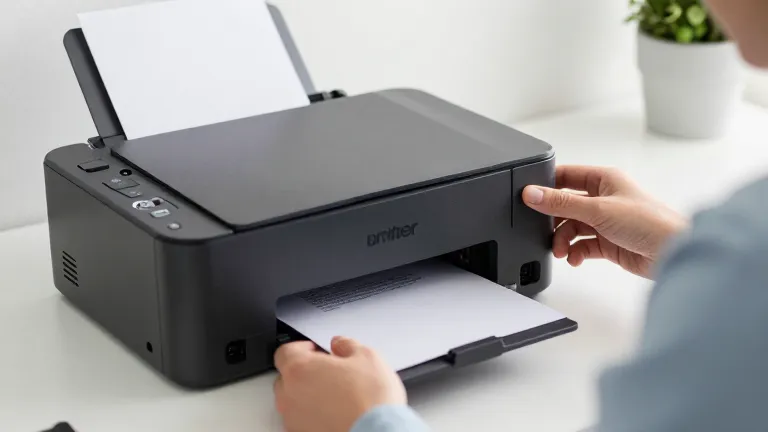
Testing the Printer After Fixing the Jam Error
After addressing the paper jam, print a test page to confirm that the printer is operating normally. If the test page prints without errors, the issue is likely resolved. If the error persists, it may indicate a deeper problem, such as a misalignment in the paper path or a malfunction in the printer's internal sensors. Repeating the troubleshooting steps or checking for firmware updates can help identify and resolve any remaining issues.
When to Seek Professional Help for Paper Jam Issues
If the paper jam error continues despite your efforts, it may be a hardware issue that requires professional service. Common hardware problems include faulty sensors, damaged rollers, or internal mechanical failures. Before contacting a technician, ensure that all settings are correctly configured for the paper type and size. Keeping a record of any error codes or messages can also help technicians diagnose the problem more efficiently. If the printer is critical to your workflow, consider scheduling a service appointment to prevent further disruptions.
Frequently Asked Questions
What should I do if my Brother printer shows a paper jam error but there is no paper inside?
If your Brother printer shows a paper jam error with no paper inside, start by opening the printer cover and inspecting the paper path. Clean the rollers and check the rear flap for any debris. If the error persists, perform a manual reset or factory reset.
How do I clean the rollers on my Brother printer to prevent false paper jams?
To clean the rollers, turn off the printer and open the cover. Use a soft, dry cloth to gently wipe the rollers. Avoid using water or harsh chemicals. Regular cleaning helps prevent false paper jams and ensures smooth paper feeding.
Can a misaligned rear flap cause a paper jam error on my Brother printer?
Yes, a misaligned rear flap can cause a paper jam error. The rear flap helps guide the paper through the printer. If it's not properly aligned, it may create resistance or false jams. Check and adjust it as part of your troubleshooting process.
What are the steps to reset a false paper jam error on my Brother printer?
To reset a false paper jam error, manually clear the paper jam by removing any debris. Then, press and hold the 'Stop' or 'Cancel' button for a few seconds. If the error persists, perform a factory reset through the printer’s settings.
Final Thoughts and Next Steps
Regular maintenance and proper paper handling can significantly reduce the occurrence of paper jams. Clean the rollers and rear flap regularly, and use the correct paper type for your printer. If issues persist, consult the printer manual or seek professional assistance.
By understanding the causes of false paper jams and following the outlined steps, you can effectively resolve and prevent these errors. Always ensure the printer is properly reset after troubleshooting to avoid recurring issues.