
How to Fix Google Nest Hub Stuck on Grey G Logo Screen
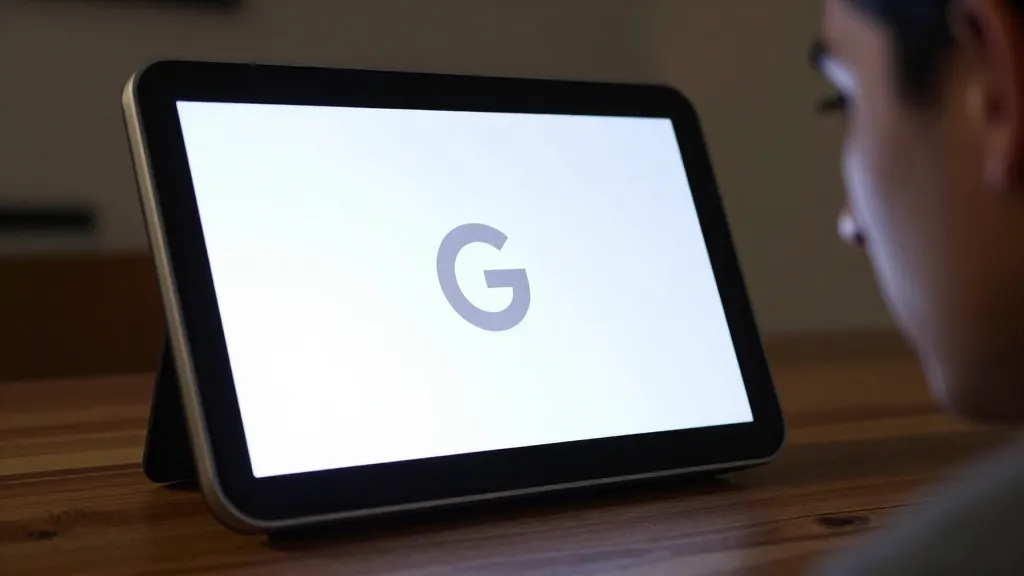
If your Google Nest Hub is stuck on the grey G logo screen, it can be frustrating, especially when you rely on it for smart home control. This screen typically indicates a startup issue, and understanding what it means is the first step toward resolving the problem. The article 'How to Fix Google Nest Hub Stuck on Grey G Logo Screen' provides practical guidance to help you troubleshoot and restore your device. Whether you're a homeowner or a tech-savvy user, the steps outlined here are designed to be clear and effective, helping you get your Nest Hub back to normal without unnecessary complexity.
Understanding Why Your Google Nest Hub Is Stuck on the Grey G Logo
The Google Nest Hub displaying the grey G logo screen is a common issue that can prevent the device from booting properly. This screen typically appears during the startup process and may indicate a problem with the device's software, hardware, or power supply. Understanding the underlying causes is essential to resolve the issue effectively.
What Does the Grey G Logo on Nest Hub Mean?
The grey G logo screen on the Google Nest Hub is a visual indicator that the device is experiencing a startup issue. This screen usually appears when the device is attempting to load the operating system but is unable to complete the boot process. It may also be displayed if the device is in recovery mode or has encountered a critical system error that prevents it from functioning normally.
Common Causes of the Grey G Logo Screen
Common causes of the grey G logo screen include software glitches, such as corrupted system files or failed updates. Power interruptions during the boot process can also lead to this issue, as the device may not have enough time to complete the startup sequence. Additionally, hardware malfunctions, such as issues with the internal storage or display components, can result in the grey G logo screen. In some cases, the device may have entered a recovery mode due to a system error, which can also trigger this screen.
Troubleshooting Steps to Fix the Grey G Logo Screen
If your Google Nest Hub is stuck on the grey G logo screen, the first step is to perform a simple power cycle. This involves unplugging the device from the power source for at least 30 seconds and then plugging it back in. This process can resolve minor software glitches or temporary power issues that may be preventing the device from booting up properly. Ensure the power cable is securely connected and that the outlet is functioning correctly. If the issue persists, you may need to proceed with more advanced troubleshooting steps.
- Unplug the Nest Hub from the power source for at least 30 seconds, then plug it back in.
- Verify that the power cable is securely connected and the outlet is working.
- Check if the Nest Hub is overheating by ensuring it is placed in a well-ventilated area.
- Confirm that the device is not in a low-power state by checking if the power adapter is providing sufficient charge.
- Ensure the Nest Hub is connected to a stable Wi-Fi network, as a weak or unstable connection can cause startup issues.
- If the device is connected to a smart home hub, verify that the hub is functioning correctly and the Nest Hub is properly paired.
Performing a Factory Reset on Your Google Nest Hub
A factory reset can be an effective solution for resolving software-related issues that prevent your Google Nest Hub from booting past the grey G logo. However, it is important to understand the implications of this process before proceeding.
How to Factory Reset Your Nest Hub
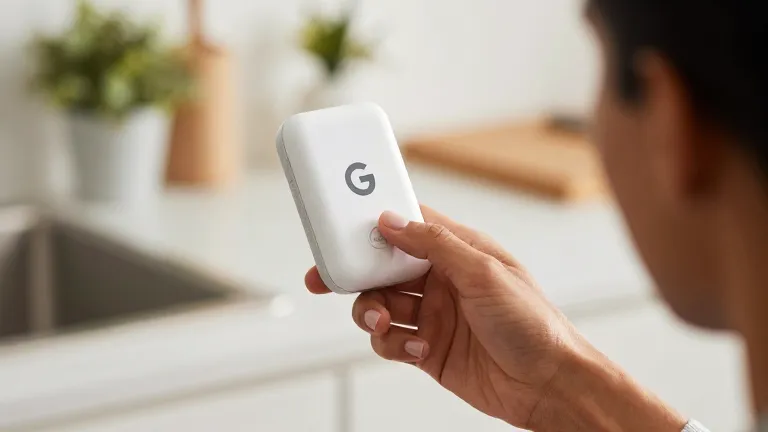
To perform a factory reset on your Google Nest Hub, press and hold the power button until the device turns off. Once it is off, press and hold the power button again until the device starts up and displays the grey G logo. Continue holding the power button until the device vibrates and the Google logo appears, indicating that the reset is in progress. This process typically takes a few minutes to complete.
What Happens During a Factory Reset
During a factory reset, all personal data, settings, and connected accounts are erased from the device. This means that any customized configurations, app preferences, or saved content will be removed. Additionally, the Nest Hub will revert to its original factory settings, and you will need to re-pair it with your Wi-Fi network and reconfigure any smart home devices it was previously connected to. It is crucial to back up any important data before initiating the reset to prevent permanent loss of information.
Alternative Solutions and Advanced Fixes
If the Grey G Logo screen persists after basic troubleshooting, consider using a different power source. A faulty power adapter or outlet can prevent the Nest Hub from booting properly. Try plugging the device into a different wall socket or using a high-quality USB power adapter to rule out power-related issues.
- Try using a different power source to rule out electrical issues.
- Check for recent software updates that may have caused the problem.
- Contact Google support for technical assistance.
- Ensure the Nest Hub is properly connected to Wi-Fi before attempting further troubleshooting.
Check for recent software updates that may have caused the problem. Sometimes, new firmware or app versions can introduce bugs or compatibility issues. Ensure your Nest Hub is connected to Wi-Fi and check the Google Home app for any pending updates. If an update is available, reinstall it and see if the issue resolves.
If the problem continues, consider contacting Google support for further assistance. Their technical team can provide guidance tailored to your specific device model and situation. Be prepared to describe the issue in detail, including any steps you’ve already taken to resolve it.
Preventing Future Issues with Your Google Nest Hub
To prevent future issues with your Google Nest Hub, it's important to maintain regular firmware updates. These updates often include performance improvements, security patches, and bug fixes that can enhance the device's stability and functionality. Checking for updates through the Google Home app ensures your Nest Hub remains compatible with the latest features and system requirements. However, it's advisable to install updates during periods of stable connectivity to avoid interruptions during the update process.
Avoiding overloading your Nest Hub with unnecessary apps or features can also help maintain its performance. While the device is designed to handle multiple functions, excessive use of third-party apps or integrating too many smart home devices can strain its resources and lead to unexpected behavior. Prioritize essential applications and features to keep the system running smoothly. Regularly reviewing installed apps and removing those that are no longer needed can free up system resources and improve overall performance.
Keeping your Nest Hub in a well-ventilated area is another key step in preventing overheating and related issues. The device generates heat during operation, and poor airflow can cause it to overheat, potentially leading to shutdowns or reduced lifespan. Place the Nest Hub in a location with adequate space around it to allow for proper heat dissipation. Avoid exposing it to direct sunlight or placing it near heat sources to ensure optimal operating conditions.
Frequently Asked Questions
What should I do if my Nest Hub is stuck on the grey G logo?
If your Nest Hub is stuck on the grey G logo, start by trying a power cycle. If that doesn't work, perform a factory reset. If the issue persists, contact Google support.
Can I reset my Nest Hub without losing my settings?
A factory reset will erase all your settings and data. To avoid losing your settings, back up your data first. Consider using the Google Home app to restore your settings after the reset.
How do I know if my Nest Hub is overheating?
Signs of overheating include the device shutting down unexpectedly or the grey G logo screen appearing. If your Nest Hub feels unusually hot, unplug it and let it cool down.
What if the grey G logo screen keeps appearing after a factory reset?
If the grey G logo screen persists after a factory reset, there may be a hardware issue. Contact Google support for further assistance and potential repair or replacement.
Final Thoughts
Addressing the grey G logo screen involves troubleshooting, factory resets, and checking for overheating. If issues persist, professional support is recommended.
To prevent future issues, ensure proper ventilation and regular maintenance. Always back up your data before performing a factory reset.





