
How to Fix Philips Hue Lights Unreachable in App
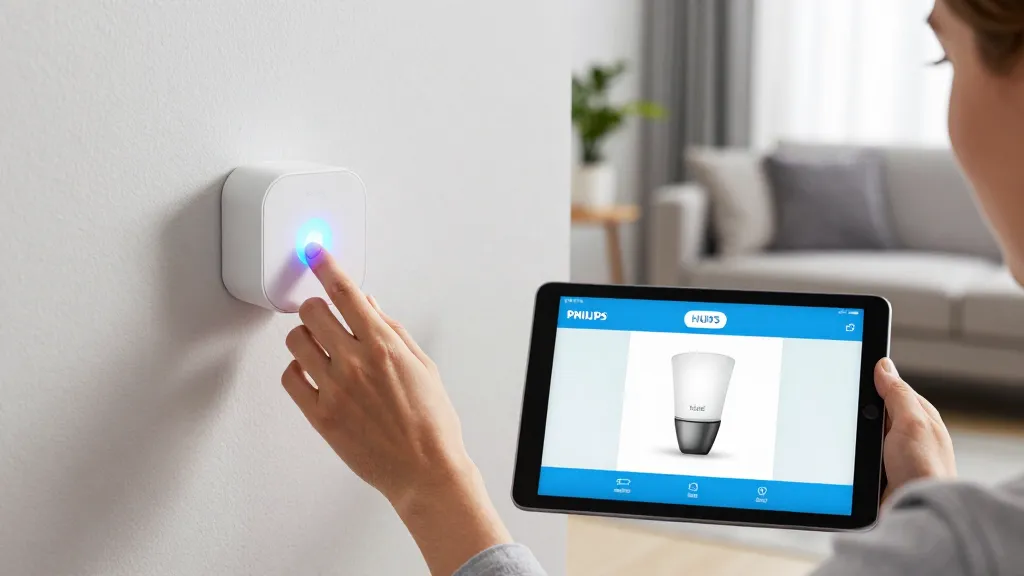
Philips Hue lights that are unreachable in the app can be frustrating, especially when you're trying to control your smart home setup. Whether you're adjusting the lighting for a party or setting the mood for a quiet evening, connectivity issues can disrupt your plans. This article provides a step-by-step guide to help you resolve the issue of Philips Hue lights being unreachable in the app. We'll cover basic troubleshooting, resetting bulbs, advanced network settings, and even physical connections to ensure your lights come back online.
Starting with simple checks can often resolve the problem, such as verifying your internet connection and ensuring the app is up to date. If these steps don't work, resetting the bulbs and reconnecting them to the app can be an effective solution. For more complex issues, adjusting Zigbee channel settings or optimizing your network may be necessary.
In some cases, physical connections like wall switches or wiring can affect the performance of your Philips Hue system. If all else fails, knowing when to seek professional help can save you time and frustration. By following these steps, you can regain control of your smart lighting system and enjoy the full benefits of your Philips Hue setup.
Troubleshooting Steps to Fix Philips Hue Lights Unreachable
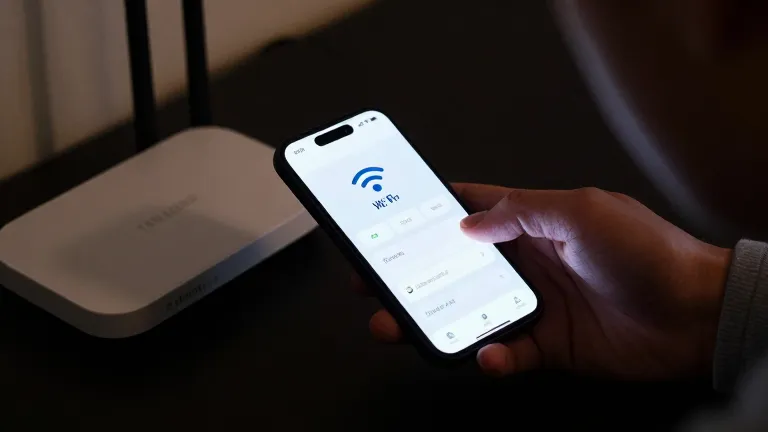
When your Philips Hue lights show as unreachable in the app, the first step is to rule out simple connectivity issues. Begin by ensuring that the bulbs are properly powered and that your smartphone or tablet is connected to the same Wi-Fi network as your Philips Hue Bridge. If the bulbs are not responding, they may be out of range, experiencing interference, or not properly connected to the network.
Check for Basic Connectivity Issues
Start by checking if the bulbs are receiving power. Ensure that the bulbs are securely connected to the lamp or fixture, and that the circuit breaker for the light is not tripped. If you're using a wall switch, confirm that it's in the 'on' position and that the bulb is not bypassed by the switch. Move closer to the bulb to see if it appears in the app, as distance can affect the signal strength.
Verify App and Firmware Updates
Next, verify that the Philips Hue app is up to date. Open the app and check for available updates in the settings menu. An outdated app may not communicate correctly with the bridge or bulbs, leading to connectivity issues. Similarly, ensure that the Philips Hue Bridge firmware is updated. You can check for updates through the app under the Bridge settings. If an update is available, follow the on-screen instructions to install it. A mismatch between the app, bridge, and bulbs can prevent them from being recognized.
How to Reset Philips Hue Bulbs and Reconnect to the App
Resetting Philips Hue bulbs can resolve temporary connectivity issues and restore communication with the app. A factory reset clears any corrupted settings and allows the bulbs to re-establish a stable connection. This process is simple and effective, ensuring your bulbs are ready to be paired again.
- Locate the bulb base and press and hold the button until the bulb flashes twice, indicating a successful reset.
- Wait for the bulb to stop flashing and return to a steady light, which means it has completed the reset process.
- Open the Philips Hue app and ensure it is connected to the same Wi-Fi network as your Hue Bridge.
- Tap the '+' icon in the app to add a new bulb, then follow the on-screen instructions to reconnect the bulb.
Factory Resetting the Bulbs
Factory resetting a Philips Hue bulb is a straightforward process that can eliminate connectivity problems. To reset a bulb, press and hold the button on the base until it flashes twice. This action clears any previous network settings and prepares the bulb for reconnection. It is important to note that this process does not affect the bulb's physical functionality and is safe to perform regularly if needed.
Reconnecting the Bulbs to the App
After resetting the bulb, it must be reconnected to the Philips Hue app. Open the app and ensure it is linked to your Hue Bridge. Tap the '+' icon to add a new bulb, then follow the on-screen prompts to pair the bulb. The app will guide you through the process, including confirming the bulb's presence on the network. Once the bulb is successfully added, it will appear in your list and be ready for use.
Advanced Solutions: Fixing Zigbee Channel and Network Settings
Advanced solutions for fixing Philips Hue lights that are unreachable often involve adjusting Zigbee channel settings and optimizing network configurations. These steps can resolve interference issues and improve communication between your bulbs and the hub.
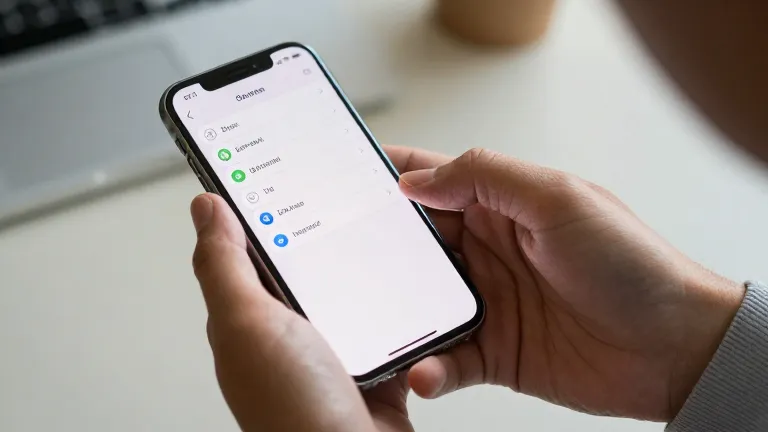
- Access the Philips Hue Bridge settings through the app to change the Zigbee channel.
- Ensure the Philips Hue Bridge is correctly configured and connected to your router.
- Use a Wi-Fi analyzer tool to identify the least congested channel for your network.
- Restart the Philips Hue Bridge and bulbs after making changes to apply the new settings.
Changing the Zigbee Channel
Changing the Zigbee channel can significantly enhance the performance of your Philips Hue system. The Zigbee protocol operates on specific frequency bands, and if multiple devices are using the same channel, it can cause interference. By switching to a less crowded channel, you can reduce communication issues and ensure smoother connectivity between your bulbs and the bridge.
Optimizing the Network Settings
Optimizing the network settings involves ensuring that your router and Philips Hue Bridge are on the same subnet and that there are no IP address conflicts. Additionally, placing the bridge close to your router can improve signal strength and reliability. If you're using a dual-band router, connecting the bridge to the 2.4GHz band is recommended, as Zigbee typically operates on this frequency. Regularly checking for firmware updates for both the bridge and the router can also help maintain optimal performance.
How to Check Wall Switches and Physical Connections
If your Philips Hue lights are showing as unreachable, it's important to check the wall switches and physical connections associated with the bulbs. Issues with the electrical setup or faulty switches can prevent the lights from communicating with the Hue app. Ensuring that the bulbs are correctly connected to the right switch and that the switch is functioning properly can resolve many connectivity problems.
Verify Wall Switch Connections
Make sure that your Philips Hue bulbs are connected to the correct wall switch. Some bulbs are designed to work with specific switches, and connecting them to the wrong one can lead to communication failures. Check the wiring to ensure that the bulbs are securely attached to the switch and that no connections are loose or damaged. If you're unsure about the correct setup, refer to the manufacturer's guidelines or consult a qualified electrician.
Testing the Wall Switch
Test the wall switch to determine if it is functioning correctly. Turn the switch on and off to see if it responds properly. If the switch is faulty or not receiving power, it may prevent the bulbs from being detected by the Hue app. Additionally, inspect the switch for signs of wear, such as flickering lights or inconsistent operation. If the switch is damaged or not working as expected, replacing it could restore proper connectivity to your Philips Hue system.
When to Seek Professional Help for Persistent Issues
If all troubleshooting steps fail and the Philips Hue lights remain unreachable, it may be necessary to replace the bulbs. Over time, smart bulbs can experience hardware failures or become incompatible with newer firmware updates, leading to persistent connectivity issues. Before replacing the bulbs, ensure that all other potential solutions have been exhausted, including checking the network, restarting the app, and verifying firmware compatibility.
Contacting Philips support is a crucial step when dealing with persistent issues. Their technical team can offer tailored guidance and may identify specific problems related to your setup, such as rare firmware bugs or device-specific conflicts. It is also advisable to check if your Philips Hue Bridge is functioning correctly, as a malfunctioning bridge can prevent communication with the bulbs.
Compatibility issues with other smart home devices can sometimes interfere with Philips Hue functionality. Some third-party smart home hubs or devices may conflict with the Hue ecosystem, especially if they operate on the same Zigbee or Wi-Fi network. Conducting a compatibility check with your existing smart home setup can help identify potential conflicts and ensure optimal performance.
If the issue persists even after replacing bulbs, contacting a professional technician may be necessary. A skilled electrician or smart home specialist can assess your home network and electrical system for underlying problems that might be affecting the Philips Hue system. This is particularly important if you suspect physical wiring issues or advanced network configuration problems.
Frequently Asked Questions
What should I do if my Philips Hue bulbs are still unreachable after resetting?
After resetting, ensure the bulbs are within range of the hub and the app is running. Re-add the bulbs through the app and check for any interference from other devices.
Can changing the Zigbee channel help fix the issue?
Yes, changing the Zigbee channel can resolve connectivity issues by reducing interference. Use the Philips Hue app to change the channel and test if the bulbs become reachable.
How do I check if my wall switch is causing the problem?
Verify that the wall switch is properly connected and not damaged. Test the switch with another device to ensure it's functioning correctly and not causing a power disruption.
What should I do if all troubleshooting steps fail and the bulbs are still unreachable?
If all steps fail, consider replacing the bulbs or contacting Philips support for further assistance. There may be a hardware issue or a deeper network problem requiring professional help.
Next Steps for Resolution
Fixing unreachable Philips Hue bulbs requires a systematic approach, from basic checks to advanced settings. Start with simple steps like restarting the app and checking connections, then move to more complex solutions like adjusting Zigbee channels.
If all else fails, seek professional help to diagnose and resolve persistent issues. Always ensure your network and firmware are up to date for optimal performance.





