
How to Fix Govee LED Strip Lights Not Connecting to Bluetooth
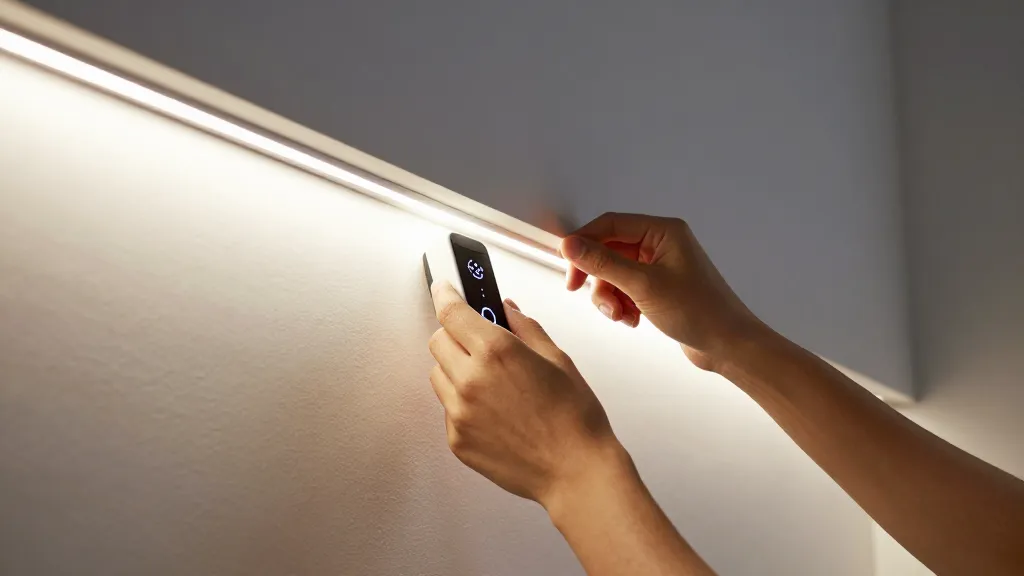
If your Govee LED strip lights are refusing to connect to Bluetooth, it can be frustrating—especially when you're trying to create the perfect ambiance or control lighting with ease. This guide will walk you through practical steps to resolve common connection issues and get your Govee LED strip lights working smoothly. Whether you're a homeowner or a tech enthusiast, these troubleshooting tips are designed to help you understand and fix the problem without needing advanced technical skills. We'll start by checking the basics, then move on to more advanced solutions if needed.
Check the Basic Setup and Pairing Requirements
Before attempting to resolve Bluetooth connection issues with your Govee LED strip lights, it's essential to confirm that the basic setup and pairing requirements are met. A simple oversight in these areas can often prevent the device from connecting, so take the time to check each step carefully.
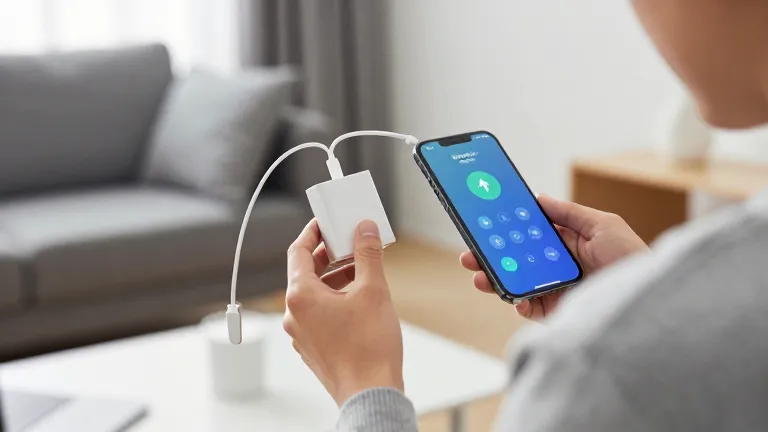
Verify Power and Connection
Ensure the LED strip lights are powered on and connected properly. Locate the power adapter for the controller and confirm that it is plugged into a working electrical outlet. The LED strip should illuminate when powered, indicating that the connection is active. If the lights do not turn on, double-check the power cable connections and try a different outlet. A stable power source is crucial for the Bluetooth functionality to operate correctly.
Ensure Bluetooth Is Enabled on Your Device
Verify that the Bluetooth feature is enabled on your smartphone or tablet. Go to the device's settings and look for the Bluetooth option. Toggle it on if it's disabled. Some devices may require you to manually select the Bluetooth mode or restart the device after enabling the feature. Additionally, ensure that your device is within a 10-meter range of the LED strip controller, as Bluetooth signals can weaken or fail beyond this distance. Keeping the device close increases the chances of a successful connection.
Troubleshoot Bluetooth Connection Issues
If your Govee LED strip lights are having trouble connecting to Bluetooth, start by addressing common connection issues that may be disrupting the pairing process. Simple steps like restarting devices and clearing Bluetooth connections can often resolve the problem without requiring advanced troubleshooting.
- Restart the LED strip controller and your mobile device.
- Forget the device from Bluetooth settings and attempt to reconnect.
- Ensure no other Bluetooth devices are interfering with the connection.
- Update your mobile app to the latest version if needed.
Restart the Controller and Your Device
Restarting the LED strip controller and your mobile device is a fundamental troubleshooting step. Power cycling both devices can clear temporary glitches that may be preventing a stable Bluetooth connection. Turn off the controller for 10 seconds, then power it back on. Similarly, restart your phone or tablet to refresh its Bluetooth stack and resolve any software conflicts.
Forget the Device and Reconnect
If the connection issue persists, try forgetting the device from your Bluetooth settings and re-pairing it. This process removes any corrupted or outdated connection data that might be causing the problem. On your mobile device, go to the Bluetooth settings, locate the Govee LED strip in the list, and select 'Forget Device.' Afterward, attempt to reconnect by following the pairing instructions in the Govee app. This ensures a fresh, secure connection between your device and the LED strip controller.
Reset the LED Controller and Re-Pair
Resetting the LED controller is a critical step in resolving Bluetooth connection issues. If the controller is not responding or pairing correctly, a reset can restore its functionality and allow it to reconnect to your device. This process involves locating the reset button, holding it for a specific duration, and then re-establishing the connection through the Govee app.
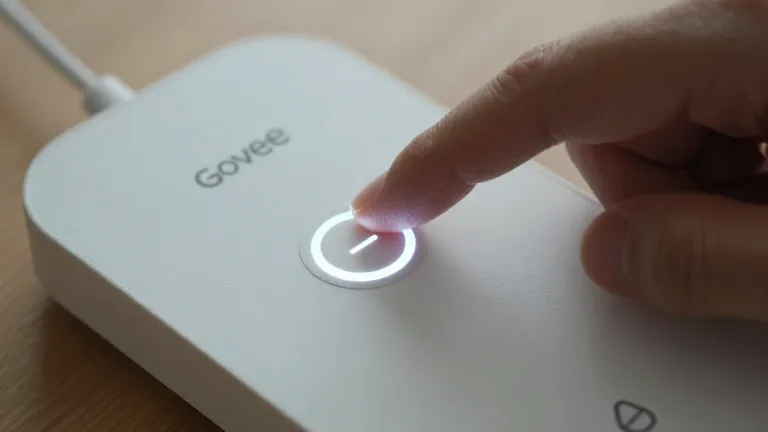
- Locate the reset button on the LED controller and press it for 10 seconds.
- Wait for the controller to reboot and return to pairing mode.
- Re-pair the controller with your smartphone or tablet using the Govee app.
- Ensure the app is updated to the latest version for compatibility.
How to Reset the LED Controller
The reset button on the LED controller is typically a small, recessed button located on the back or side of the device. To initiate the reset, press and hold this button for 10 seconds until the controller restarts. This process clears any previous connection data and prepares the device for a fresh pairing attempt.
Re-Pair the LED Strip with Your Device
Once the controller has rebooted, it should enter pairing mode, indicated by a blinking light or a sound. Open the Govee app on your smartphone or tablet and follow the on-screen instructions to add the controller. Ensure that your device is within range and that Bluetooth is enabled. If the app is not updated, it may not recognize the controller, so check for any available updates in the app store.
Advanced Fixes for Persistent Bluetooth Issues
If your Govee LED strip lights continue to have Bluetooth connection issues after basic troubleshooting, consider these advanced steps to identify and resolve the problem. These methods focus on deeper diagnostics and system checks to ensure all components are functioning correctly.
- Unplug the LED strip controller from the power source for at least 30 seconds.
- Try pairing the controller with a different mobile device to isolate the issue.
- Check for any physical damage to the LED strip or controller.
- Ensure the firmware on the controller is up to date.
Unplug the Controller and Check for Physical Damage
Unplug the LED strip controller from the power source for at least 30 seconds. This allows the internal capacitors to discharge and can reset any temporary glitches in the system. After unplugging, inspect the controller for any visible signs of physical damage, such as burn marks, frayed wires, or broken connectors. These issues can prevent the controller from establishing a stable Bluetooth connection.
Try Pairing with a Different Device
Try pairing the controller with a different mobile device to isolate the issue. If the controller connects successfully with another phone or tablet, the problem may lie with your original device’s Bluetooth settings or drivers. If the issue persists across multiple devices, the controller itself may be faulty or incompatible with your Bluetooth version. This step helps determine whether the problem is device-specific or a broader system issue.
When to Contact Govee Support
If all troubleshooting steps have been attempted and the issue persists, it may be necessary to contact Govee support for further assistance. Before reaching out, ensure you have gathered detailed information about your device model, including the specific LED strip and controller model numbers. This information will help the support team identify potential compatibility issues or known problems with your particular setup.
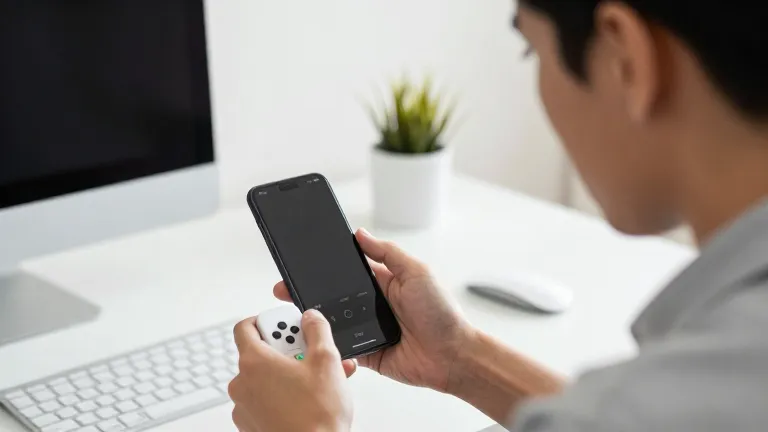
When contacting Govee, be prepared to provide any error messages you have encountered during the pairing process. These messages can offer valuable insight into the nature of the problem and help the support team provide a more accurate solution. Additionally, confirm that you are using the latest version of the Govee app and that your LED strip firmware is up to date. Outdated software can often cause connectivity issues that are difficult to resolve without technical intervention.
Govee offers customer support through their official website and various communication channels, including email and live chat. You can visit their support page to find contact details and submit a detailed query. It is important to clearly describe the problem, including any steps you have already taken to resolve it, so that the support team can efficiently address your concern. If the issue is related to a specific product model, mentioning this will also help in directing your query to the appropriate team.
In some cases, physical damage to the LED controller or Bluetooth module may be the root cause of the connectivity issue. If you suspect this, it is advisable to contact Govee support to determine if a replacement or repair is required. By providing comprehensive details about your situation, you can ensure a faster and more effective resolution to your problem.
Frequently Asked Questions
What should I do if my Govee LED strip lights won't connect to Bluetooth?
Start by checking the basic setup and ensuring Bluetooth is enabled. If the issue persists, try restarting the controller and your device. If problems continue, reset the controller and re-pair the LED strip.
How do I reset my Govee LED controller?
To reset the controller, unplug it from the power source for at least 10 seconds. Then, plug it back in and follow the pairing instructions in the Govee app.
Why is my Govee Bluetooth connection failing repeatedly?
Bluetooth connection issues can often be resolved by restarting both the controller and your device. If that doesn't work, try forgetting the device in your Bluetooth settings and re-pairing it.
Can I pair my Govee LED strip with multiple devices at once?
No, Govee LED strips can only be paired with one device at a time. If you want to use the strip with a different device, you need to unpair it from the current device first.
Final Steps for Bluetooth Connectivity
Fixing Govee LED strip lights that won't connect to Bluetooth typically involves checking the basic setup, restarting devices, and resetting the controller. If these steps don't resolve the issue, consider advanced troubleshooting or contacting Govee support for further assistance.
Always ensure the controller is properly powered and Bluetooth is enabled on your device. Following the correct pairing steps and resetting the controller when needed can help restore Bluetooth connectivity.





