
How to Fix Eufy Security Camera Live Stream Failed to Load
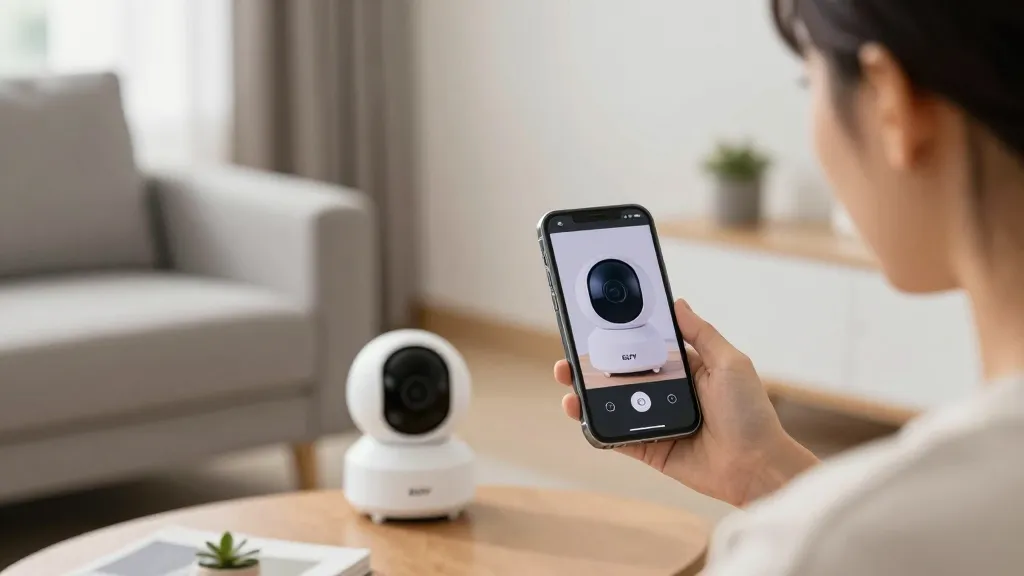
If your Eufy security camera's live stream is failing to load, it can be frustrating, especially when you rely on it for home security. This issue can stem from a variety of factors, including network problems, app glitches, or device misconfigurations. The main keyword here is How to Fix Eufy Security Camera Live Stream Failed to Load, and this article provides a clear, step-by-step guide to help you resolve it without needing to call a technician. Whether you're dealing with a temporary connectivity issue or a more persistent problem, the solutions outlined here can help you get your live stream working again. Let's dive into the common causes and effective fixes for this issue.
Understanding Why the Eufy Live Stream Fails to Load
Understanding why your Eufy Security Camera's live stream fails to load is essential for resolving the issue effectively. Live stream failures can be frustrating, but most problems stem from connection issues, software glitches, or misconfigurations. By identifying the root cause, you can take targeted steps to restore your camera's functionality without needing professional assistance.
Common Causes of Live Stream Failure
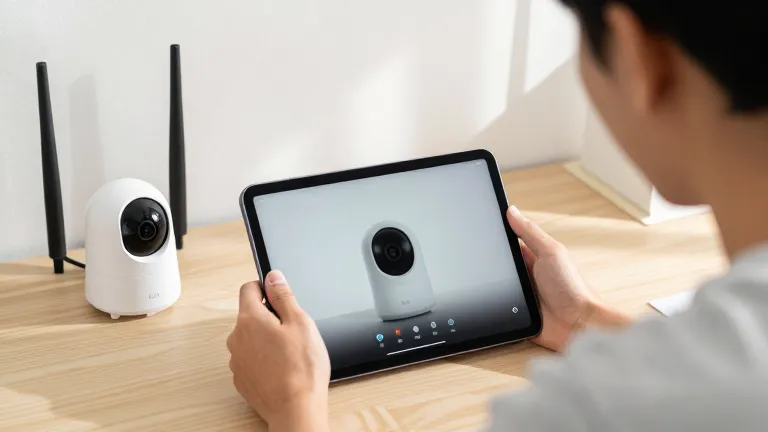
The most common causes of live stream failure include unstable internet connections, insufficient upload speeds, and software glitches in the Eufy app or camera firmware. A weak or interrupted Wi-Fi signal can prevent the camera from streaming video reliably, while slow upload speeds may cause buffering or complete failure to load the stream. Additionally, outdated app versions or corrupted data in the camera's memory can result in intermittent or persistent streaming issues. These problems often resolve themselves after a simple restart or update.
How the Eufy Camera Connects to Your Home Network
The Eufy camera system relies on a stable home network connection to transmit live video to your smartphone or tablet. The camera connects to your Wi-Fi network through the Eufy app, which acts as a bridge between the camera and your device. A strong and consistent internet connection is crucial for uninterrupted streaming, as the camera continuously sends video data over the network. If your network experiences interference, congestion, or configuration errors, the live stream may fail to load. Understanding this interaction helps you pinpoint whether the issue lies with the camera, the app, or your home network.
Step-by-Step Troubleshooting for Eufy Live Stream Issues
Basic troubleshooting steps are essential when your Eufy Security Camera's live stream fails to load. Starting with simple actions can often resolve the issue without requiring advanced technical knowledge.
- Restart Your Eufy Camera and HomeBase
- Check Your Network Connection and Upload Speed
- Ensure the Eufy App is Updated and Running Correctly
Restart Your Eufy Camera and HomeBase
Restarting your Eufy Camera and HomeBase is the first step in resolving live stream issues. Power cycles can clear temporary glitches and refresh the camera's connection to your network. Locate the power button on the camera and the HomeBase device, and unplug them for about 30 seconds before plugging them back in. Wait a few minutes for the devices to reboot and reconnect before checking the live stream again.
Check Your Network Connection and Upload Speed
A stable network connection is crucial for your Eufy camera to stream video reliably. Check that your Wi-Fi is active and that the camera is connected to the correct network. If you're using a router, ensure it's functioning properly and that no devices are overloading the bandwidth. Additionally, verify that your upload speed meets the minimum requirements for smooth streaming, which typically range from 1 to 5 Mbps, depending on the resolution and frame rate.
Advanced Fixes for Persistent Live Stream Failures
If basic troubleshooting fails to resolve the Eufy Security Camera live stream issue, more advanced steps may be necessary. Reinstalling the app and resetting the camera can address software or configuration problems that persist after simpler fixes.
Reinstall the Eufy App and Re-Pair the Camera
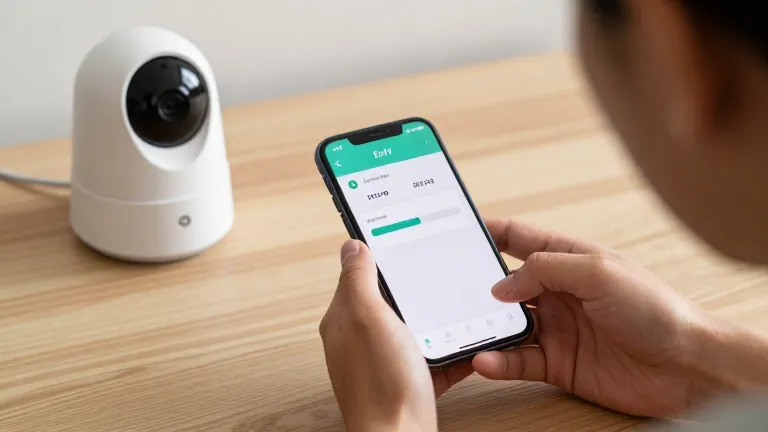
To reinstall the Eufy app, first uninstall it from your smartphone or tablet. Then, download the latest version from the App Store or Google Play. Once installed, log into your Eufy account and follow the on-screen instructions to re-pair your camera. Ensure the camera is within range of your Wi-Fi network and that the app has access to your location services. This process can resolve app glitches or outdated software that might be causing the live stream failure.
Reset the Camera and Reconfigure It
Resetting the camera is another advanced step that can restore default settings and eliminate misconfigurations. To do this, locate the reset button on the camera, usually found on the back or bottom, and press and hold it for 10 seconds until the LED indicator changes. After resetting, reconfigure the camera through the Eufy app by following the setup wizard. Make sure to select the correct Wi-Fi network and enter the password accurately. If the issue persists, consider checking advanced network settings like port forwarding or firewall rules that might be blocking the camera’s connection.
Optimizing Your Network for Eufy Camera Performance
A stable and high-speed network is essential for smooth Eufy camera performance. Ensuring your upload speed is adequate and minimizing interference can significantly improve live stream reliability.
- Use a wired connection for the Eufy HomeBase to ensure a stable and fast upload speed.
- Run a speed test to verify your upload speed meets the recommended minimum for live streaming.
- Keep your router firmware updated to enhance network performance and security.
- Avoid placing the camera near other wireless devices or thick walls that can cause signal degradation.
How to Check Your Upload Speed
To check your upload speed, use a reliable internet speed testing tool. Open your browser and navigate to a speed test website. Click the 'Start Test' button to measure your upload speed. Ensure your upload speed is at least 2 Mbps for smooth live streaming, though higher speeds are recommended for multiple devices or high-resolution video.
Improving Wi-Fi Signal Strength for the Camera
Improving Wi-Fi signal strength involves strategic placement and interference reduction. Position the Eufy camera in an open area away from walls, metal objects, and other electronic devices that can block the signal. If possible, place the camera closer to your router or use a Wi-Fi extender to boost coverage. Avoid using the camera in areas with heavy device usage, as this can cause network congestion and affect performance.
Preventing Future Live Stream Failures
Preventing future live stream failures involves proactive maintenance and consistent updates to ensure your Eufy security camera operates reliably over time. By following best practices for system updates and camera care, you can avoid many common issues that lead to live stream disruptions.
How to Keep Your Eufy System Updated
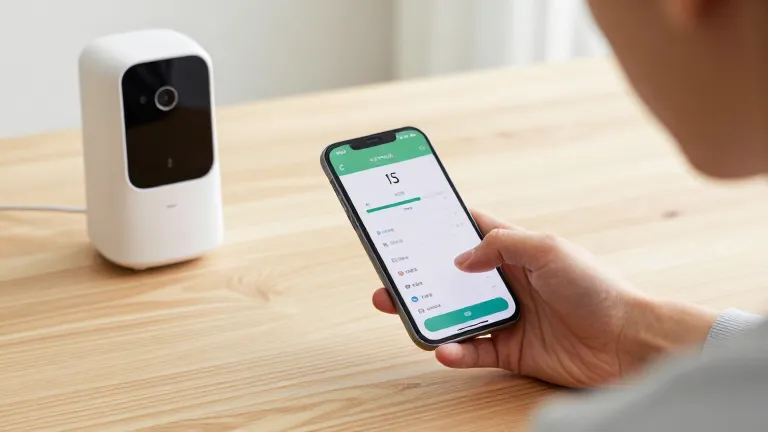
Regularly updating your Eufy system and app is crucial for maintaining optimal performance and security. Eufy frequently releases firmware updates that address bugs, improve connectivity, and enhance video quality. To update your system, open the Eufy app, navigate to the camera settings, and check for available updates. Ensure your camera and HomeBase are connected to a stable Wi-Fi network during the update process to prevent interruptions.
Best Practices for Ongoing Camera Maintenance
Ongoing camera maintenance includes monitoring your network environment and ensuring your Eufy camera has a strong, stable Wi-Fi connection. Avoid placing the camera near other wireless devices that may cause interference, and consider using a Wi-Fi extender if the signal is weak. Additionally, keep your router firmware updated to prevent compatibility issues. Regularly check the camera’s status in the app for any error messages or connectivity warnings, and address them promptly to maintain uninterrupted live streaming.
Frequently Asked Questions
What should I do if my Eufy camera stream keeps failing to load?
Start by restarting your Eufy camera and HomeBase. Check your upload speed and Wi-Fi signal strength. If the issue persists, reinstall the app or reset the camera.
Can a slow internet connection cause my Eufy camera stream to fail?
Yes, a slow internet connection, especially low upload speed, can cause the Eufy stream to fail. Ensure your upload speed is sufficient for streaming.
How do I check my upload speed for the Eufy camera?
Use an online speed test tool to check your upload speed. Ensure it meets the recommended minimum for streaming to avoid interruptions.
Why is my Eufy camera not showing a live stream even though it's online?
The camera might have connectivity issues with the HomeBase or the app. Check your network, restart devices, or re-pair the camera to resolve the issue.
Final Thoughts
Fixing Eufy camera live stream issues requires checking network stability, restarting devices, and ensuring proper app configuration. Regular maintenance and updates help prevent future problems.
If your Eufy camera stream still fails, consider re-pairing or resetting the device. Maintaining a strong Wi-Fi signal and upload speed is key to reliable streaming.





