
How to Fix Apple HomeKit Accessories Showing ‘No Response’
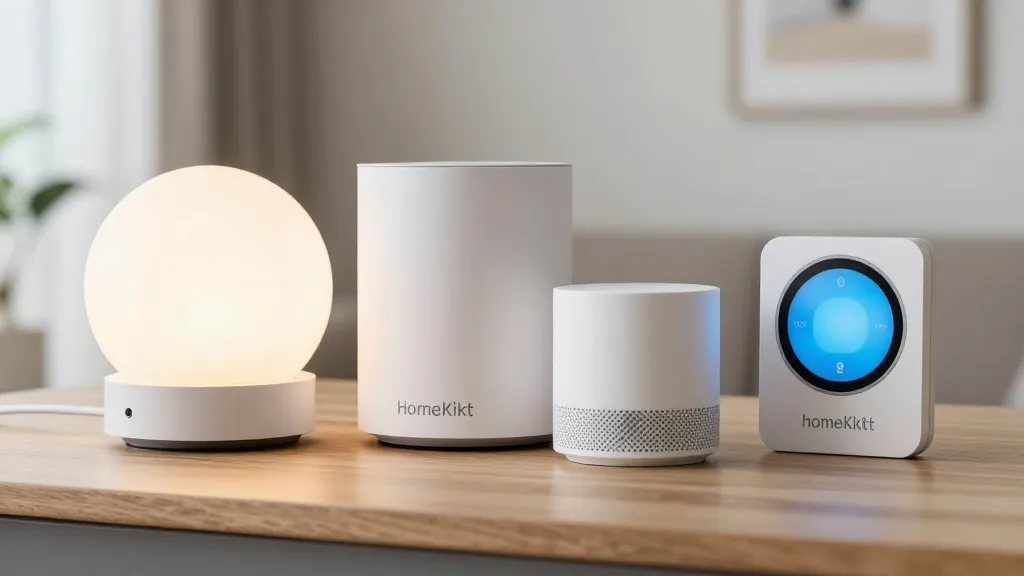
If your Apple HomeKit accessories are showing 'No Response' when you try to control them, it can be frustrating, especially when you rely on these devices for smart home automation. This error typically means that your HomeKit devices are not communicating properly with the Home app or your HomePod Hub. Whether you're a homeowner or a tech enthusiast, resolving this issue is essential to maintain a seamless smart home experience. In this article, we'll explore practical solutions to fix Apple HomeKit accessories showing 'No Response', from basic troubleshooting to advanced fixes and preventive measures to ensure long-term stability.
Understanding the 'No Response' Error in HomeKit
The 'No Response' error in Apple HomeKit signals a disruption in communication between your smart devices and the Home app. This issue can prevent your accessories from functioning properly, leading to unreliable automation and manual control. Understanding the nature of this error and its potential causes is essential for resolving it effectively.
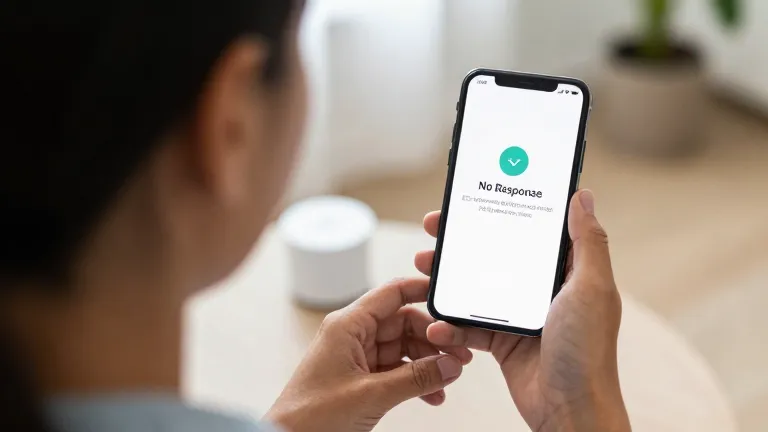
What Is the 'No Response' Error?
The 'No Response' error typically appears when a HomeKit accessory fails to communicate with the Home app or the HomePod Hub. This can manifest as a lack of updates, inability to control the device, or failure to trigger automated routines. The error is not specific to a single type of device and can occur with lights, sensors, locks, and other connected accessories. It serves as a general indicator that something is preventing the device from interacting with the Home ecosystem.
Why Does It Happen?
Several factors can contribute to the 'No Response' error. Network issues, such as weak Wi-Fi signals or router problems, often disrupt communication between devices. Incorrect setup during initial pairing, such as failed authentication or improper configuration, can also lead to this error. Additionally, device-specific malfunctions, like software bugs or hardware failures, may prevent a HomeKit accessory from responding to commands. These issues can arise independently or in combination, making it crucial to systematically troubleshoot each potential cause.
Basic Troubleshooting Steps for HomeKit Accessories
Before diving into advanced troubleshooting, start with the basics. A simple restart of the affected device and your router can resolve many connectivity issues. Power off the smart device for at least 30 seconds, then turn it back on. Also, restart your router to refresh the network connection. This can clear temporary glitches that might be causing the 'No Response' error.
- Restart the affected device and your router.
- Verify all devices are on the same Wi-Fi network.
- Update the Home app to the latest version.
- Check for firmware updates on your accessories.
- Ensure your router's settings are compatible with HomeKit.
- Restart your iPhone or iPad if the issue persists.
Ensure all HomeKit accessories are connected to the same Wi-Fi network. If some devices are on a different network, they won't communicate properly with the Home app. Check the Home app to confirm that all devices are listed under the correct network. Additionally, make sure the Home app is updated to the latest version, as outdated software can lead to compatibility problems.
How to Fix HomeKit Accessories Showing 'No Response' by Restarting the HomePod Hub
Restarting the HomePod Hub is a common and effective method to resolve temporary connectivity issues with Apple HomeKit accessories displaying 'No Response.' This process can reset the local network configuration and re-establish communication between the hub and the smart devices.
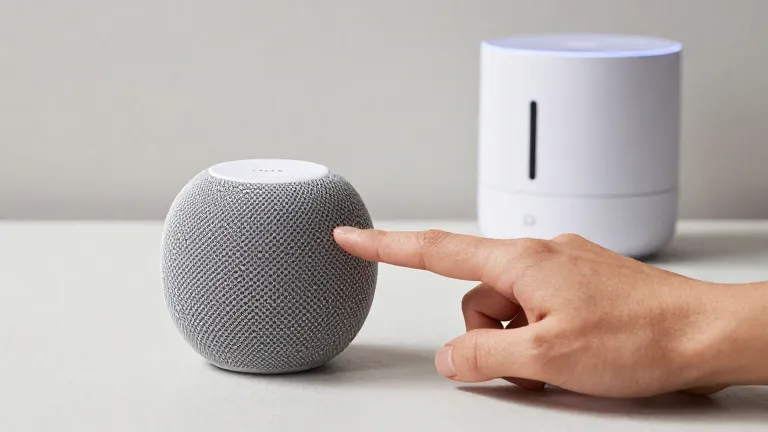
Steps to Restart the HomePod Hub
To restart the HomePod Hub, locate the physical button on the back of the device. Hold it for 10 seconds until the LED indicator turns off. Once the hub is powered down, wait for 30 seconds, then press the button again to power it back on. This sequence ensures a full reboot of the hub's internal systems.
What to Do After Restarting the Hub
After restarting the HomePod Hub, allow a few minutes for the device to re-establish its connection to the local network and re-sync with all paired HomeKit accessories. Check the Home app to see if the accessories are now showing as 'Ready' or 'Connected.' If they do not reconnect automatically, try manually triggering a request from the Home app to prompt the hub to re-pair the devices.
Advanced Fixes for HomeKit Accessories Not Responding
If basic troubleshooting fails to resolve the 'No Response' issue in HomeKit, advanced fixes can help restore connectivity. These methods include manually re-pairing accessories and adjusting router settings to ensure proper network communication.
How to Manually Re-Pair a HomeKit Accessory
To manually re-pair a HomeKit accessory, open the Home app and select the problematic device. Tap the 'Remove' button to delete it from your network. Once removed, go to the 'Add Accessory' section and follow the on-screen instructions to pair the device again. This process ensures the accessory reconnects with your HomeKit system without prior association issues.
Fixing mDNS Router Settings
mDNS (Multicast DNS) settings on your router can impact HomeKit device discovery. Ensure your router supports mDNS and is configured correctly. Some routers may require enabling features like 'Bonjour' or 'mDNS Responder' to allow HomeKit devices to communicate properly. If unsure, consult your router's manual or contact the manufacturer for guidance on adjusting these settings.
Preventive Measures to Avoid Future 'No Response' Issues
To prevent future 'No Response' issues with your HomeKit accessories, regular updates are essential. Ensure all your HomeKit devices are running the latest firmware, as manufacturers often release updates to fix bugs and improve compatibility. Similarly, keep the Home app updated to benefit from the latest features and security patches. These updates can resolve underlying issues that might cause connectivity problems over time.
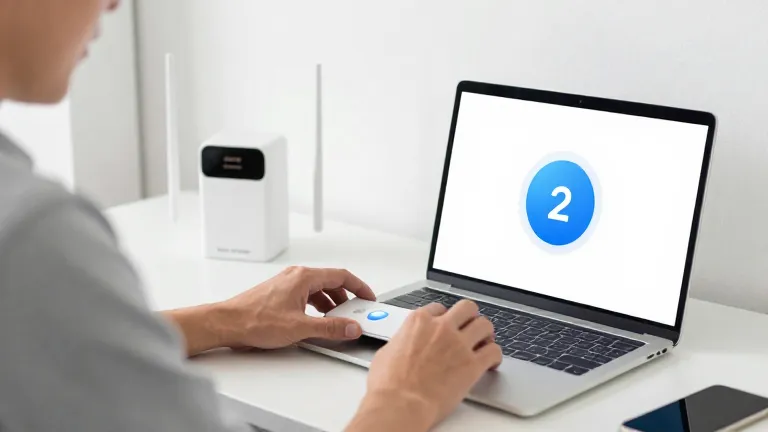
Maintaining your router firmware is another key preventive measure. Many HomeKit devices rely on mDNS (Multicast Domain Name System) for communication, and outdated router firmware can lead to mDNS-related issues. Check your router's manufacturer website for firmware updates and install them periodically. This helps maintain stable network conditions, reducing the likelihood of intermittent connectivity problems.
Avoid using third-party apps that might interfere with HomeKit's communication. While some apps claim to enhance smart home functionality, they can sometimes disrupt the normal operation of HomeKit devices. Stick to Apple's native Home app for managing your smart home ecosystem. If you need additional features, look for apps that are specifically designed to work seamlessly with HomeKit.
Finally, consider placing your HomePod or HomePod Mini in an optimal location to ensure strong Wi-Fi coverage. A strong, stable internet connection is crucial for reliable HomeKit performance. Regularly check your network setup and address any interference or dead zones. By following these steps, you can significantly reduce the chances of encountering 'No Response' issues with your HomeKit accessories.
Frequently Asked Questions
What should I do if my HomeKit device is showing 'No Response'?
First, try restarting the device and the HomePod Hub. If that doesn't work, manually re-pair the accessory or check your mDNS router settings.
How can I fix HomeKit accessories that are offline?
Ensure the accessories are within range of your router and HomePod Hub. Re-pairing or resetting the device can often resolve offline issues.
Why is my HomePod Hub not connecting to my accessories?
Your HomePod Hub might be experiencing connectivity issues. Restart the hub and verify that it is properly connected to your Wi-Fi network.
Can router settings affect HomeKit connectivity?
Yes, router settings such as mDNS can impact HomeKit connectivity. Ensure your router is configured to support mDNS and avoid blocking necessary ports.
Final Thoughts
HomeKit accessories showing 'No Response' can often be resolved through basic troubleshooting and advanced fixes like re-pairing or adjusting router settings. Keeping your HomeKit ecosystem updated and configured properly can prevent future issues.
If you're still experiencing problems, consider contacting Apple Support for further assistance. Regular maintenance and monitoring of your HomeKit setup will help ensure smooth operation.





