
How to Fix iPhone Stuck on Apple Logo: Recovery Guide
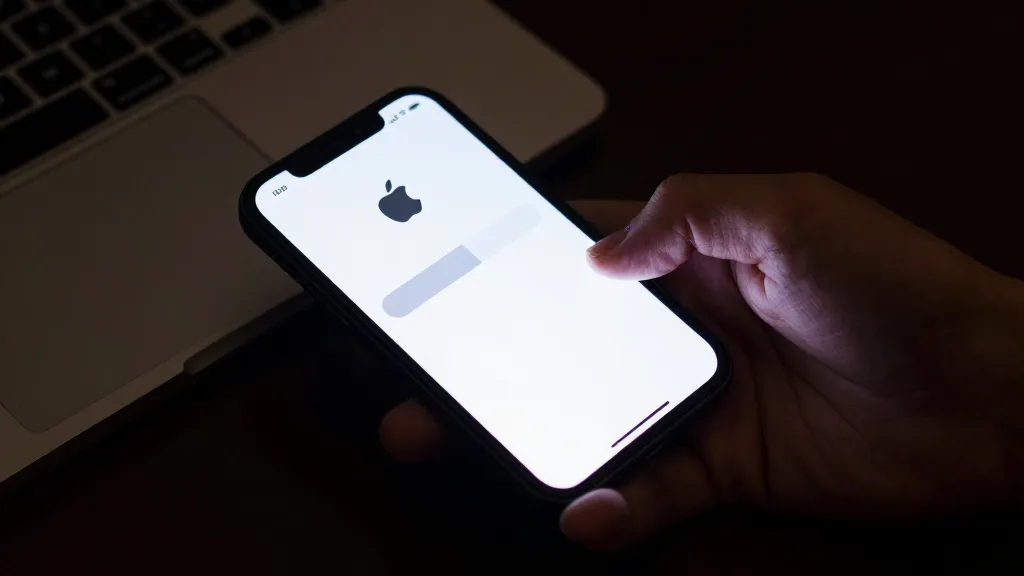
If your iPhone is stuck on the Apple logo during startup, it can be frustrating and confusing, especially if you're not familiar with technical processes. This issue often occurs due to software corruption or failed updates, which can prevent your device from booting properly. The main keyword here is how to fix iPhone stuck on apple logo, and this guide will walk you through practical steps to resolve the problem. Whether you're dealing with a software glitch or a hardware issue, we'll cover the essential troubleshooting methods and recovery options.
The first step is to understand what might be causing your iPhone to remain on the Apple logo. Common reasons include corrupted software, failed system updates, or even battery and overheating problems. By identifying the root cause, you can determine the most effective solution. Many users find that basic troubleshooting steps, such as checking the battery or restarting the device, can resolve the issue without needing advanced techniques.
If basic methods don't work, you'll need to enter recovery mode or DFU mode to restore your iPhone. These advanced recovery options allow you to reinstall the operating system and fix deeper software issues. We'll guide you through each step clearly, ensuring you can recover your device without professional help. By following this guide, you'll be equipped to handle the how to fix iPhone stuck on apple logo situation confidently.
What Causes an iPhone to Get Stuck on the Apple Logo?
An iPhone stuck on the Apple logo can be a frustrating issue that prevents the device from booting properly. Understanding the common causes behind this problem is essential to determine the most effective solution. Whether it's a software-related issue or a hardware malfunction, identifying the root cause can help users take the right steps to recover their device.
Software Corruption and Failed Updates
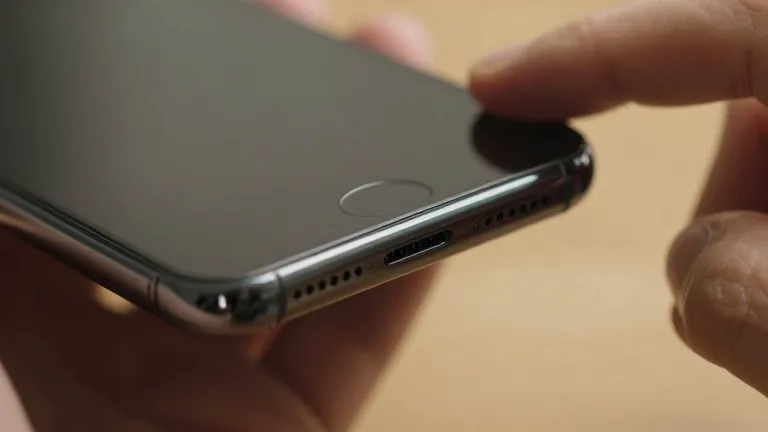
Software corruption and failed updates are among the most common reasons an iPhone gets stuck on the Apple logo. This can occur when an update is interrupted during the download or installation process, leading to incomplete or damaged system files. Additionally, apps or system updates that are incompatible with the device's current software version can cause instability, resulting in boot loops or failure to start. In such cases, restoring the device to its factory settings or using recovery tools can help resolve the issue.
Battery and Overheating Issues
Battery problems and overheating can also contribute to an iPhone getting stuck on the Apple logo. If the battery is severely degraded or swollen, it may prevent the device from powering on correctly, leading to boot failures. Similarly, excessive heat can damage internal components, disrupting the normal boot process. Users should ensure their iPhone is charged properly and avoid exposing it to extreme temperatures to minimize the risk of such issues.
Basic Troubleshooting Steps for iPhone Stuck on Apple Logo
Before attempting more complex fixes, it's important to try the simplest solutions first. If your iPhone is stuck on the Apple logo, start by performing a forced restart. This can resolve minor software glitches that might be causing the issue. To do this, press and hold the power button until the Slide to Power Off slider appears. Slide it to turn off the device, then press and hold the power button again to turn it back on.
- Press and hold the power button to perform a forced restart.
- Check for physical damage or loose connections on the device.
- Ensure the iPhone is sufficiently charged before proceeding.
- If the issue persists, move to recovery mode or advanced troubleshooting steps.
Next, check for any physical damage or loose connections that could interfere with your iPhone's operation. A damaged screen, cracked back cover, or loose internal components might prevent the device from booting properly. Inspect the phone for visible signs of damage, such as cracks, water exposure, or bent connectors. If you notice any issues, consider seeking professional repair services before proceeding with further troubleshooting.
Ensure your iPhone is charged sufficiently before attempting any fixes. A low battery can cause unexpected shutdowns or prevent the device from entering recovery mode. Connect your iPhone to a trusted power source using the original charger and cable. Allow it to charge for at least 15 to 30 minutes to give the battery enough time to stabilize. If the iPhone still doesn't respond, move on to the next steps in the recovery process.
Using Recovery Mode to Fix iPhone Stuck on Apple Logo
Recovery Mode is a powerful tool for resolving software-related boot failures on an iPhone that gets stuck on the Apple logo. This method allows you to restore the device to factory settings using a computer, which can fix issues caused by corrupted software or failed updates.
How to Enter Recovery Mode
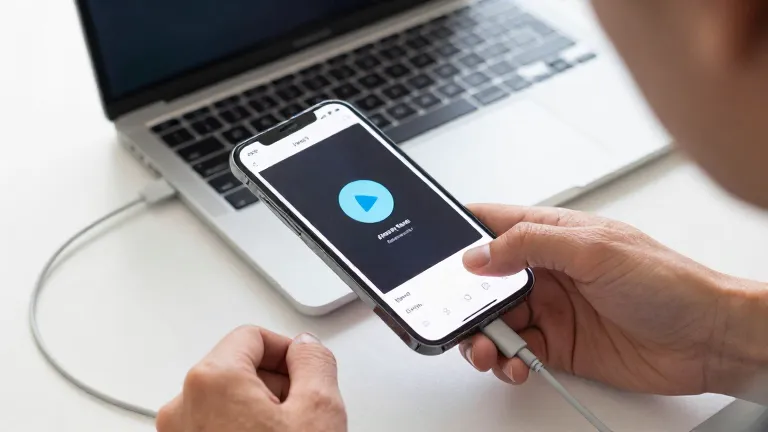
To enter Recovery Mode, connect your iPhone to a computer using a USB cable. Keep your iPhone connected while holding the Side button until the recovery mode screen appears. This process may take up to a minute, and you'll need to follow specific button combinations to ensure the device enters the correct mode.
Restoring via iTunes or Finder
Once in Recovery Mode, open iTunes or Finder on your computer. The software will detect your iPhone and prompt you to restore it. Follow the on-screen instructions to restore your device to factory settings. This process will erase all data and settings, so ensure you have a backup or are prepared to set up your iPhone as a new device.
Advanced Recovery Options for iPhone Stuck on Apple Logo
Advanced Recovery Options for iPhone Stuck on Apple Logo are typically reserved for more severe software issues that cannot be resolved through basic troubleshooting or standard recovery mode. These methods require a deeper understanding of the process and the use of specific tools, making them suitable primarily for advanced users.
Entering DFU Mode
Entering DFU mode is a more advanced method to recover an iPhone that is stuck on the Apple logo. Unlike recovery mode, DFU (Device Firmware Update) mode bypasses the iPhone's operating system entirely, allowing direct firmware updates. To enter DFU mode, the iPhone must be connected to a computer, and specific steps must be followed, including pressing and releasing the power button, then holding the volume down button until the device enters DFU mode. This process requires precise timing and is not recommended for users unfamiliar with the procedure.
Restoring via DFU Mode
Restoring via DFU mode involves using iTunes or Finder to initiate a firmware update. Once in DFU mode, the computer must be used to restore the iPhone to its original firmware, which can resolve deeper software corruption. This method is more complex and may take longer than standard recovery mode, as it involves downloading and installing the latest firmware version. It is important to ensure the computer is stable and the internet connection is reliable during the restoration process. Advanced users should also be prepared to wait for the restoration to complete without interruption.
Preventing Future Issues with iPhone Stuck on Apple Logo
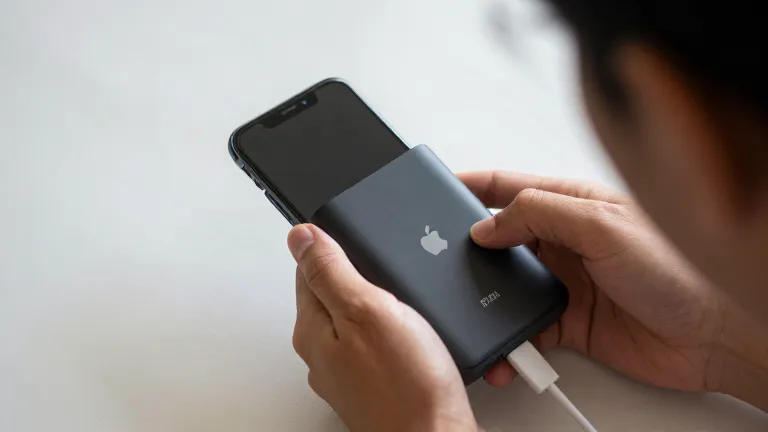
Preventing future issues with an iPhone stuck on the Apple logo requires proactive care and attention to the device's maintenance. One of the most critical steps is to avoid interrupting software updates or installations. When an update is in progress, it is essential to let the process complete without unplugging the device or closing the update window. Interruptions can lead to software corruption and potentially leave the iPhone in a boot loop.
- Avoid interrupting software updates or installations.
- Keep the iPhone charged during critical operations.
- Regularly back up data to prevent data loss in case of a reboot.
- Use a stable power source when charging the iPhone.
- Avoid exposing the iPhone to extreme temperatures during use.
- Check for iOS updates regularly to ensure the device is running the latest version.
Another key practice is to keep the iPhone charged during critical operations such as software updates or backups. A low battery can cause the device to shut down unexpectedly, which may result in system instability or a failure to boot properly. It is advisable to ensure the iPhone has at least 50% battery life before initiating any major operation.
Frequently Asked Questions
What should I do if my iPhone is stuck on the Apple logo and won't turn on?
If your iPhone is stuck on the Apple logo and won't turn on, try charging it for at least 30 minutes before attempting to force restart. If it still doesn't respond, you'll need to use Recovery Mode or DFU Mode to restore the device.
Can I fix an iPhone that's stuck on the Apple logo without using a computer?
It's unlikely to fix an iPhone stuck on the Apple logo without a computer. While some basic troubleshooting can be done manually, advanced recovery typically requires using iTunes or Finder on a computer to restore the device.
Is it possible to recover data from an iPhone that's stuck on the Apple logo?
Recovering data from an iPhone stuck on the Apple logo is challenging, as the device is not accessible. If the phone is unresponsive, you may need to use professional data recovery services or attempt a restore after fixing the issue.
What's the difference between Recovery Mode and DFU Mode for iPhone?
Recovery Mode allows you to restore an iPhone using iTunes or Finder, while DFU Mode is a deeper recovery state that bypasses the device's operating system. DFU Mode is typically used when Recovery Mode doesn't work.
Next Steps for iPhone Recovery
Fixing an iPhone stuck on the Apple logo requires a combination of basic troubleshooting and advanced recovery methods. Understanding the causes and following the right steps can help you restore your device. Always ensure you have backups before attempting any recovery.
If your iPhone remains unresponsive, consider seeking professional help or using a trusted service provider. With the right approach, most issues can be resolved, and your device can be restored to full functionality.





