
How to Fix iPhone AirDrop Not Finding Nearby Devices
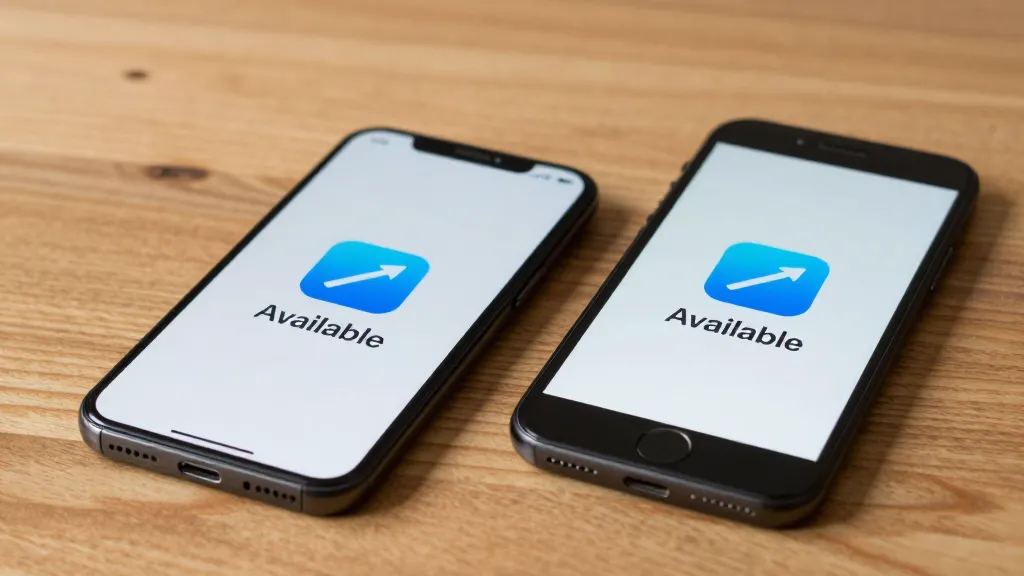
If your iPhone is struggling to find nearby devices via AirDrop, you're not alone. This common issue can disrupt file sharing and make it frustrating to connect with other Apple devices. The main keyword here is How to Fix iPhone AirDrop Not Finding Nearby Devices, and this article provides a clear, step-by-step guide to help you resolve the problem. Whether you're trying to send photos, documents, or videos, having a reliable AirDrop connection is essential for seamless file transfers.
We'll start with basic troubleshooting steps, like checking your AirDrop settings and restarting your devices, before moving on to more advanced solutions. These methods are designed for non-technical users, so no coding or complex jargon is required. Each step is explained simply, making it easy to follow and apply.
If standard troubleshooting doesn’t work, we’ll explore advanced options, including resetting network settings and using USB as an alternative. For persistent issues, we’ll also guide you on when to reach out to Apple Support. By the end of this article, you should have a reliable solution to your AirDrop problem and be able to connect with other devices effortlessly.
Check Basic AirDrop Settings
Before attempting more complex solutions, start by verifying your iPhone’s basic AirDrop settings. This ensures that your device is properly configured to discover and connect with other Apple devices.
Enable AirDrop in Settings
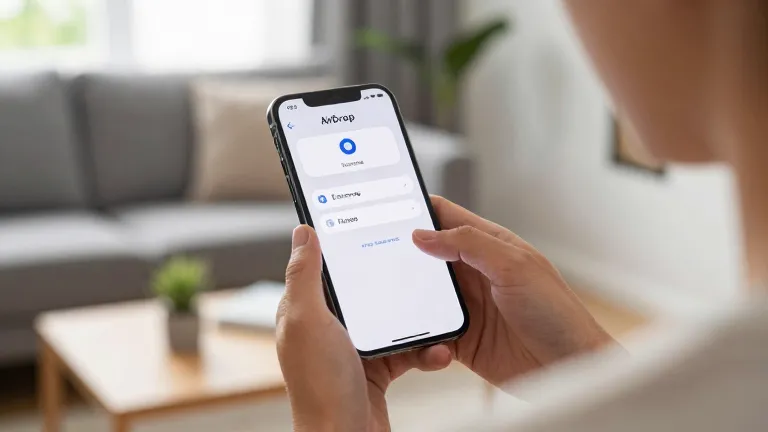
Open the Settings app on your iPhone and scroll down to the 'General' section. Tap 'AirDrop' to access the settings menu. Make sure the toggle is turned on to enable AirDrop. If it’s off, toggle it to the 'On' position. This allows your iPhone to detect and communicate with other devices using AirDrop.
Set Visibility Preferences
Next, check the visibility settings for AirDrop. Tap the 'AirDrop' option again, and select either 'Everyone' or 'Contacts Only' based on your preference. Choose 'Everyone' if you want your iPhone to be discoverable by anyone nearby, or 'Contacts Only' if you prefer to limit visibility to your contacts. Ensure the other device is also set to the same visibility option to enable proper discovery. If the other device is not visible, double-check its settings to confirm it matches yours.
Restart Your iPhone and Nearby Devices
Restarting your iPhone and nearby devices is a simple yet effective step to resolve AirDrop connectivity issues. Temporary software glitches or minor system errors can sometimes prevent AirDrop from detecting devices, and a restart can clear these problems. This step is often the first troubleshooting action recommended for Apple device issues, as it can resolve a wide range of connectivity and performance problems.
Restart Your iPhone
To restart your iPhone, press and hold the side button until the power-off slider appears. Slide to power off, then press and hold the side button again to turn it back on. This process refreshes your device’s operating system and can resolve any software conflicts affecting AirDrop. Allow your iPhone to fully reboot before checking if the issue is resolved.
Restart Nearby Devices
If the problem persists, restart the other device as well. For an iPad or Mac, press and hold the power button until the shutdown option appears, then follow the same steps to restart. For an iPhone, repeat the process described earlier. Restarting the other device ensures it is not experiencing similar issues, such as a frozen system or a misconfigured AirDrop setting. After both devices have restarted, attempt to use AirDrop again to see if the connection is restored.
Troubleshoot AirDrop Connectivity Issues
If your iPhone is having trouble finding nearby devices via AirDrop, start by ensuring both devices are running the latest iOS version. Software updates often include bug fixes and improvements that can resolve connectivity issues. Check for updates on all devices involved and install them if available.
Update iOS to the Latest Version
Ensure that both your iPhone and the nearby device are updated to the latest iOS version. Go to Settings > General > Software Update to check for updates. If an update is available, download and install it. Make sure to restart the device after the update is complete. Keeping your iOS up to date ensures compatibility and improves overall performance.
Toggle AirDrop Settings
If your devices are already updated, try toggling AirDrop settings on and off to refresh the connection. Open the Control Center and tap the AirDrop icon, then select 'Everyone' or 'Contacts' to adjust visibility. Alternatively, go to Settings > General > AirDrop and toggle it off before turning it back on. This action can reset the connection and help your iPhone detect nearby devices more reliably. If the issue persists, consider switching to a different Wi-Fi network to rule out any local connectivity problems.
Reset Network Settings and AirDrop
Resetting network settings can be an effective way to resolve persistent AirDrop issues. This process clears all saved Wi-Fi passwords and Bluetooth connections, which may be interfering with AirDrop functionality. After resetting, you’ll need to re-enable AirDrop and reconfigure your network settings. If the problem persists, you may also need to forget your Wi-Fi network and reconnect to restore full connectivity.
Reset Network Settings
To reset network settings, go to Settings > General > Reset > Reset Network Settings. This action will erase all saved Wi-Fi passwords, cellular settings, and Bluetooth connections. You’ll be prompted to enter your iPhone passcode to confirm the reset. Once completed, your iPhone will restart, and you’ll need to reconnect to your Wi-Fi network and re-enable AirDrop.
Forget Wi-Fi and Reconnect
If AirDrop still doesn’t work after resetting network settings, try forgetting your Wi-Fi network. Go to Settings > Wi-Fi and tap the ‘i’ icon next to your current network. Select ‘Forget This Network’ to remove it from your list. Then, reconnect by selecting the network again and entering the password. This step can help resolve any residual issues with your Wi-Fi connection affecting AirDrop.
Advanced Troubleshooting and Alternatives
If you've tried all the standard troubleshooting steps and still can't get AirDrop to work, consider more advanced solutions or alternatives. These steps are for users who are experiencing persistent issues and need to either find a workaround or seek expert assistance.
Use USB as an Alternative
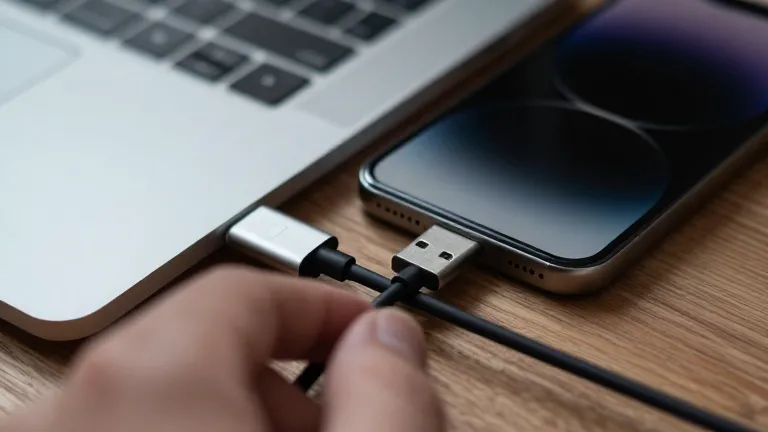
If AirDrop continues to fail, a reliable alternative is to use a USB connection to transfer files between devices. Connect your iPhone to another Apple device using a USB cable, then use the Files app or iCloud Drive to move files. This method is more stable than AirDrop in some cases and avoids the need for wireless connectivity.
Contact Apple Support
If you're still unable to resolve the issue, it's best to contact Apple Support for further assistance. Apple's support team can help diagnose deeper software or hardware problems that might be affecting AirDrop. They may also guide you through advanced troubleshooting steps or recommend a repair if necessary. Make sure to have your device information ready when you reach out.
Frequently Asked Questions
Why is my iPhone not finding any devices on AirDrop?
Your iPhone may not find devices due to incorrect AirDrop settings, a lack of Wi-Fi or Bluetooth connectivity, or nearby devices not being in the correct visibility mode. Check your AirDrop settings and ensure both your iPhone and nearby devices are connected to the same Wi-Fi network.
How do I reset AirDrop settings on my iPhone?
To reset AirDrop settings, go to Settings > General > Transfer or Reset iPhone > Reset > Reset Network Settings. This will reset your Wi-Fi, Bluetooth, and AirDrop settings to their defaults.
What should I do if AirDrop is still not working after restarting?
If AirDrop is still not working after restarting, update your iOS to the latest version, toggle AirDrop settings off and on, or reset your network settings. If the issue persists, consider using a USB transfer or contacting Apple Support.
Can I use AirDrop without Wi-Fi?
No, AirDrop requires a stable Wi-Fi connection and Bluetooth to function. Ensure both your iPhone and nearby devices are connected to the same Wi-Fi network for AirDrop to work properly.
Final Thoughts
Fixing AirDrop issues involves checking settings, restarting devices, and ensuring a stable Wi-Fi connection. If problems persist, resetting network settings or using USB transfer can be effective alternatives.
If you're still having trouble, contact Apple Support for further assistance. Regularly updating your iOS and maintaining a stable Wi-Fi connection can prevent many AirDrop-related issues.





