How to Fix Drawing Tablet Pen Cursor Offset or Pressure Not Working
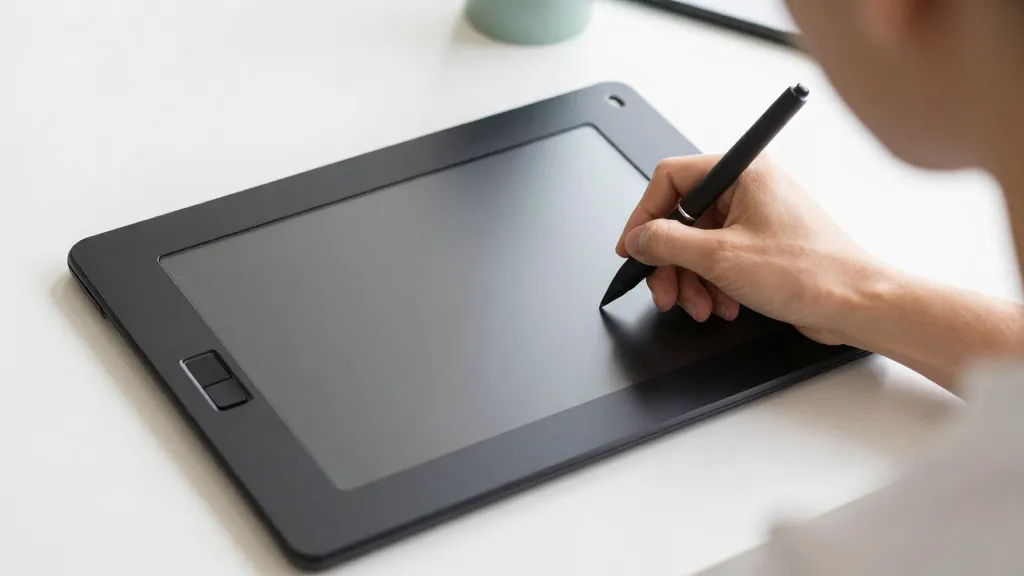
If your drawing tablet's pen cursor is off or pressure sensitivity isn't working, it can seriously hinder your creative workflow. These issues can be frustrating, especially when you're trying to create precise artwork or designs. The main keyword for this article is 'How to Fix Drawing Tablet Pen Cursor Offset or Pressure Not Working,' and it's the focus of the steps you'll find here. Whether you're a home user or a professional creative, these problems can be resolved with the right approach. This article walks you through understanding the causes of these issues, basic troubleshooting steps, and more advanced fixes to help you get your tablet working smoothly again.
Understanding Pen Cursor Offset and Pressure Issues
Pen cursor offset and pressure sensitivity issues can disrupt the creative workflow, making it difficult to achieve precision and control when using a drawing tablet. These problems often stem from a mix of software, calibration, and hardware factors, and understanding their causes is the first step toward resolving them effectively.
What Causes Pen Cursor Offset?
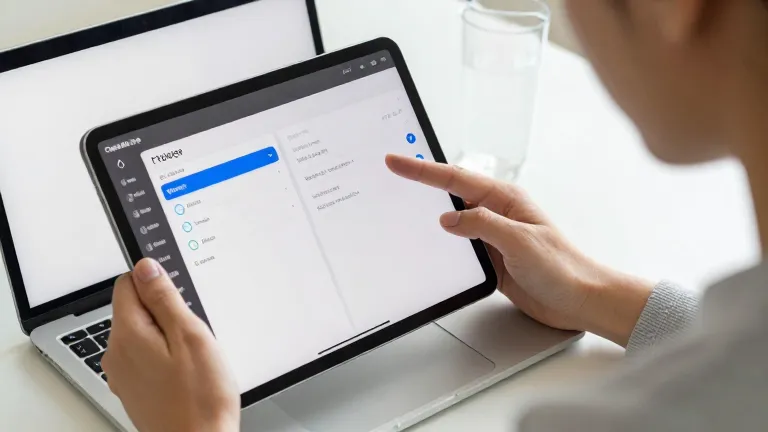
Pen cursor offset occurs when the pen tip moves differently from the cursor on the screen, leading to a mismatch between intended and actual movement. This can be caused by software glitches that disrupt the tablet's communication with the computer, incorrect calibration settings that misalign the pen's coordinates, or even interference from other connected devices. In some cases, the issue may be related to the tablet's firmware, which requires updates to function correctly.
What Causes Pressure Sensitivity Problems?
Pressure sensitivity problems arise when the tablet fails to respond appropriately to the pressure applied to the pen. This can be due to misconfigured pressure sensitivity settings in the tablet's software, which may not map the pressure levels correctly to the drawing output. Additionally, outdated or corrupted drivers can prevent the tablet from recognizing pressure input accurately. Physical issues, such as a damaged pen tip or internal hardware failure, can also contribute to these problems, especially if the tablet's sensors are not functioning as intended.
Basic Troubleshooting Steps
Before diving into more complex solutions, start with the basics. Many drawing tablet issues can be resolved by simply restarting your device and any connected peripherals. A restart can clear temporary software glitches that may be interfering with the pen's performance. This is especially useful if you recently updated your operating system or installed new software that might have caused compatibility issues.
- Restart the tablet and connected devices to clear temporary software issues.
- Check for software updates for the tablet driver and operating system.
- Ensure the pen is properly connected and not in a low battery state.
Next, ensure that your tablet's drivers and operating system are up to date. Outdated or corrupted drivers can lead to cursor offset or pressure sensitivity problems. Check for updates through your device's settings or the manufacturer's website. Updating the operating system can also resolve underlying bugs that might be affecting your tablet's functionality.
Verify that your pen is correctly connected and has sufficient battery life. A low battery can cause erratic behavior, such as cursor offset or pressure not responding. If your tablet uses a Bluetooth connection, make sure it's paired properly and the pen is in the correct mode. Also, check for any physical obstructions or interference that might be affecting the connection.
Calibrating the Drawing Tablet
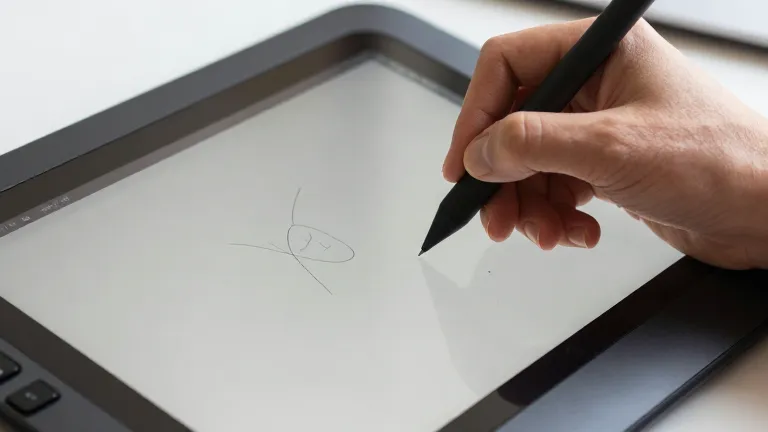
Calibrating your drawing tablet is essential for ensuring accurate pen movement and pressure sensitivity. Most tablets come with a built-in calibration tool that aligns the pen with the screen, helping to eliminate cursor offset and improve overall performance. Following the on-screen instructions carefully during this process can significantly enhance your drawing experience.
How to Calibrate Your Drawing Tablet
To calibrate your drawing tablet, open the tablet’s software and locate the calibration tool. This tool typically guides you through a series of steps to align the pen with the screen. Make sure the tablet is placed on a flat, stable surface and that the pen is fully charged. Follow the on-screen prompts precisely to ensure the calibration is accurate and effective.
When to Recalibrate Your Tablet
Recalibrating your tablet is recommended after software or driver updates, as these changes can affect the tablet’s performance. It is also necessary if you notice a sudden change in pen behavior or pressure sensitivity. Regular calibration helps maintain the accuracy of your tablet and ensures that your creative workflow remains uninterrupted.
Reinstalling or Updating the Tablet Driver
Outdated or corrupted drivers can lead to pen cursor offset or pressure sensitivity issues. Reinstalling or updating the tablet driver can resolve these problems by ensuring the system communicates properly with the device.
- Open the Device Manager and locate the drawing tablet under 'Human Interface Devices' or 'Imaging Devices'. Right-click and select 'Uninstall device'.
- Visit the manufacturer's official website and search for the latest driver compatible with your tablet model and operating system.
- Download the driver and follow the installation instructions. Restart your computer after installation to apply the changes.
- If the issue persists, try reinstalling the driver again or check for additional software updates provided by the manufacturer.
How to Uninstall and Reinstall Tablet Drivers
Uninstalling the existing driver removes any corrupted files that may be causing the problem. This step ensures a clean installation of the latest version, which can improve performance and fix compatibility issues.
Checking for Driver Updates
Checking for driver updates ensures that you're using the most recent version, which may include bug fixes and improvements for pen functionality. Always download drivers directly from the manufacturer's site to avoid incompatible or malicious software.
Advanced Fixes and Hardware Checks
If basic troubleshooting steps fail to resolve your drawing tablet’s pen cursor offset or pressure issues, it’s time to consider more advanced solutions. These steps focus on isolating the problem by testing the pen on different devices and inspecting for physical damage. Identifying whether the issue stems from the pen, the tablet, or its environment can lead to a more targeted resolution.
Testing the Pen on Another Device
To determine if the issue is with the pen or the tablet, test the pen on a different drawing tablet. If the problem persists across multiple devices, it may indicate a deeper issue with the pen itself, such as a faulty internal sensor or low battery. Conversely, if the pen works correctly on another tablet, the problem is likely with your current device’s calibration or drivers.
Checking for Physical Damage
Inspect the pen and tablet surface for any signs of physical damage, such as cracks, scratches, or bent components. Even minor damage can interfere with the pen’s ability to communicate with the tablet, leading to cursor offset or pressure sensitivity problems. Additionally, check the tablet’s surface for debris or buildup that might disrupt the electromagnetic field required for accurate tracking. If damage is found, consider replacing the affected part or seeking professional repair.
Frequently Asked Questions
What should I do if my drawing tablet pen is not responding to pressure?
Start by checking the tablet's pressure sensitivity settings. If the issue persists, recalibrate the tablet or update its drivers. If these steps don’t resolve the issue, test the pen on another compatible device to determine if the problem lies with the pen or the tablet.
How do I reset my drawing tablet to fix cursor offset?
To reset your drawing tablet, turn it off and then back on. If the issue remains, try recalibrating the tablet or resetting its settings through the device's control panel or manufacturer's software.
Can a low battery cause my drawing tablet pen to drift?
A low battery can sometimes cause erratic behavior in a drawing tablet pen. Ensure the pen and tablet are fully charged before use. If the issue persists, test the pen with a different battery or check for physical damage.
What if recalibrating my tablet doesn't fix the cursor offset?
If recalibrating doesn’t resolve the cursor offset, the issue may be with the pen itself or the tablet’s hardware. Test the pen on another compatible device. If the problem continues, contact the manufacturer for further assistance or consider replacing the pen or tablet.
Final Tips for a Smooth Drawing Experience
Addressing pen cursor offset and pressure issues requires a systematic approach, starting with basic troubleshooting and progressing to advanced fixes. Regular maintenance, such as recalibrating and updating drivers, can prevent many common problems.
If issues persist after trying these steps, it’s advisable to test the pen on another device or contact the manufacturer for support. Keeping your tablet and software up to date ensures optimal performance and minimizes technical problems.