
How to Fix Router Port Forwarding Not Working
If you're trying to set up port forwarding on your router but it's not working, you're not alone. Many home users face this issue when setting up gaming servers, remote access, or other online services. Port forwarding allows external traffic to reach your devices on the local network, but it can be tricky to get right. This article will guide you through the steps to fix router port forwarding not working, from checking your router settings to advanced troubleshooting options. Whether you're new to networking or just encountering an unexpected problem, we'll help you resolve it step by step.
We'll start by explaining what port forwarding is and why it might fail. Then, we'll walk you through how to access your router's admin panel and locate the port forwarding section. Next, we'll cover how to check your firewall and antivirus settings, which can sometimes block the traffic you're trying to forward.
Finally, we'll show you how to test your port forwarding with an online tool and what to do if the issue persists. We'll also explore advanced troubleshooting steps, such as restarting your router and modem, and alternative solutions like Dynamic DNS. By following these practical steps, you'll be able to diagnose and fix your port forwarding issues effectively.
Understanding Router Port Forwarding
Port forwarding is a networking technique that allows external traffic to reach a specific device on your local network. It is essential for activities like gaming, remote access, and hosting services, but it can be tricky to set up correctly. Understanding how port forwarding works and why it might fail can help you troubleshoot common issues effectively.
What Is Port Forwarding?
Port forwarding directs traffic from the internet to a specific device within your local network. When you open a port on your router, it acts as a bridge, allowing data packets to reach the designated device. This is particularly useful for applications that require a public IP address, such as online gaming, remote desktop access, or running a web server. Without proper port forwarding, these services may not function as intended.
Why Port Forwarding Fails
Port forwarding can fail for several reasons, including incorrect settings on the router, firewall restrictions, or dynamic IP addresses. Many routers have default configurations that may not support port forwarding, or the feature might be disabled by default. Additionally, if your ISP assigns a dynamic IP address, the port forwarding rules may not remain consistent. It's also possible that the device you're trying to access has its own firewall blocking the incoming traffic, which can prevent the port forwarding from working correctly.
Check Your Router Settings
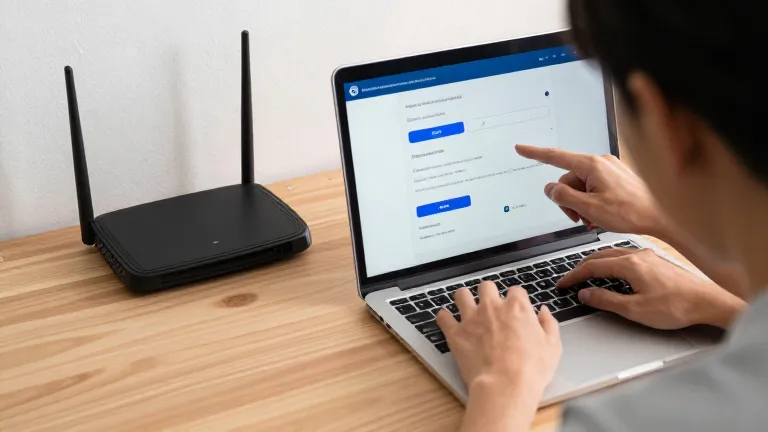
To resolve issues with router port forwarding, start by accessing your router's admin panel. This is where you can configure and verify settings related to port forwarding. Knowing how to navigate the admin panel is essential for troubleshooting and ensuring that your port forwarding rules are correctly set up.
- Find your router's IP address, typically 192.168.1.1 or 192.168.0.1, by checking your device's network settings or looking up your router's manual.
- Open a web browser and enter the router's IP address in the address bar. Press Enter to load the login page.
- Enter the default username and password, which are usually 'admin' for both fields. If these don't work, check the router's documentation or look for a label on the router itself.
- Once logged in, navigate to the port forwarding or virtual server section. This is where you can create or edit port forwarding rules.
Accessing the Router Admin Panel
Accessing the router's admin panel requires knowing its IP address and default login credentials. These details are often listed on the router's label or in its user manual. If you're unsure, you can also check your device's network settings to find the router's IP address. Once you have the correct IP, enter it into a web browser to access the login page.
Locating the Port Forwarding Section
In the port forwarding section, ensure that the correct port and IP address are configured. The IP address should match the internal IP of the device you want to forward traffic to, such as a gaming console or a server. Also, confirm that the protocol (TCP, UDP, or both) is correctly selected, as some applications require specific protocols to function properly. Double-checking these details can help prevent misconfigurations that lead to failed port forwarding.
Verify Your Firewall and Antivirus Settings
Firewalls and antivirus programs are essential for network security, but they can sometimes interfere with port forwarding by blocking incoming traffic. This section outlines how to check and adjust these settings to ensure they are not preventing your router from correctly forwarding ports.
Checking Firewall Settings on Your Router
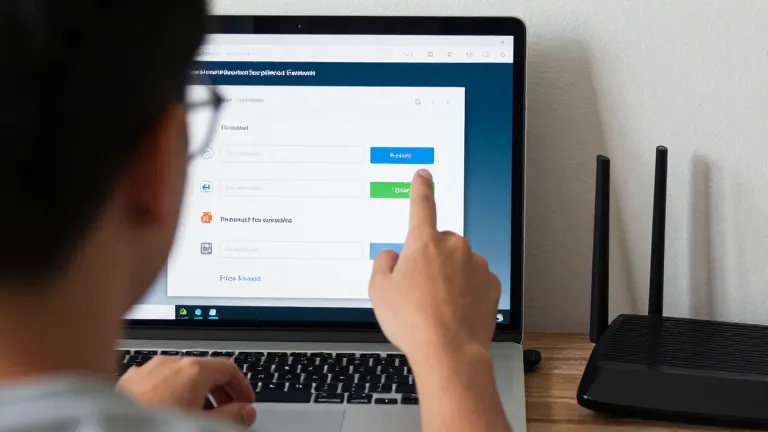
Firewalls on your router are designed to protect your network from unauthorized access. However, they can also block specific ports that are required for services like gaming or remote access. To check your router's firewall settings, log into the admin panel and navigate to the firewall or security section. Look for options related to port forwarding or application-specific rules, and ensure the necessary ports are allowed through the firewall.
Testing Antivirus or Security Software
Antivirus and security software on your computer or network can also block incoming traffic, even if the router is configured correctly. Open your antivirus program and check its firewall or network protection settings. Look for an option to allow specific applications or ports. If you're unsure which ports are needed, refer to the documentation for the service you're trying to access. Temporarily disabling the antivirus or firewall can help identify if they are the cause, but ensure you re-enable them afterward to maintain security.
Test Port Forwarding with an Online Tool
Testing port forwarding with an online tool is a simple yet effective way to determine if your port is open and accessible from the internet. These tools can help identify whether the issue lies with your router configuration, firewall, or ISP. By following a few straightforward steps, you can quickly verify the status of your port and take appropriate action to resolve any issues.
- Visit a reliable online port checking website, such as canyouseeme.org or portchecktool.com.
- Enter your public IP address and the specific port number you're trying to forward.
- Click the 'Check' or 'Test' button to initiate the port scan.
- Wait for the tool to complete the test and display the results.
How to Use Port Checking Tools
Once you've entered your public IP address and the port number, the tool will attempt to connect to your network through that port. If the port is open, the tool will typically indicate that it can successfully reach your device. This confirms that the port forwarding configuration is working correctly and that your device is accessible from the internet.
Interpreting the Results
If the port is closed or unreachable, the tool will notify you that the connection failed. This means there is an issue with your port forwarding setup or firewall rules blocking the traffic. In such cases, you should double-check your router's port forwarding settings, ensure the correct port number is specified, and verify that no firewall or antivirus software is blocking the port. If the problem persists, advanced troubleshooting steps like restarting your router or using a dynamic DNS service may be necessary.
Advanced Troubleshooting and Alternatives
If basic troubleshooting steps don’t resolve your port forwarding issues, consider more advanced methods or alternatives. These include restarting your network equipment, using dynamic DNS services, and exploring cloud-based or encrypted solutions for remote access.
Restarting Your Router and Modem
Restarting your router and modem can resolve temporary glitches that may interfere with port forwarding. Power cycles often clear minor configuration errors, refresh IP assignments, and reset internal routing tables. Allow at least 30 seconds for the devices to fully reboot before testing port forwarding again.
Dynamic DNS and Port Forwarding Alternatives
Dynamic DNS (DDNS) services can help maintain consistent access when your IP address changes frequently. Many ISPs assign dynamic IPs that update regularly, making static port forwarding unreliable. DDNS services link a domain name to your current IP, enabling remote access without constant manual updates. Some routers support DDNS integration out of the box, while others require third-party software.
If port forwarding still fails, consider alternatives like cloud-based services or a VPN. Cloud solutions such as No-IP or花生壳 (花生壳) offer dynamic DNS and remote access without complex port configurations. A VPN can also provide secure remote access by tunneling traffic through encrypted connections, bypassing the need for open ports. These options are particularly useful if port forwarding remains unstable or impossible to configure.
Frequently Asked Questions
Why is my port forwarding not working on my router?
Port forwarding may fail due to incorrect settings, firewall blocks, or ISP restrictions. Check your router's configuration and ensure the port is open. Verify that your public IP is static or use a dynamic DNS service.
How can I check if port forwarding is enabled on my router?
Access your router's admin panel and navigate to the port forwarding section. Look for a list of open ports and ensure the specific port is configured correctly. Use online port checking tools to confirm.
What should I do if my port is still closed after configuring it?
Restart your router and modem to refresh the connection. Double-check your port settings and ensure no firewall or antivirus is blocking the port. Consider using a dynamic DNS service if your IP changes frequently.
Can my firewall block port forwarding and how do I fix it?
Yes, firewalls can block port forwarding. Check your router's firewall settings and disable any rules that block the specific port. Also, configure your operating system's firewall to allow traffic on that port.
Final Thoughts
Port forwarding issues are often resolved by verifying settings, checking firewalls, and using online tools. Ensure your router's configuration is correct and your IP address is stable.
If problems persist, consider advanced troubleshooting steps like dynamic DNS or contacting your ISP. Always test your configuration to confirm it works as intended.





