
How to Fix Smart Thermostat Not Responding
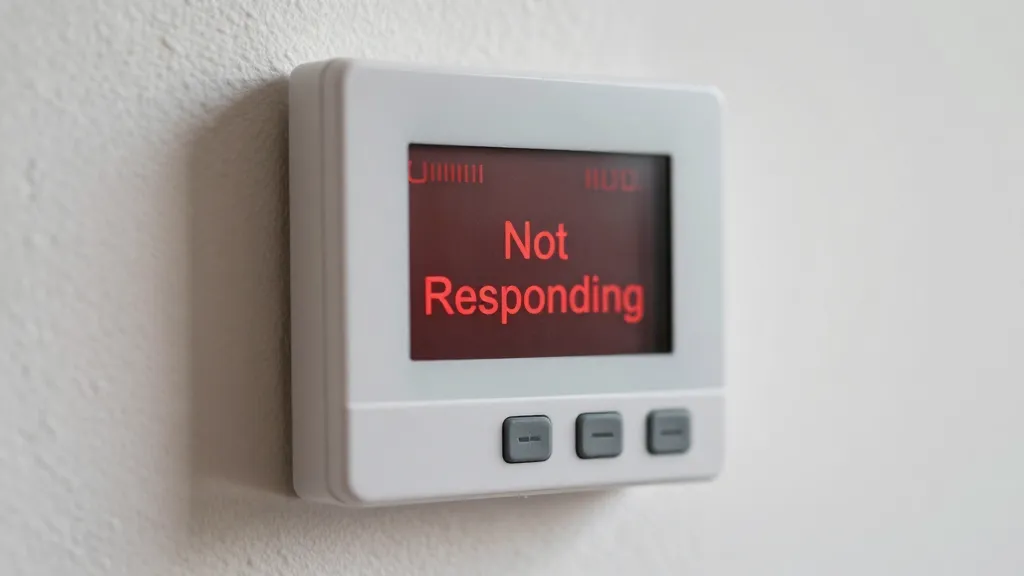
If your smart thermostat is not responding, it can disrupt your home comfort and energy efficiency. Whether you're trying to adjust the temperature or receive updates, a non-responsive thermostat can be frustrating. This guide provides a step-by-step approach to how to fix smart thermostat not responding, helping you resolve the issue without needing professional assistance. The article covers essential troubleshooting steps, from checking connectivity to resetting the device and ensuring firmware updates are applied. By following these practical solutions, you can quickly restore your thermostat's functionality and regain control over your home environment. Each section is designed to be clear and actionable, making it easier for tech-savvy homeowners and busy professionals to address common issues effectively. If basic steps don't resolve the problem, the final section guides you on how to contact manufacturer support for further assistance.
Troubleshoot Connectivity Issues
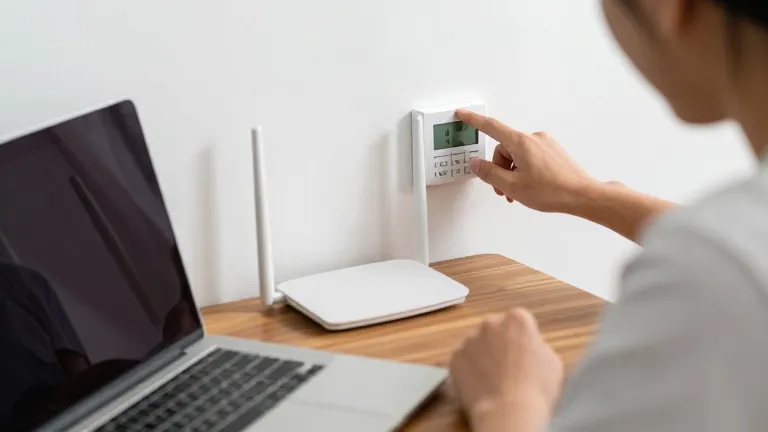
When your smart thermostat isn't responding, the issue is often related to connectivity. Start by checking the WiFi connection of your thermostat, as instability or disconnection can prevent it from communicating with your smartphone or tablet. Ensure that your thermostat is connected to the same network as your mobile device, as devices on different networks won't be able to interact properly. A simple reboot of both your thermostat and router can often restore the connection and resolve temporary glitches.
Verify WiFi Connection
To verify the WiFi connection, open the thermostat's app and check if it shows a stable connection. If the signal is weak or shows as disconnected, move closer to the router or try placing the thermostat near a stronger signal source. Some thermostats also have a built-in indicator light that shows the WiFi status—refer to the user manual for details. If the connection remains unstable, consider switching to a 2.4 GHz network, as some thermostats may not support 5 GHz frequencies.
Restart Your Thermostat and Router
If the WiFi connection appears stable, the next step is to restart both your thermostat and router. To restart your thermostat, locate the reset button or use the app to initiate a reboot. Hold the reset button for about 10 seconds or follow the manufacturer's instructions. After the thermostat restarts, check if it reconnects to the WiFi network. Simultaneously, power cycle your router by unplugging it for 30 seconds and then plugging it back in. This can clear any temporary issues with the router's connection and improve communication with your thermostat.
Reset Your Smart Thermostat
Resetting your smart thermostat can resolve persistent software or configuration issues that prevent it from responding. Before proceeding, ensure you have noted any custom settings, such as temperature preferences or scheduling, to restore them after the reset. The process involves following the manufacturer's specific instructions, which typically include locating the reset button and holding it for a set duration.
How to Perform a Factory Reset
To perform a factory reset, locate the reset button on your thermostat, which is often hidden behind a panel or accessible via the app. Hold the button for 10 to 30 seconds until the thermostat reboots or displays a reset confirmation. Some models may require you to remove the thermostat from the wall and press the reset button directly. This process will erase all user settings and return the device to its default state.
Re-pairing the Thermostat After Reset
After the reset, you will need to re-pair the thermostat with your WiFi network. Open the companion app and follow the on-screen instructions to reconnect the device. Ensure your smartphone or tablet is within range of the thermostat and that your WiFi network is active. During this process, the thermostat may search for available networks, so keep it connected to your router. Once paired, you can reconfigure the thermostat with your preferred settings.
Update Firmware and App Compatibility
Updating firmware and ensuring app compatibility are essential steps in resolving a smart thermostat that isn't responding. Outdated software can cause communication issues between the thermostat and your mobile device, while incompatible apps may prevent proper functionality. By addressing these factors, you can often restore the thermostat’s performance without needing professional assistance.
Check for Firmware Updates
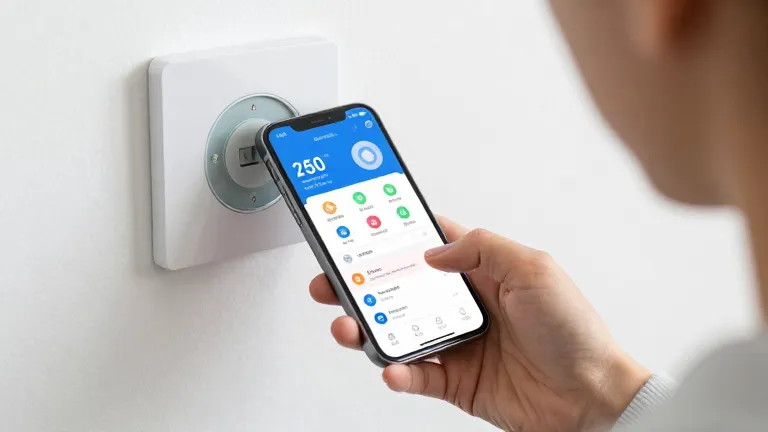
To check for firmware updates, open the thermostat’s companion app and navigate to the device settings. Most apps will display a firmware update option if a new version is available. Follow the on-screen instructions to download and install the update. This process typically takes a few minutes and should resolve any software-related issues causing the thermostat to stop responding.
Verify App Compatibility
Before using the thermostat app, ensure your mobile device’s operating system is up to date. Outdated OS versions can interfere with app performance and compatibility. Additionally, verify that the app is compatible with your thermostat model and device type. Check the manufacturer’s website or app store description for supported devices. If the app is outdated or incompatible, download the latest version or contact support for guidance.
Check for Physical Issues
Physical issues can often be the root cause of a smart thermostat not responding. A thorough inspection of the device and its environment can help identify and resolve problems that may be affecting its performance.
Inspect for Physical Damage
Begin by visually inspecting the thermostat for any signs of physical damage, such as cracks, water stains, or burn marks. These indicators can suggest exposure to moisture, electrical faults, or overheating. Additionally, check the wiring connections to ensure they are intact and not loose. A disconnected or frayed wire can prevent the thermostat from communicating with the HVAC system or the power supply.
Verify Installation and Power Supply
Ensure the thermostat is installed correctly and securely mounted on the wall. A poorly installed thermostat may not receive a stable power supply or may be affected by environmental factors like drafts or direct sunlight. Verify that the device is connected to the correct HVAC system and that the wiring is properly secured. If the thermostat is not receiving power, check the circuit breaker or the HVAC system's power supply to rule out electrical issues. A reliable power source is essential for the thermostat to function properly.
Contact Manufacturer Support
If your smart thermostat continues to not respond after trying all the previous troubleshooting steps, it's time to reach out to the manufacturer's customer support. Most thermostat brands offer dedicated support lines, live chat, or email assistance. When contacting support, be ready to describe the issue in detail, including any error messages or unusual behavior you've observed. Providing specific information helps the support team quickly identify potential causes and guide you through the next steps.
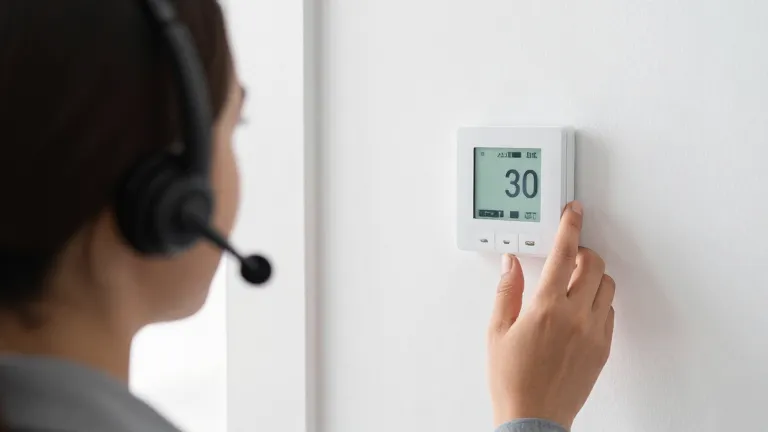
During the support interaction, be prepared to follow any instructions provided, such as rechecking settings, running diagnostics, or sending diagnostic data. Support teams often have access to tools and resources that can help resolve complex issues or confirm if the thermostat is faulty. If the problem is confirmed to be hardware-related, the manufacturer may recommend a repair or replacement, especially if the thermostat is under warranty.
In some cases, professional installation or replacement may be necessary, particularly if the thermostat is outdated, damaged, or incompatible with your home's systems. Before proceeding with a replacement, confirm whether the thermostat is still covered by the manufacturer's warranty or if you need to purchase a new one. Some manufacturers also offer extended service plans or maintenance agreements that can provide additional support and cost savings over time.
When contacting support, be polite, clear, and patient. Support teams often handle multiple inquiries at once, so being concise and providing accurate details can help expedite the process. If the issue remains unresolved, don't hesitate to escalate the matter or seek assistance from a certified technician who can provide hands-on troubleshooting or installation services.
Frequently Asked Questions
What should I do if my thermostat is not responding to the app?
Start by checking your WiFi connection and restarting both your thermostat and router. If that doesn’t work, try resetting the thermostat and re-pairing it with the app. Ensure the app is up to date and compatible with your thermostat model.
How can I tell if my thermostat is connected to WiFi?
Look for a WiFi indicator light on your thermostat or check the app for a connection status. If the app shows no connection, try restarting the thermostat and router. A stable WiFi signal is essential for proper communication.
Can a firmware update fix my thermostat not responding?
Yes, a firmware update can resolve software glitches that cause the thermostat to stop responding. Check for updates through the manufacturer’s app or website. Always ensure your thermostat is connected to WiFi before initiating the update.
What if my thermostat is frozen or unresponsive after a power outage?
A power outage can cause temporary malfunctions. Restart the thermostat by removing and reinserting its power source. If it remains unresponsive, check for physical damage and contact the manufacturer for further assistance.
Final Steps for Resolution
Regular maintenance and updates can prevent many common issues with smart thermostats. If your thermostat continues to malfunction after trying these steps, reaching out to the manufacturer’s support team is the best course of action.
By following these troubleshooting steps, you can resolve most connectivity and responsiveness issues. Always ensure your thermostat is properly installed and updated to maintain optimal performance.





