How to Fix Printer Print Queue Stuck on ‘Deleting’ or ‘Printing’
If your printer's print queue is stuck on 'Deleting' or 'Printing,' it can be frustrating and disrupt your workflow. Whether you're at home or in an office, a stuck print queue can delay important tasks. This guide will walk you through clear, actionable steps to resolve the issue without requiring advanced technical knowledge. We'll cover everything from basic troubleshooting to advanced fixes, helping you get your printer back to normal quickly.
The print queue is a system that manages the order in which documents are printed. When it gets stuck, it can be due to software glitches, hardware issues, or corrupted print jobs. Understanding the common causes can help you identify the right solution. We'll start with simple steps like restarting your printer and computer, then move on to more detailed methods for clearing the queue manually.
For persistent issues, we'll explore advanced fixes such as restarting the print spooler service and updating printer drivers. Preventive measures are also included to help you avoid future problems. By following these steps, you can efficiently manage and resolve a stuck print queue, ensuring smoother printing experiences moving forward.
Understanding Why the Print Queue Is Stuck
A printer print queue stuck on 'Deleting' or 'Printing' can disrupt workflow and cause frustration. Understanding the underlying reasons is essential to resolve the issue effectively. This section explores the common causes and how print queue statuses function, helping you identify the root problem.
Common Causes of a Stuck Print Queue
Common reasons for a stuck print queue include software glitches, corrupted print jobs, and communication issues between the printer and computer. Software glitches can occur due to unexpected system updates or conflicts with other programs. Corrupted print jobs, especially large or complex files, may fail to process correctly, leading to a stuck queue. Communication issues often arise from unstable connections or outdated printer drivers, preventing the system from properly managing print tasks.
How Print Queue Statuses Work
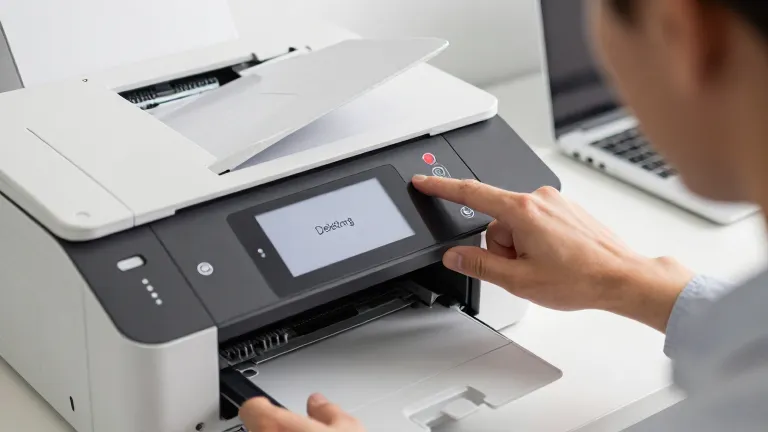
The 'Deleting' or 'Printing' status often signals an error in the system's ability to process or remove the job. When a printer is marked as 'Printing', it may be unable to send the job to the printer or encounter an error during the print process. The 'Deleting' status typically indicates that the system is trying to remove a job but is encountering obstacles, such as insufficient permissions or file corruption. Identifying these statuses helps pinpoint whether the issue lies with the printer, the computer, or the print queue itself. Understanding how these statuses function is crucial for applying the right troubleshooting steps.
Basic Troubleshooting Steps for the Print Queue
Before diving into more complex solutions, it's often effective to start with basic troubleshooting steps that can resolve many common issues. These simple actions can clear minor software glitches or refresh the system's state, helping to restore normal print queue functionality.
Restart Your Printer and Computer
Restarting your printer and computer is a straightforward yet powerful step that can resolve many minor software glitches. Sometimes, the print queue becomes stuck due to temporary system errors or memory leaks. Powering down both the printer and the computer allows the system to reset, which can clear these issues and restore the print queue to its normal state. After restarting, check if the print queue status has changed or if any pending jobs have resumed.
Check for Physical Issues
Checking the printer's physical status is essential to identify any hardware-related problems that may be causing the print queue to malfunction. Ensure the printer is properly connected to the computer or network, and verify that the power cable is securely plugged in. Look for signs of paper jams, low ink or toner, or any error lights on the printer display. Addressing these physical issues can prevent further complications and help the print queue function smoothly.
How to Clear the Print Queue Manually
Clearing the print queue manually is an effective way to resolve stuck jobs and restore normal printing functionality. By canceling individual or all documents in the queue, you can free up system resources and prevent further errors.
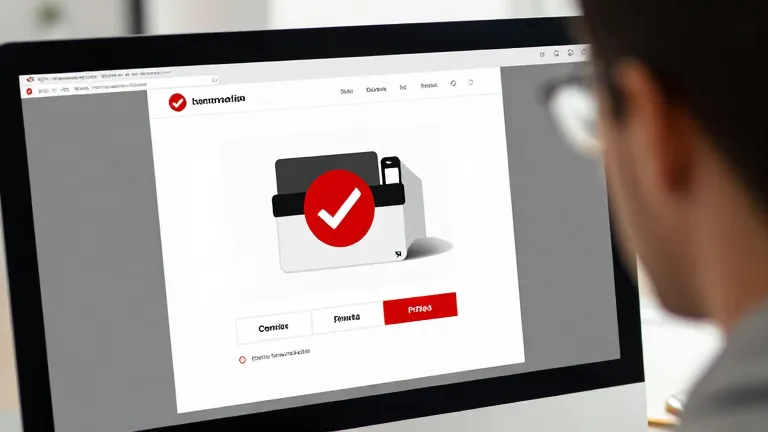
- Open the print queue interface and locate the stuck job.
- Right-click the job and select 'Cancel' to remove it from the queue.
- Repeat the process for any other stuck or problematic jobs.
- Use the 'Cancel All Documents' option to remove all pending jobs at once.
Cancel Individual Stuck Jobs
To cancel individual stuck jobs, open the print queue interface and locate the specific document that is causing the issue. Right-click on the job and select 'Cancel' from the context menu. This action removes the job from the queue and allows the printer to process any remaining tasks. If multiple jobs are stuck, repeat this process for each one to ensure the queue is fully cleared.
Cancel All Documents in the Queue
If you prefer to remove all problematic jobs at once, look for the 'Cancel All Documents' option in the print queue menu. This function cancels every pending job in the queue simultaneously, which is particularly useful when multiple documents are stuck or when the queue is overwhelmed. Using this option can save time and prevent the need to cancel each job individually, although it should be used with caution to avoid accidentally deleting important files.
Advanced Fixes for Persistent Print Queue Issues
For persistent print queue issues that don't resolve with basic troubleshooting, advanced system-level actions can help restore normal functionality. These steps address deeper software or service conflicts that may be affecting the print queue.
Restart the Print Spooler Service
Restarting the Print Spooler service is an effective way to resolve deeper system-level issues with the print queue. This service manages print jobs and communicates with your printer, and if it becomes unresponsive, it can cause the queue to get stuck. To restart it, open the Services app, locate 'Print Spooler,' right-click it, and select 'Restart.' This action clears any temporary glitches and can restore proper communication between your computer and printer.
Update Printer Drivers and Settings
Updating printer drivers and settings can resolve compatibility issues that cause print queue errors. Outdated or corrupted drivers may lead to miscommunication between your computer and printer, resulting in stuck jobs. Visit the manufacturer's website to download the latest drivers for your specific model. After installation, check the printer settings to ensure they match your current system configuration. This step can prevent recurring errors and improve overall print performance.
Preventing Future Print Queue Problems
Preventing future print queue problems involves proactive steps to maintain a smooth printing experience. By establishing regular maintenance routines and making mindful printing choices, users can significantly reduce the chances of encountering stuck print jobs.
Schedule Regular Print Queue Maintenance
Scheduling regular print queue maintenance is a simple yet effective way to prevent issues from accumulating. Set a daily or weekly routine to review and clear the print queue, especially after completing major print tasks. This helps remove any lingering jobs that might cause conflicts or delays. Additionally, checking for completed prints and removing them promptly ensures the queue remains organized and free of unnecessary tasks.
Avoid Printing Large or Complex Jobs
Avoiding the printing of large or complex documents can also help minimize the risk of queue errors. Large files or intricate layouts often require more processing power and can strain the printer's capabilities, leading to errors or prolonged print times. To reduce this risk, break down large print jobs into smaller batches or use simpler formatting when possible. This approach not only improves reliability but also enhances overall printing efficiency.
Frequently Asked Questions
What should I do if the print queue is stuck on 'Printing' and won't move?
If the print queue is stuck on 'Printing', try restarting your printer and computer. If that doesn't work, manually cancel the job through the print queue settings or restart the Print Spooler service.
How can I cancel a print job that's stuck in the queue?
To cancel a stuck print job, open the print queue and right-click the job to select 'Cancel'. If the queue is unresponsive, restart the Print Spooler service or use the Task Manager to end the spooler process.
Why is my printer stuck on 'Deleting' even after I canceled the job?
The printer may still show 'Deleting' if the print job is stuck in the spooler service. Restarting the Print Spooler or restarting your computer can help resolve this issue.
Is there a way to permanently fix the print queue issue?
While there's no guaranteed way to permanently fix the print queue, regular maintenance, such as clearing the queue and updating drivers, can reduce the likelihood of recurring issues.
Final Thoughts
Regularly clearing the print queue and restarting the Print Spooler service can prevent many common issues. Keeping printer drivers updated and avoiding overly complex print jobs also helps maintain smooth operation.
If you're still experiencing issues, consider reaching out to the printer manufacturer for specific support. Maintaining a proactive approach to print queue management ensures reliable and efficient printing.