
How to Reset Your Router to Factory Settings: Step-by-Step Guide
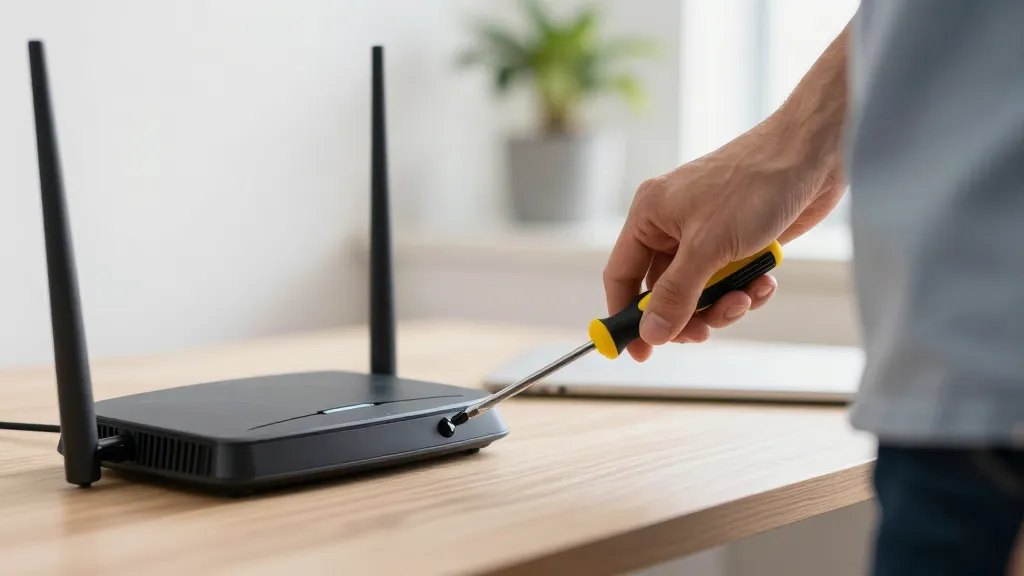
If your router is experiencing connectivity issues, slow speeds, or unexpected behavior, resetting it to factory settings can often restore stability and performance. How to reset router to factory settings is a straightforward process that can resolve many common problems without requiring advanced technical knowledge. Whether you're dealing with a frozen interface, incorrect settings, or a network that no longer connects properly, a factory reset can be a simple yet effective solution. This guide will walk you through the steps to safely reset your router, ensuring you understand what to expect and how to prepare before proceeding. By following these steps, you can regain control of your network and troubleshoot issues efficiently. Once the reset is complete, you'll need to reconfigure your router, which we'll cover in detail. Let's get started with the first step: understanding why you might need to reset your router.
Why You Might Need to Reset Your Router
Resetting your router to factory settings can be a simple yet effective solution for a range of issues, from connectivity problems to misconfigured settings. This process reverts your router to its original state, removing any custom configurations you may have made. Understanding when and why to reset your router is essential to avoid unnecessary complications and ensure a smooth recovery of your network.
Common Reasons to Reset Your Router
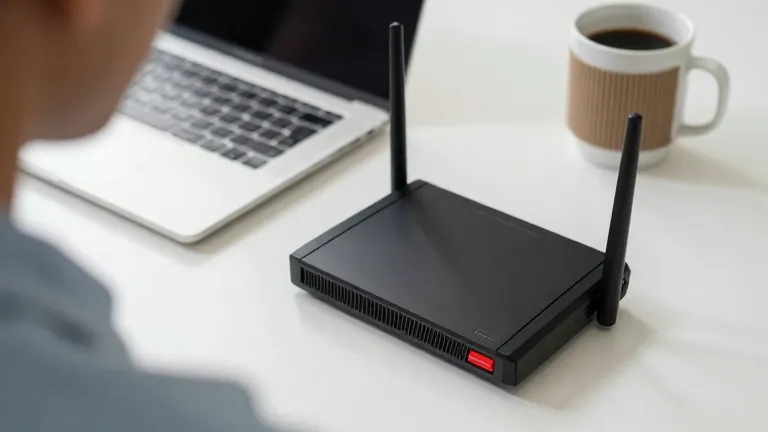
A router reset is particularly useful when you're experiencing connectivity issues, such as intermittent internet access or complete loss of connection. It can also help if your router is not responding to commands or if you're unable to log in to its admin panel. These problems often arise due to incorrect settings, outdated firmware, or conflicts with your network configuration. By resetting the router, you eliminate these potential issues and give your network a fresh start.
When to Consider a Factory Reset
You should consider a factory reset if you're encountering persistent login errors, such as incorrect passwords or failed authentication attempts. This process will remove any custom login credentials you've set, restoring the router to its default username and password. Additionally, if your network settings are misconfigured, such as incorrect Wi-Fi passwords or IP address assignments, a reset can help resolve these issues. However, it's important to note that a factory reset will erase all your custom settings, so it should only be used as a last resort when other troubleshooting methods have failed.
Preparation Before Resetting Your Router
Before you begin the process of resetting your router, it's important to take a few steps to ensure the process goes smoothly and you don't lose critical information. Being prepared can help you avoid unnecessary complications and ensure your network is restored efficiently.
What to Do Before Starting the Reset
Before you start the reset, make sure you know your router's default login credentials and network name (SSID). These are usually found on a label at the back or bottom of the router or in the user manual. Knowing this information is crucial because, after the reset, your router will revert to its original settings, and you'll need these details to access the admin panel and reconfigure your network.
Important Settings to Remember
If your router has any custom settings, such as port forwarding, static IP assignments, or advanced security configurations, it's a good idea to back them up before proceeding. You can typically access these settings through the router's admin interface. If you're unsure how to do this, consult the router's manual or look for online guides specific to your model. Backing up your settings ensures you can restore them later without having to reconfigure everything from scratch.
Additionally, it's recommended to turn off all Wi-Fi devices and gadgets connected to your network before initiating the reset. This helps prevent any interference during the process and ensures a smoother reset. If you're using a laptop or smartphone, make sure it's not connected to the Wi-Fi network you're about to reset. This step can also help avoid potential conflicts with the router's reboot process.
Step-by-Step Guide to Resetting Your Router
Resetting your router to factory settings is a straightforward process that can resolve many connectivity issues. Follow these steps carefully to ensure a smooth reset and restore your router to its original state.
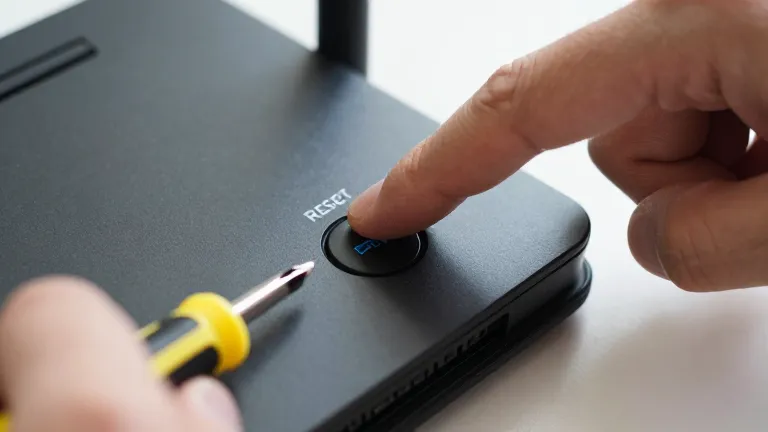
- Locate the reset button on the router and press it for 30 seconds.
- Wait for the router to reboot and restore default settings.
- Reconnect to the router's default network and set up your Wi-Fi again.
Locating the Reset Button
The reset button is typically a small, recessed hole on the back or bottom of the router. Use a paperclip or similar tool to press and hold the button for 30 seconds. This duration ensures the router fully resets and reverts to its original factory settings. If you're unsure where the button is, consult the router's manual or look for a label indicating 'Reset' or 'Factory Reset'.
Resetting the Router Properly
After pressing the reset button, the router will automatically reboot. This process may take a few minutes, during which the router will restore all default settings. Avoid interrupting the reset by turning off the router or unplugging it. Once the reboot is complete, the router will be ready to be reconfigured. If the router does not reboot, try pressing the reset button again for an additional 10 seconds.
What Happens After a Factory Reset
After resetting your router to factory settings, your network will revert to its original configuration. This means all custom settings, saved configurations, and advanced options will be erased, returning the router to its default state. While this can resolve many issues, it also requires you to reconfigure your network from scratch.
What to Expect After Resetting
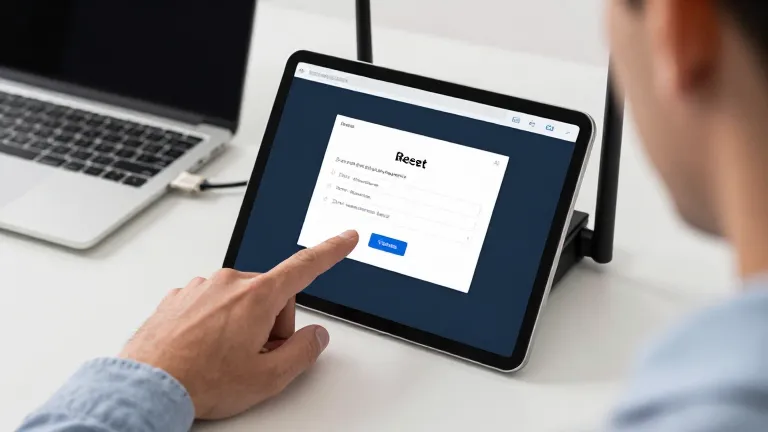
Once the reset is complete, your router will restart and operate with its default settings. This includes the default IP address, login credentials, and basic network settings. However, these defaults are often not secure or suited to your specific needs. For example, the default password may be easily guessed, and the SSID (network name) might not be personalized. You will need to access the router’s settings through a web browser and log in using the default username and password, which are typically printed on the router or listed in the manual.
Reconfiguring Your Network Post-Reset
Reconfiguring your network involves setting up a new Wi-Fi name, password, and other preferences. You will also need to re-establish any advanced settings, such as port forwarding, Quality of Service (QoS) rules, or parental controls. These settings are essential for optimizing your network performance and security. If you are unsure about how to configure these options, it is advisable to refer to the router’s user manual or visit the manufacturer’s support website for guidance. Taking the time to properly reconfigure your network ensures a more stable and secure connection.
Troubleshooting Common Issues After Reset
After resetting your router, it's common to encounter issues that prevent your network from functioning as expected. This section covers how to address these problems, including connection failures and login difficulties, ensuring you can restore your internet access and secure your network.
- Check the power and physical connections if your router doesn't connect.
- Use the default login credentials if you can't access the admin panel.
- Verify that your Wi-Fi password is correct and that your devices are connected properly.
Fixing Connection Problems After Reset
If your router fails to connect after a factory reset, start by confirming that it is properly powered. Ensure the power cable is securely plugged into both the router and a working electrical outlet. Also, verify that the Ethernet cable connecting the router to your modem or ISP gateway is firmly connected at both ends. A loose or disconnected cable can prevent the router from establishing an internet connection.
Common Login and Password Issues
If you're unable to access the router's admin panel, try using the default login credentials. Most routers use 'admin' as the username and 'admin' or 'password' as the password. These defaults are usually printed on a label at the back of the router. If you've changed these credentials previously, resetting the router will restore them, allowing you to log in and reconfigure your settings.
Frequently Asked Questions
What happens if I reset my router to factory settings?
Resetting your router to factory settings restores it to its original configuration. This means all custom settings, including Wi-Fi names and passwords, are erased. The router will revert to its default username and password.
How long does it take for a router to reset to factory settings?
The time it takes for a router to reset varies depending on the model. Typically, it takes between 1 to 5 minutes. Some routers may take longer, especially if there is a significant amount of data to erase.
Can I recover my router settings after a factory reset?
If you have a backup of your router settings, you can restore them after a factory reset. However, if you don't have a backup, you'll need to reconfigure your network manually.
Will resetting my router affect my internet connection?
Resetting your router should not affect your internet connection, but it may temporarily disrupt it. After the reset, you'll need to reconfigure your network settings, including Wi-Fi and password, to restore full functionality.
Final Thoughts
Resetting your router to factory settings is a useful troubleshooting step, but it should be done with caution. Always ensure you have a backup of your settings before proceeding. Reconfiguring your network after a reset is essential to maintain your internet connection and security settings.
If you're experiencing issues with your router, consider resetting it to factory settings as a last resort. Make sure to understand the process and prepare accordingly to avoid losing important network configurations.





