
How to Fix Blink Outdoor Camera Not Recording Motion Clips
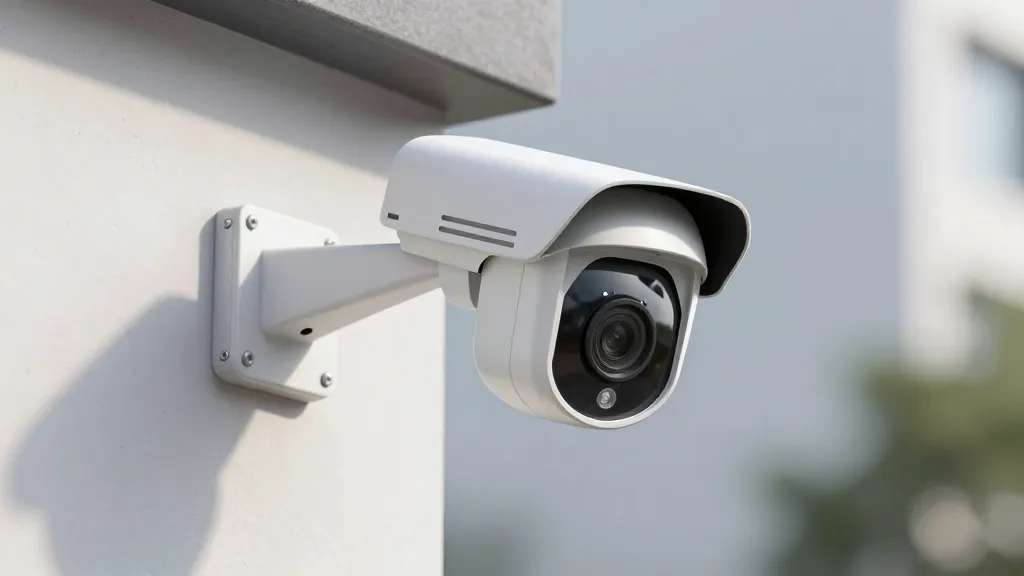
If your Blink outdoor camera isn’t recording motion clips, it can be frustrating, especially when you rely on it for security. This issue may stem from incorrect motion detection settings, connectivity problems, or even firmware glitches. The main keyword, How to Fix Blink Outdoor Camera Not Recording Motion Clips, is central to resolving these common issues. By following a structured troubleshooting process, you can identify and address the root cause of the problem.
This article guides you through the key steps to diagnose and fix your Blink outdoor camera’s motion recording issues. We’ll start by exploring the settings that control motion detection and how they might be misconfigured. Then, we’ll move on to checking your camera’s connectivity to the Sync Module and ensuring it has a stable power source.
From there, we’ll cover advanced troubleshooting techniques, such as restarting the Sync Module and updating firmware, to ensure optimal performance. If all else fails, we’ll discuss when to reach out to Blink support for further assistance. With these practical steps, you can restore your Blink camera’s ability to record motion clips effectively.
Understanding Why Your Blink Outdoor Camera Isn’t Recording Motion Clips
If your Blink Outdoor Camera isn't recording motion clips, the issue could stem from a combination of hardware, software, or connectivity problems. Understanding the root cause is essential to resolve the problem efficiently. This section explores common reasons behind the lack of motion clips and provides guidance on how to identify and address them.
Troubleshooting Motion Detection Settings
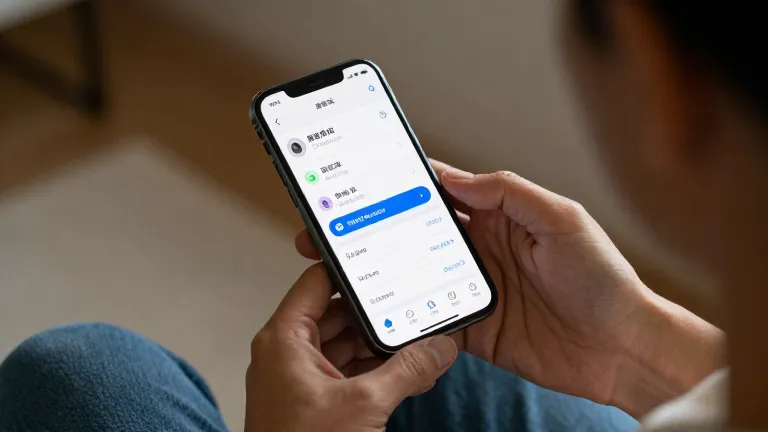
Incorrect motion detection settings can prevent your Blink Outdoor Camera from recording motion clips. The camera relies on motion zones and sensitivity levels to determine when to capture video. If the motion zones are too narrow or the sensitivity is set too low, the camera might miss activity. Additionally, if motion detection is disabled or set to a specific time frame, it could result in missed clips. Reviewing and adjusting these settings in the Blink app can help ensure the camera is properly configured to detect motion.
Checking for Camera and Sync Module Connectivity
Camera and Sync Module connectivity is critical for proper operation. A weak or unstable connection between the camera and the Sync Module can lead to missed motion clips or incomplete recordings. Ensure the Sync Module is placed within range and that both devices are connected to the same Wi-Fi network. Also, check for physical obstructions or interference that might disrupt the signal. If the Sync Module is not receiving power or is overheating, it could also affect the camera's ability to record motion.
How to Adjust Blink Motion Detection and Sensitivity Settings
Adjusting motion detection and sensitivity settings is crucial for ensuring your Blink Outdoor Camera captures accurate motion clips. Proper configuration helps reduce false alarms and ensures the camera responds to real activity in your environment.
- Open the Blink app and navigate to the camera's settings menu to access motion detection options.
- Use the sensitivity slider to adjust how responsive the camera is to movement. Lower sensitivity may miss motion, while higher sensitivity can lead to false alerts.
- Create motion zones to focus the camera on specific areas, such as entryways or driveways, and ignore less relevant regions.
- Test different sensitivity levels and motion zone configurations to find the optimal setup for your home.
Accessing Motion Detection Settings in the Blink App
To adjust motion detection settings, open the Blink app and select your camera. Tap the gear icon to access settings, then navigate to the motion detection section. Here, you can adjust the sensitivity level, which determines how sensitive the camera is to movement. A lower sensitivity may result in missed motion events, while a higher sensitivity could cause false alarms. It's important to find a balance that works for your specific environment.
Setting Up Motion Zones and Sensitivity Levels
Setting up motion zones allows you to define the areas the camera should monitor. Tap the motion zone option and use the on-screen tool to draw zones around areas of interest, such as doors or windows. You can also adjust the sensitivity for each zone independently, which is useful if certain areas have more activity or are prone to false triggers. After configuring zones, test the camera by moving within the defined areas to ensure it captures motion clips accurately.
Checking the Blink Sync Module for Connectivity and Performance
The Blink Sync Module serves as a critical link between your Blink outdoor camera and the Blink app, ensuring that motion clips are captured and stored correctly. If your camera isn't recording motion clips, the Sync Module may be the source of the problem. Ensuring it is properly placed, connected, and functioning is essential to resolving these issues.

Verifying Sync Module Placement and Connection
Proper placement of the Sync Module is crucial for optimal performance. The module should be placed within range of your Wi-Fi router and positioned in a location that minimizes interference from walls or other obstacles. If the Sync Module is too far from the router or placed in a signal-dead zone, it may not communicate effectively with the camera, leading to missed motion clips. Additionally, the Sync Module must be connected to your home Wi-Fi network. If the connection is weak or unstable, the module may fail to transmit data to the app, causing recording issues.
Restarting the Sync Module to Fix Connectivity Problems
If the Sync Module is experiencing connectivity problems, restarting it can often restore functionality. To do this, unplug the module from its power source for about 30 seconds, then plug it back in. This process can clear temporary glitches that may be preventing the module from communicating with the camera or the app. After restarting, ensure that the Sync Module reconnects to your Wi-Fi network and that it is recognized by the Blink app. If the issue persists, consider moving the Sync Module closer to the router or using a Wi-Fi extender to improve signal strength.
Troubleshooting Common Issues with Blink Outdoor Camera Recording
If your Blink Outdoor Camera isn't recording motion clips, it's essential to examine potential power, network, and firmware issues that might be interfering with the recording process. These factors can disrupt the camera’s ability to detect and store motion events, leading to missing or incomplete video clips. Ensuring that the camera has sufficient power and that its network connection is stable can often resolve these issues.
Checking Camera Power and Battery Levels
Low battery or incorrect power source can prevent the Blink Outdoor Camera from recording motion clips. Ensure the camera is connected to a reliable power source, such as a high-quality solar panel or a surge-protected outlet. If the camera is using a battery, check the battery level through the Blink app. A low battery can cause the camera to enter a low-power mode, which may stop motion recording. If the battery is faulty or damaged, replace it with a new one to restore normal operation.
Resolving Network and Firmware Issues
Unstable Wi-Fi or incorrect IP settings can also disrupt the Blink Outdoor Camera’s ability to record motion clips. Verify that the camera is connected to a strong and stable Wi-Fi network, as poor connectivity can cause data transmission issues. Additionally, ensure the camera’s IP settings are correct and that there are no network conflicts. Updating the camera’s firmware through the Blink app can also resolve bugs that affect motion recording. Firmware updates often include improvements and fixes that enhance the camera’s performance and reliability.
When to Contact Blink Support for Further Help
If basic troubleshooting steps don’t resolve the motion recording issue, it may indicate a hardware or software problem that requires professional attention. Blink support can help diagnose deeper issues, such as internal camera malfunctions, syncing errors, or firmware glitches that aren’t easily resolved through standard troubleshooting. Their team is equipped to identify complex problems that may require advanced diagnostics or replacement of faulty components.
When contacting Blink support, it’s important to provide detailed information about your setup. This includes the camera model, firmware version, and any error messages you’ve encountered. These details help support representatives quickly assess your situation and provide targeted solutions. Additionally, mention any recent changes to your network or camera settings that may have contributed to the problem.
Before reaching out, ensure all updates and settings have been applied to rule out simple fixes. Verify that your camera and Sync Module are running the latest firmware and that motion detection settings are correctly configured. If the issue persists after these steps, it’s time to seek assistance. Blink support can guide you through further diagnostic procedures or recommend steps for returning the device if it’s faulty.
Contacting Blink support is a crucial step when self-troubleshooting fails. Their expertise can help resolve persistent issues and ensure your camera functions as intended. By providing accurate and detailed information, you can expedite the support process and receive the best possible assistance for your specific situation.
Frequently Asked Questions
Why isn't my Blink outdoor camera recording motion clips even when motion is detected?
If your Blink outdoor camera is detecting motion but not recording clips, check the motion detection settings in the Blink app. Ensure the camera is connected to the Sync Module and has sufficient battery power. If the issue persists, restart the Sync Module or reset the camera.
How do I check if my Blink camera's motion detection is working correctly?
Open the Blink app and navigate to your camera's settings. Look for the motion detection status and ensure it's enabled. You can also test the motion detection by moving in front of the camera and checking if clips are recorded.
What should I do if my Blink camera is not syncing with the app?
Ensure your camera is within range of the Sync Module and connected to the same Wi-Fi network. Restart the Sync Module and the camera. If the issue continues, try reinstalling the Blink app or resetting the camera.
Can a weak Wi-Fi signal cause my Blink camera to stop recording motion clips?
Yes, a weak or unstable Wi-Fi signal can cause connectivity issues, which may prevent the Blink camera from recording motion clips. Ensure the camera and Sync Module are connected to a strong, stable network.
Final Steps for Resolution
Blink outdoor cameras can stop recording motion clips due to a variety of issues, including incorrect settings, connectivity problems, or hardware malfunctions. Addressing these issues by checking motion detection settings, ensuring proper Sync Module placement, and verifying network stability can help restore recording functionality.
If these steps do not resolve the issue, it may be necessary to contact Blink support for further assistance. Regular maintenance and monitoring of your Blink system can help prevent future recording problems.





