
How to Fix Google Home Not Recognizing Voice Commands
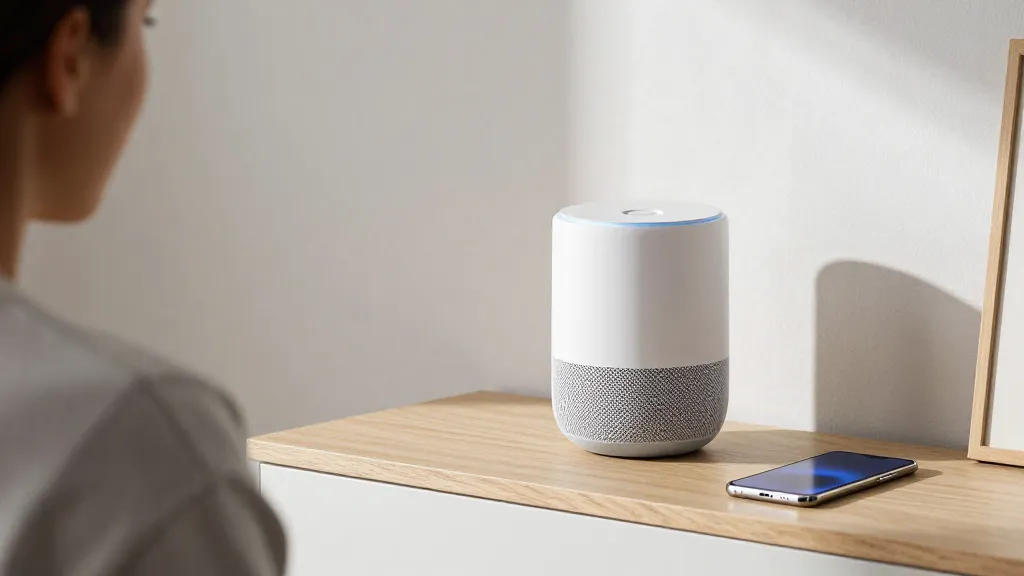
If your Google Home device is not recognizing voice commands, it can be frustrating, especially when you rely on it for smart home automation or daily tasks. The issue might stem from a simple connectivity problem or more complex settings that need adjustment. This article provides a clear, step-by-step guide to help you resolve the issue of How to Fix Google Home Not Recognizing Voice Commands. Whether you're a homeowner or a tech-savvy user, these practical solutions can restore your device's functionality. We'll cover everything from basic troubleshooting to advanced re-training techniques, ensuring your Google Home works as intended.
The first step is to verify your Wi-Fi connection and ensure the Google Home app is up to date. A stable internet connection and the latest app version are essential for proper communication between your device and the Google servers. If your device is offline or the app is outdated, it may struggle to process voice commands accurately. By addressing these fundamental issues, you can often resolve the problem without further intervention.
Next, we'll explore how to clean the microphone holes, which can become blocked by dust or debris, affecting sound capture. We'll also guide you through retraining your voice match for better recognition. Additionally, we'll cover advanced settings to optimize voice commands and reduce interference. If all else fails, a factory reset and re-setup may be necessary to restore your device to its original state. Each step is designed to help you regain full control of your Google Home device.
Troubleshoot Basic Connectivity and Setup
Before diving into more complex solutions, start by ensuring that your Google Home device is properly connected to Wi-Fi and that the Google Home app is up to date. Basic connectivity issues are often the root cause of voice command recognition problems, so addressing these first can save time and effort.
Verify Wi-Fi Connection
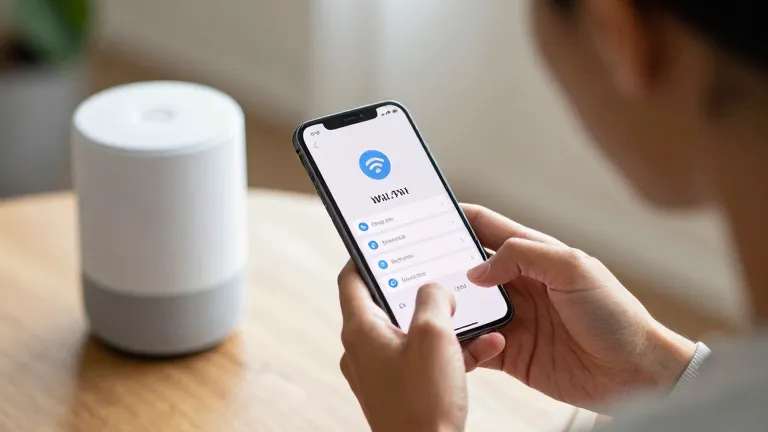
Begin by confirming that your Google Home device is connected to the correct Wi-Fi network. Open the Google Home app and navigate to the device’s settings to check its connection status. If it shows as disconnected or with a weak signal, move the device closer to your router and ensure there are no physical obstructions blocking the signal. A strong and stable Wi-Fi connection is essential for voice command recognition.
Check for App Updates
Ensure that the Google Home app is updated to the latest version, as updates often include bug fixes and performance improvements. Open your device’s app store and check for available updates for the Google Home app. If an update is available, install it and restart the app. An outdated app may not function correctly, leading to issues with voice command recognition. After updating, test the device again to see if the problem persists.
Clean the Microphone Holes
Dust and debris can accumulate in the microphone holes of your Google Home device, potentially blocking sound input and causing recognition issues. Regular cleaning of these areas can help ensure that your voice commands are captured clearly and accurately. This section outlines how to locate and access the microphone holes, as well as the best practices for cleaning them without damaging the device.
Locate and Access the Microphone Holes
The microphone holes on a Google Home device are typically located on the front panel, near the top. These small openings are designed to capture sound waves for voice command processing, but they can easily become clogged with dust, hair, or other debris. To access them, gently lift the front panel slightly to expose the holes. It’s important to handle the device carefully to avoid any accidental damage during this process.
Cleaning Techniques and Tools
To clean the microphone holes, use a soft brush, such as a paintbrush or a small, soft-bristled brush, to gently sweep away any visible dust or debris. Alternatively, compressed air can be used to blow out particles without making physical contact with the holes. Avoid using sharp objects like pins or needles, as these can scratch or damage the microphone housing. After cleaning, test your voice commands to see if the device responds more reliably.
Retrain Voice Match for Better Recognition
Voice Match is a crucial feature for Google Home to accurately recognize and respond to your voice commands. If your device is struggling to identify your voice, retraining Voice Match can significantly improve its performance. This process ensures that your voice is properly registered and recognized, enhancing the overall user experience.
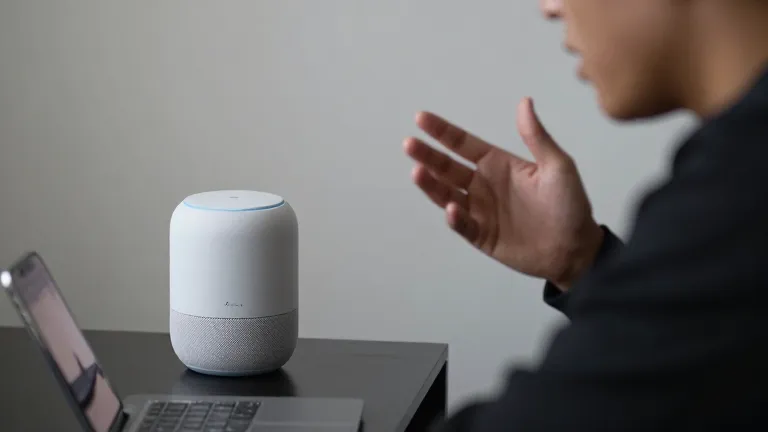
- Open the Google Home app and navigate to the device settings.
- Select the 'Voice Match' option and follow the on-screen instructions to start the retraining process.
- Speak clearly and repeat the prompts as they appear in the app to ensure accurate registration.
- Complete the training session by following the prompts and confirming that your voice has been successfully retrained.
How to Retrain Voice Match
Retraining Voice Match is a simple yet effective way to enhance your Google Home's ability to recognize your voice. The process involves guiding the device through a series of prompts that help it learn and adapt to your unique voice patterns. Make sure to speak clearly and at a natural pace during the training session, as this will help the system build a more accurate representation of your voice.
Tips for Effective Voice Training
To ensure the best results, it's important to speak clearly and repeat commands during the training process. Avoid background noise and ensure that you are positioned close to the device to allow for optimal audio capture. Additionally, it's recommended to complete the training in a quiet environment to prevent any interference that may hinder the system's ability to learn your voice accurately. After retraining, test your voice commands to confirm that the improvements are effective.
Advanced Settings and Voice Command Optimization
Optimizing voice command settings can significantly improve the accuracy and responsiveness of your Google Home device. By fine-tuning these settings, you can enhance the device's ability to recognize and execute commands effectively.
Customizing Voice Command Settings
In the Google Home app, navigate to the device settings to customize voice command options. Adjust the sensitivity of voice recognition to ensure it responds correctly to your voice while minimizing false triggers. You can also set specific wake words or disable unnecessary commands to streamline interactions. Reviewing the language and region settings is crucial, as incorrect configurations can lead to misinterpretation of commands. Ensuring the device is set to the correct language and region helps improve recognition accuracy.
Managing Interference From Other Devices
To manage interference from other devices, ensure that no competing smart speakers or voice assistants are active in the same space. Other devices can cause confusion and reduce the effectiveness of voice command recognition. If multiple devices are present, consider using the 'Group' feature in the Google Home app to prioritize one device for voice commands. Additionally, check for background noise or other audio sources that might disrupt voice recognition. Positioning the Google Home device away from speakers, televisions, or other audio equipment can help reduce interference and improve command accuracy.
Factory Reset and Re-Setup
If all else fails, performing a factory reset can resolve persistent issues with Google Home not recognizing voice commands. A factory reset will erase all settings, paired devices, and customizations, returning the device to its original state. This method is typically a last resort but can effectively eliminate configuration errors or software glitches that prevent proper voice command recognition.
How to Perform a Factory Reset
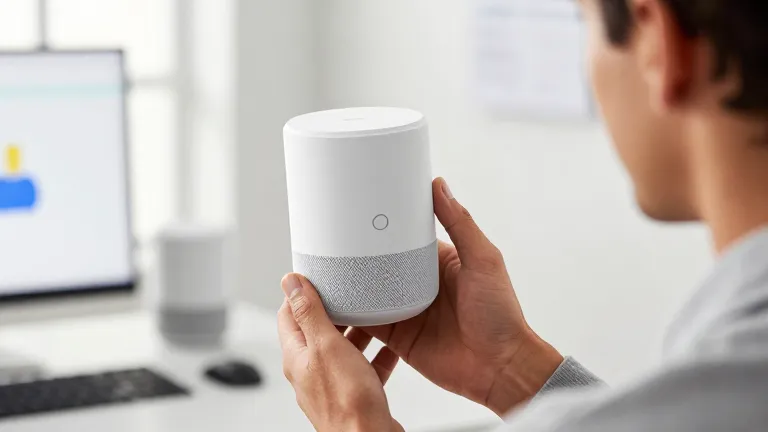
To perform a factory reset, open the Google Home app and select the affected device. Tap the three-dot menu and choose 'Remove' to unpair the device. Once unpaired, press and hold the reset button on the back of the Google Home device for 20 seconds until the light turns off. This action will erase all data and settings associated with the device.
Re-Setup and Re-Training Steps
After the reset, re-pair the device to your Wi-Fi network by following the setup instructions in the Google Home app. Ensure the device is within range of your router and that your Wi-Fi network is stable. Once connected, retrain Voice Match by speaking clearly into the microphone. This process helps the device recognize your voice more accurately for future commands.
Finally, verify that all settings are correctly configured after the reset. Make sure the device is registered with your account and that all necessary functions are enabled. If issues persist after re-training, consider contacting Google support for further assistance.
Frequently Asked Questions
What should I do if my Google Home is not responding to voice commands?
Start by checking your Wi-Fi connection and ensuring the Google Home app is updated. If the issue persists, clean the microphone holes and retrain Voice Match. If these steps don't resolve the problem, consider performing a factory reset.
Can dust in the microphone holes affect voice command recognition?
Yes, dust and debris in the microphone holes can block sound intake, leading to poor voice command recognition. Regularly cleaning the microphone holes can help maintain optimal performance.
How often should I retrain Voice Match for optimal performance?
Retrain Voice Match every few weeks or when you notice a decline in voice recognition accuracy. Consistent retraining helps the system adapt to changes in your voice and environment.
What are the steps to factory reset a Google Home device?
To factory reset your Google Home, hold the action button for 20 seconds until the light turns off. Then, follow the setup process in the Google Home app to reconfigure the device.
Final Steps for Optimal Voice Command Recognition
To ensure your Google Home functions optimally, regularly clean the microphone holes, update the app, and retrain Voice Match. Addressing connectivity issues and interference is also crucial for smooth operation.
If problems persist, a factory reset can restore default settings. Always follow the setup process carefully to ensure your device is properly configured for voice command recognition.





