
How to Fix Smart Bulb Flickering on Dimmer Wall Switch
Smart bulbs are a popular choice for modern homes, offering energy efficiency and convenient control. However, many users encounter a frustrating issue: flickering when using a dimmer wall switch. This problem can disrupt the ambiance and functionality of your smart lighting setup. The main keyword here is 'How to Fix Smart Bulb Flickering on Dimmer Wall Switch,' and this article provides a clear path to resolve it. Whether you're a homeowner or a tech-savvy user, understanding the root causes and solutions can help you achieve smooth, reliable dimming. The article covers everything from compatibility checks to alternative solutions, ensuring you can enjoy the full benefits of your smart bulbs without interruption.
Understanding Why Smart Bulbs Flicker on Dimmer Switches
Smart bulbs flicker on dimmer wall switches due to a combination of technological differences and compatibility issues. Unlike traditional incandescent bulbs, smart bulbs use LED technology and rely on digital communication protocols, which can conflict with older dimmer switches designed for analog control. This mismatch often leads to flickering, inconsistent brightness, or even complete failure to function properly.
What Causes Smart Bulb Flickering?
Flickering in smart bulbs can stem from several factors, including incompatible dimmer switches, poor electrical wiring, or faulty bulbs. Dimmer switches designed for incandescent bulbs operate by reducing the voltage supplied to the bulb, but they may not work correctly with LED or smart bulbs, which require a different type of dimming signal. Additionally, if the wiring in your home is outdated or improperly installed, it can cause voltage fluctuations that result in flickering. Finally, a defective smart bulb may also be the culprit, especially if it's not receiving the correct power or communication signals from the dimmer.
Are All Dimmer Switches Compatible with Smart Bulbs?
Not all dimmer switches are compatible with smart bulbs, and identifying the right type is crucial for preventing flickering. Look for dimmer switches that are specifically labeled as compatible with LED or smart bulbs, as these models use advanced technology to regulate power more effectively. Incandescent-compatible dimmers may not provide the smooth dimming or constant power supply that smart bulbs require, leading to flickering or erratic behavior. Always check the manufacturer's specifications to ensure the dimmer is suitable for your type of bulb and smart home system.
Check for Incompatible Dimmer Switches
Before addressing flickering issues, it's crucial to confirm whether your dimmer switch is compatible with your smart bulbs. Many traditional dimmers are not designed for the low-voltage requirements of LED or smart bulbs, leading to flickering and inconsistent performance.
- Verify if your dimmer switch is compatible with smart bulbs.
- Look for dimmer switches that are specifically rated for LED or smart bulbs.
- Check the packaging or manufacturer’s website for compatibility information.
- Replace the dimmer switch if it is not compatible with your smart bulb.
How to Determine Dimmer Compatibility
To determine if your dimmer is compatible, start by consulting the product manual or the manufacturer’s website. Many modern dimmers are labeled as ‘LED-compatible’ or ‘smart bulb-compatible.’ These switches are designed to handle the lower wattage and voltage of LED and smart bulbs, reducing the risk of flickering and other issues.
What to Look for on a Dimmer Switch Label
When examining the dimmer switch label, look for specifications that mention LED or smart bulb compatibility. Key details to check include the type of bulbs supported, the minimum and maximum wattage, and any certifications like DLC (Dimming Lighting Certification). These indicators ensure the switch is suitable for your smart bulb setup.
Try Replacing the Wall Switch
If the dimmer switch is compatible with your smart bulbs, the flickering issue may stem from a faulty switch. Replacing the wall switch can resolve the problem, especially if the existing one is damaged or not functioning properly.
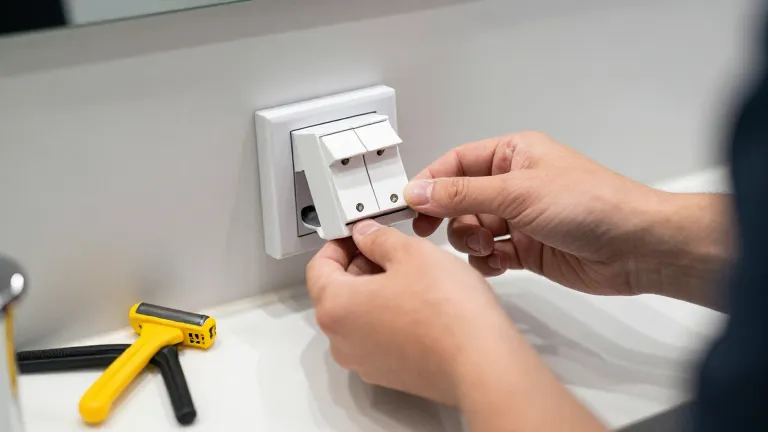
- Turn off the power to the circuit at the main electrical panel before starting the replacement.
- Remove the old dimmer switch by unscrewing the cover plate and disconnecting the wires.
- Install the new dimmer switch by connecting the wires to the corresponding terminals and securing it in place.
- Restore power to the circuit and test the smart bulb to ensure the flickering has stopped.
How to Replace a Dimmer Wall Switch
Replacing a dimmer wall switch involves careful wiring and attention to detail. Ensure the new switch is rated for smart bulbs, as not all dimmers are suitable. Follow the manufacturer’s instructions for installation, and double-check the wiring connections to avoid any electrical hazards.
Testing the New Switch After Installation
After installing the new dimmer switch, test the smart bulb by adjusting the brightness. If the flickering stops, the issue was likely with the old switch. If the problem persists, consider other factors such as bulb compatibility or interference from other devices. Always ensure the switch is properly installed and wired to function correctly with your smart home setup.
Troubleshoot Smart Bulb and Dimmer Setup
Troubleshooting the smart bulb and dimmer setup involves verifying the bulb's connection, ensuring firmware is up to date, and resetting devices to resolve compatibility issues. These steps can help identify and fix flickering caused by misconfigurations or outdated software.
- Ensure the smart bulb is correctly installed and connected to the smart home app.
- Check for firmware updates on both the bulb and the dimmer switch.
- Reset the bulb and the dimmer switch to factory settings and re-pair them.
- Use a different smart bulb to test if the issue is with the specific bulb.
How to Reset Your Smart Bulb
To reset your smart bulb, locate the bulb's reset button, usually found on the base or within the housing. Press and hold the button for about 10 to 30 seconds until the bulb flashes or turns off, indicating it has been reset. Once reset, re-pair the bulb with your smart home app by following the manufacturer's instructions. This process can resolve connection issues or software glitches causing flickering.
Updating Firmware for Smart Bulbs and Dimmers
Updating firmware for both the smart bulb and dimmer switch is crucial for resolving compatibility and performance issues. Check the manufacturer's website or app for firmware updates. Download and install the latest firmware for both devices, ensuring they are connected to the same Wi-Fi network during the update. Firmware updates often address bugs and improve the interaction between smart bulbs and dimmer switches, reducing flickering and enhancing overall performance.
Alternative Solutions and Preventative Measures
When dealing with smart bulb flickering on a dimmer wall switch, exploring alternative solutions and maintaining your smart home setup is key to long-term stability. By choosing the right equipment and ensuring regular upkeep, you can avoid common issues and enhance the performance of your smart lighting system.
Smart Dimmer Switch Alternatives
If replacing the wall switch is not an option, consider using a smart dimmer switch specifically designed for LED and smart bulbs. These switches are engineered to work with the unique power requirements of modern lighting technology, reducing the risk of flickering and ensuring smooth dimming. Look for dimmers that are compatible with your specific bulb brand and type, and check for certifications such as DLC (DesignLights Consortium) to confirm reliability.
Maintaining Your Smart Home Setup
Maintaining your smart home setup involves regular checks and updates to ensure optimal performance. Periodically inspect the wiring connections to ensure they are secure and free from corrosion, and verify that the circuit is properly grounded to prevent electrical issues. Additionally, keep your smart bulbs and dimmers updated with the latest firmware through their respective apps, as manufacturers often release updates to improve compatibility and address known bugs.
Frequently Asked Questions
Why is my smart bulb flickering when I use a dimmer switch?
Smart bulbs may flicker with dimmer switches due to incompatibility or improper installation. Ensure your dimmer is compatible with your bulb type and check for loose connections.
Can I use any dimmer switch with my smart bulb?
Not all dimmer switches work with smart bulbs. Use a dimmer specifically designed for LED or smart bulbs to avoid flickering and ensure smooth operation.
How do I know if my dimmer switch is compatible with my smart bulb?
Check the dimmer switch label for compatibility with LED or smart bulbs. Look for terms like 'LED compatible' or 'smart bulb dimmer' to confirm suitability.
What should I do if my smart bulb still flickers after replacing the dimmer switch?
If flickering persists, reset your smart bulb and update its firmware. Ensure the dimmer switch is properly installed and compatible with your bulb type.
Final Thoughts
Smart bulb flickering on a dimmer switch often stems from compatibility issues or improper installation. By identifying and replacing incompatible switches or updating firmware, most problems can be resolved. Regular maintenance and using certified dimmers will help ensure stable performance.
To prevent future issues, always check dimmer compatibility with your smart bulb and maintain your setup with regular updates. If problems persist, consult a professional for further assistance.





