
How to Fix Sonos Speaker Disappearing From Sonos App
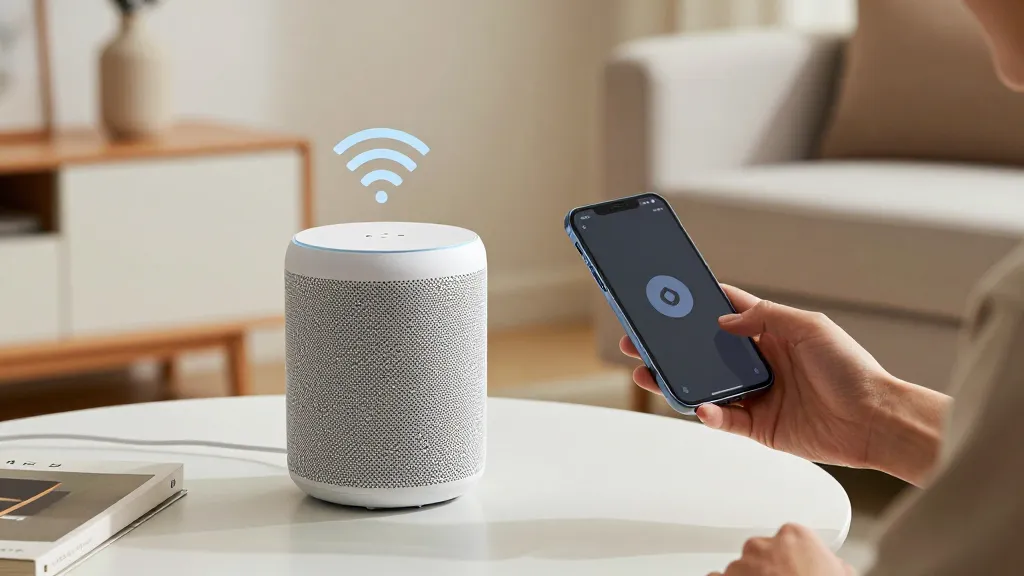
If your Sonos speaker has disappeared from the Sonos app, it can be frustrating, especially if you rely on it for music or smart home integration. This issue may stem from connectivity problems, app glitches, or misconfigurations. The main keyword here is 'How to Fix Sonos Speaker Disappearing from Sonos App,' and this article provides clear, actionable steps to help you restore your speaker’s connection. Whether you're a homeowner or a tech-savvy user, the solutions outlined here are designed to resolve the issue without needing professional assistance. By following these steps, you can quickly get your Sonos speaker back online and ensure it remains part of your smart home ecosystem. The guide covers everything from basic troubleshooting to advanced fixes and preventive measures, ensuring you’re prepared for future issues.
Why Is Your Sonos Speaker Disappearing From the App?
A Sonos speaker disappearing from the app can be frustrating, but it's often a symptom of underlying technical issues rather than a hardware failure. Identifying the root cause is essential to ensure your speaker remains connected and functional. Common factors include network instability, app glitches, or misconfigured speaker settings. Understanding these potential causes can help you resolve the problem efficiently without needing advanced technical knowledge.
Network Connectivity Issues
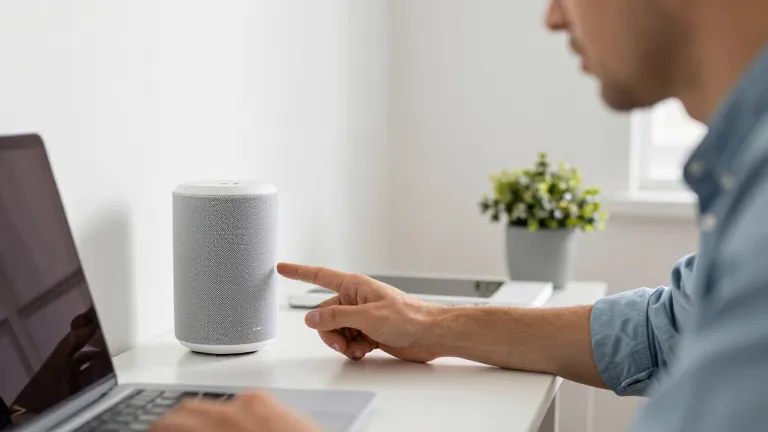
Network connectivity issues are one of the most frequent reasons a Sonos speaker disappears from the app. Sonos speakers rely on a stable Wi-Fi connection to communicate with the app and other devices. If your network experiences interference, weak signal strength, or frequent drops, the speaker may lose connection temporarily. Additionally, if your router is rebooting or undergoing updates, it can disrupt the speaker's ability to stay connected. Ensuring your Wi-Fi is functioning properly and your speaker is within range of the router is a crucial first step in troubleshooting.
App Glitches and Software Updates
App glitches and software updates can also lead to a Sonos speaker becoming invisible in the app. Sometimes, the app may not refresh correctly or experience a bug that causes it to misidentify connected devices. Updating the Sonos app to the latest version is often recommended, as it can resolve compatibility issues or fix known bugs. Additionally, if your speaker's firmware is outdated, it might not communicate properly with the app. Checking for and applying updates to both the app and your speaker can often resolve these types of issues.
Speaker Configuration Errors
Incorrect speaker configuration errors can result in a Sonos speaker disappearing from the app. This can happen if the speaker was moved to a different room or reconfigured through the app without proper setup. If a speaker is assigned to a room that no longer exists or has been renamed, it may not appear in the app as expected. Additionally, if the speaker was paired with another device or account, it might not be recognized correctly. Reviewing your room settings and ensuring your speaker is correctly assigned to a valid room can help restore its visibility in the app.
Step-by-Step: How to Fix Sonos Speaker Disappearing From Sonos App
Before taking further steps, ensure your Sonos speaker is connected to the same Wi-Fi network as your router. If the speaker has been moved or the network has changed, it may no longer be visible in the app. Check the speaker’s settings within the app to confirm its current network status. If the speaker is connected to a different network, you’ll need to reconfigure it to join the correct one. A stable and strong Wi-Fi connection is crucial for the speaker to remain visible and functional.
- Check the network settings on both your Sonos speaker and router. Ensure the speaker is connected to the same Wi-Fi network as your router. If the network has changed, the speaker may no longer be visible in the app.
- Restart the Sonos app and your router to resolve temporary glitches. Close the app completely and reopen it to refresh the connection status. If the issue persists, restart your router to reset the network and potentially restore communication between the speaker and the app.
- Ensure your Sonos speaker is within the recommended range of your Wi-Fi network. The speaker should be within 30 feet of the router for optimal performance. If the speaker is too far, it may lose connection or fail to appear in the app. Consider relocating the speaker or the router to improve signal strength.
- Update the Sonos app to the latest version. Outdated app versions can cause compatibility issues and prevent the speaker from appearing in the app. Go to the App Store or Google Play and check for updates. If the speaker is still missing, proceed to the next steps for more advanced troubleshooting.
How to Use the Sonos App to Reconnect Your Speaker
Reconnecting your Sonos speaker through the Sonos app is a straightforward process that can resolve issues with the speaker disappearing from the app. By following the app’s guided setup, you can re-establish the connection without needing to reset the speaker or lose your existing configuration.
Adding a New Room in the Sonos App
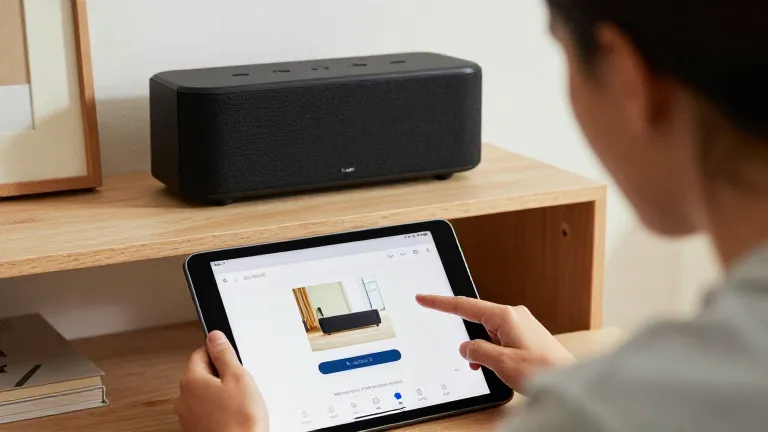
To add a new room in the Sonos app, open the app and tap the ‘Rooms’ section. Tap the ‘+’ icon to start the process of adding a new room. The app will guide you through the steps, including selecting the type of device you want to connect, such as a Sonos speaker. Follow the on-screen instructions to complete the setup, which may involve scanning for your speaker or entering its name if it’s not detected automatically.
Manually Reconnecting a Lost Speaker
If your speaker isn’t detected during the ‘Add Room’ process, you can manually reconnect it through the app’s settings. Go to the ‘Settings’ menu and select ‘System’ or ‘Speaker Settings’ depending on your app version. Look for an option to ‘Manually Add Speaker’ or ‘Add Speaker Manually’ and follow the prompts. This method allows you to enter the speaker’s name or MAC address if needed. Once the speaker is added, verify its status in the ‘Rooms’ section to ensure it’s connected properly.
Troubleshooting: Advanced Fixes for Sonos Speaker Disappearance
If your Sonos speaker continues to disappear from the app despite basic troubleshooting, advanced steps can help resolve the issue. These methods address deeper system conflicts and ensure your speaker is properly recognized by the app.
Resetting Your Sonos Speaker
Resetting your Sonos speaker to factory settings can resolve persistent connectivity issues. Press and hold the reset button on the speaker for 10 seconds until the LED light turns off. This will erase all custom settings and restore the speaker to its original state. After resetting, power the speaker back on and attempt to reconnect it through the Sonos app. This process can eliminate software corruption or misconfiguration that might be causing the disappearance.
Checking for Firmware Updates
Ensure both your Sonos speaker and the app are running the latest firmware. Open the Sonos app and navigate to the 'Settings' menu to check for updates. If an update is available, follow the on-screen instructions to install it. Additionally, visit the Sonos website to check for firmware updates for your specific speaker model. Keeping your firmware up to date ensures compatibility and fixes any known bugs that could interfere with connectivity.
Preventive Measures to Avoid Future Issues
Preventive measures are essential to ensure your Sonos speaker remains reliably connected to the Sonos app. By maintaining your system and optimizing your network, you can significantly reduce the chances of your speaker disappearing from the app in the future.
Regular Maintenance and Updates
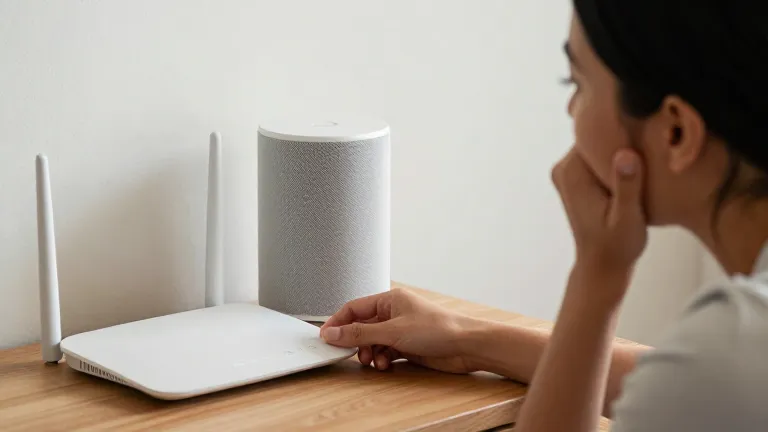
Regular maintenance and updates play a critical role in preventing connectivity issues. Ensure your Sonos speaker is always running the latest firmware by checking for updates within the Sonos app. Similarly, keep the Sonos app updated on your smartphone or tablet, as newer versions often include bug fixes and compatibility improvements. Enabling automatic updates can help you stay current without manual intervention, reducing the risk of unexpected connectivity problems.
Optimizing Your Wi-Fi Setup
Optimizing your Wi-Fi setup is another key step in maintaining a stable connection. Place your Sonos speaker within a reasonable distance from your router to avoid signal degradation. While modern devices can handle 5 GHz networks, Sonos speakers typically perform better on the 2.4 GHz band due to its greater range and stability. If possible, connect your speaker to the 2.4 GHz band and ensure your router is configured to provide a strong signal in the area where the speaker is placed. Avoid placing the speaker near thick walls or other obstructions that could interfere with the signal.
Frequently Asked Questions
What should I do if my Sonos speaker is not showing up in the app?
If your Sonos speaker isn't showing up, first check your Wi-Fi connection and restart the app. If that doesn't work, try a router reboot or reset the speaker. If the issue persists, ensure the speaker is within range and no other devices are interfering with the network.
Can a router reboot help fix my Sonos speaker disappearance?
Yes, rebooting your router can resolve network connectivity issues that cause the Sonos speaker to disappear. This action refreshes the connection and may allow the speaker to reappear in the app. It's a simple step that can often resolve temporary connectivity problems.
How do I manually reconnect my Sonos speaker if it's missing?
To manually reconnect, open the Sonos app, navigate to the 'Settings' menu, and select 'Add Room'. Follow the on-screen instructions to locate and reconnect your speaker. Ensure it's within range and the Wi-Fi is stable during the process.
What if my Sonos speaker still doesn't show up after trying all the fixes?
If your Sonos speaker still doesn't show up, consider updating the firmware or contacting Sonos support. Advanced troubleshooting steps like a factory reset or checking for network interference may also be necessary.
Final Thoughts
Regular maintenance and network optimization can prevent Sonos speaker issues. Ensure your router is stable and your firmware is up to date.
If your Sonos speaker remains invisible, contact Sonos support for further assistance. A proactive approach ensures seamless audio experiences.





