
How to Fix Wyze Cam Error Code 90 (Device Offline)
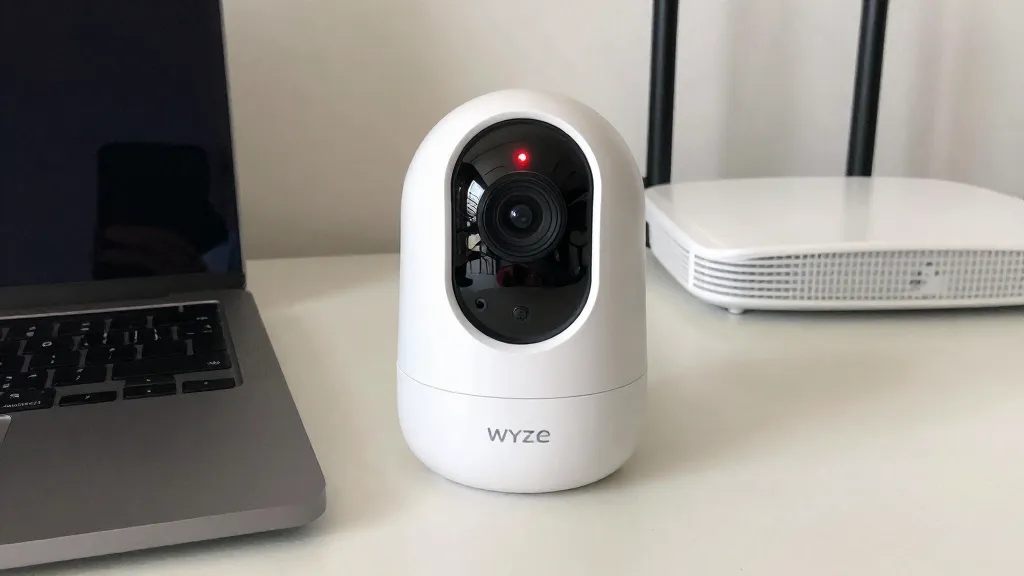
If your Wyze Cam is showing Error Code 90, it means the device is offline and not communicating with your account. This can disrupt your home security setup and leave you feeling vulnerable. Whether you're a homeowner or a tech-savvy individual, resolving this issue without professional help is entirely possible. This article will guide you through understanding Error Code 90, identifying its causes, and implementing practical fixes. From basic troubleshooting to advanced steps, we'll cover everything you need to get your Wyze Cam back online and working reliably. By following these steps, you can restore your security system and prevent future issues with confidence.
Understanding Wyze Cam Error Code 90
Wyze Cam Error Code 90 is a common issue that homeowners may encounter when using their Wyze Cam for security monitoring. This error typically indicates that the camera is not connected to the Wi-Fi network, which can disrupt video streaming and alert functionality. Understanding the root cause of Error Code 90 is essential for resolving the issue efficiently without requiring professional assistance.

What Does Error Code 90 Mean?
Error Code 90 on the Wyze Cam signifies that the device is offline and unable to establish a connection with the Wi-Fi network. This status can prevent the camera from sending real-time video feeds or motion alerts to the user's mobile app. The error may appear even if the camera is powered on, indicating a deeper connectivity or configuration issue.
Common Causes of Error Code 90
Common causes of Error Code 90 include unstable or interrupted Wi-Fi connectivity, which can occur due to signal interference, router issues, or network outages. A power supply problem, such as a faulty power adapter or insufficient battery life, can also result in the camera being offline. Additionally, outdated firmware on the camera may cause compatibility issues, leading to the error. These factors can individually or collectively contribute to the camera's inability to maintain a stable connection.
Step-by-Step Guide to Fix Wyze Cam Error Code 90
Fixing Wyze Cam Error Code 90 begins with a systematic approach to address the most common issues. Start by verifying the power source, then re-establish the Wi-Fi connection, and ensure the camera is running the latest firmware. These steps can often resolve the offline error without needing advanced troubleshooting.
- Check the camera’s power source and ensure it’s properly connected.
- Verify the Wi-Fi connection and reconfigure the network if needed.
- Restart the camera and the router to refresh the connection.
- Update the camera firmware to the latest version.
Power Cycle the Wyze Cam
Begin by checking the camera’s power source. Ensure the power adapter is securely connected to both the camera and a working outlet. If the camera is battery-powered, confirm the battery is fully charged. A loose connection or depleted power supply can trigger Error Code 90, so addressing this issue first is crucial.
Reconnect to Wi-Fi Network
Next, verify the Wi-Fi connection. Open the Wyze app and check if the camera is listed as offline. If so, try reconnecting it to the same Wi-Fi network. If the network is unstable or the password is incorrect, reconfigure the connection through the app. A strong and stable Wi-Fi signal is essential for the camera to remain online and function properly.
Update Camera Firmware
Finally, update the camera firmware. Open the Wyze app, navigate to the camera settings, and check for available firmware updates. Installing the latest firmware ensures the camera operates efficiently and resolves any known bugs that may cause connectivity issues. Firmware updates are typically automatic, but manual checks can prevent unexpected errors like Error Code 90.
Advanced Troubleshooting for Wyze Cam Error Code 90
Advanced troubleshooting for Wyze Cam Error Code 90 involves addressing deeper connectivity issues and ensuring the camera is properly configured. By eliminating potential sources of interference and re-establishing the connection, you can often resolve persistent offline errors without needing to replace the device.
Improve Wi-Fi Signal Strength
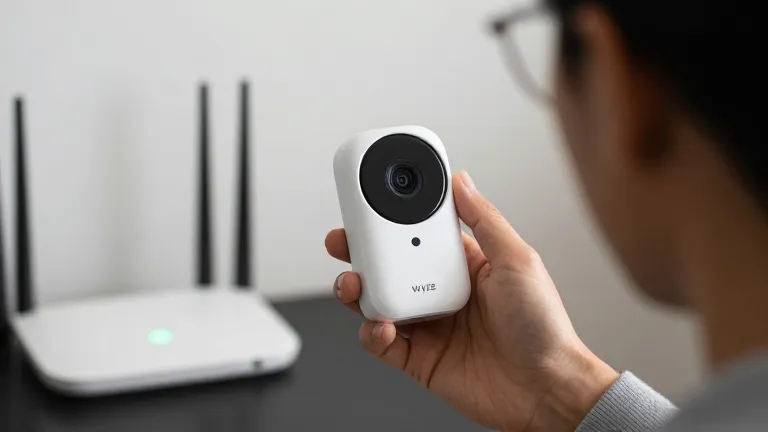
Interference from other devices on the same Wi-Fi network can degrade the signal quality and cause the Wyze Cam to go offline. Common culprits include microwaves, cordless phones, and other IoT devices operating on the 2.4 GHz frequency. To mitigate this, identify and temporarily disable or move these devices away from the camera. Additionally, switching to a 5 GHz network (if available) can reduce congestion and improve stability.
Factory Reset and Re-Pairing
If the Wi-Fi signal is stable but the camera remains offline, a factory reset and re-pairing may be necessary. This process removes any corrupted settings and re-establishes a clean connection between the camera and the Wyze app. To perform a factory reset, press and hold the reset button on the camera for 10 seconds until the LED turns off. Once reset, follow the app’s instructions to pair the camera again. This step is particularly useful if previous troubleshooting steps have failed to resolve the issue.
Prevent Future Issues with Wyze Cam Error Code 90
Preventing future issues with Wyze Cam Error Code 90 involves proactive steps to maintain stable connectivity and performance. By addressing potential causes before they lead to device downtime, homeowners can ensure their security system remains reliable and functional over time.
Optimize Camera Placement
Optimize Camera Placement is key to avoiding connectivity problems. Place the Wyze Cam in a location with a strong and consistent Wi-Fi signal, away from physical obstructions like walls or metal objects. Avoid positioning the camera near other wireless devices such as microwaves, cordless phones, or Bluetooth speakers, as these can cause interference. A clear line of sight to the router and a distance within 30 feet typically ensures optimal signal strength.
Maintain Firmware Updates
Maintaining Firmware Updates helps prevent compatibility issues and security vulnerabilities. Wyze regularly releases firmware updates that improve performance, fix bugs, and enhance security features. Enabling automatic updates in the Wyze app ensures the camera stays current without manual intervention. If automatic updates are unavailable, check for new firmware versions manually through the app settings at least once a month.
When to Seek Professional Help for Wyze Cam Error Code 90
If you've exhausted all the troubleshooting steps and your Wyze Cam is still offline, it's time to consider professional help. Persistent issues may indicate a deeper problem that requires expert attention, especially if the camera is damaged or unresponsive.
When to Give Up on DIY Fixes
When to Give Up on DIY Fixes: If the camera remains offline after trying all troubleshooting steps, it's a clear sign that the issue may be beyond your control. This could be due to internal hardware failure, a corrupted firmware, or a problem with the camera's connection to the Wyze app. If the camera is not responding to power cycles or advanced settings, it's best to stop attempting DIY fixes and seek professional assistance.
Professional Repair Options
Professional Repair Options: A qualified technician can diagnose and repair hardware issues, such as faulty internal components or damaged wiring. They can also reset the camera's factory settings and re-pair it with your network, ensuring that all configurations are correct. If the camera is beyond repair, a professional can guide you through the replacement process, ensuring that your security system remains functional without further complications.
Frequently Asked Questions
What should I do if my Wyze Cam is offline and won’t reconnect?
Start by power cycling the camera and checking your Wi-Fi connection. If these steps don’t work, try updating the firmware or performing a factory reset.
Can a power cycle fix Wyze Cam error code 90?
Yes, a power cycle can often resolve error code 90 by resetting the camera’s connection and clearing temporary glitches.
How do I update my Wyze Cam firmware?
Open the Wyze app, navigate to your camera’s settings, and check for firmware updates. Ensure the camera is connected to Wi-Fi during the update.
Is error code 90 the same across all Wyze Cam models?
Error code 90 typically indicates a connectivity issue, but the exact cause and resolution may vary slightly between Wyze Cam models.
Final Thoughts
Addressing Wyze Cam error code 90 involves checking connectivity, updating firmware, and optimizing placement. Regular maintenance can help prevent future issues.
If these steps don’t resolve the issue, consider professional help. Always ensure your camera is properly set up for reliable performance.





